# Github Enterprise

To use Terrakube’s VCS features with a self-hosted GitHub Enterprise, follow these instructions. For GitHub.com, [see the separate instructions](https://docs.terrakube.io/user-guide/vcs-providers/github.com).

{% hint style="info" %}
**Manage VCS Providers** permission is required to perform this action, please check [team-management](https://docs.terrakube.io/user-guide/organizations/team-management "mention") for more info.
{% endhint %}

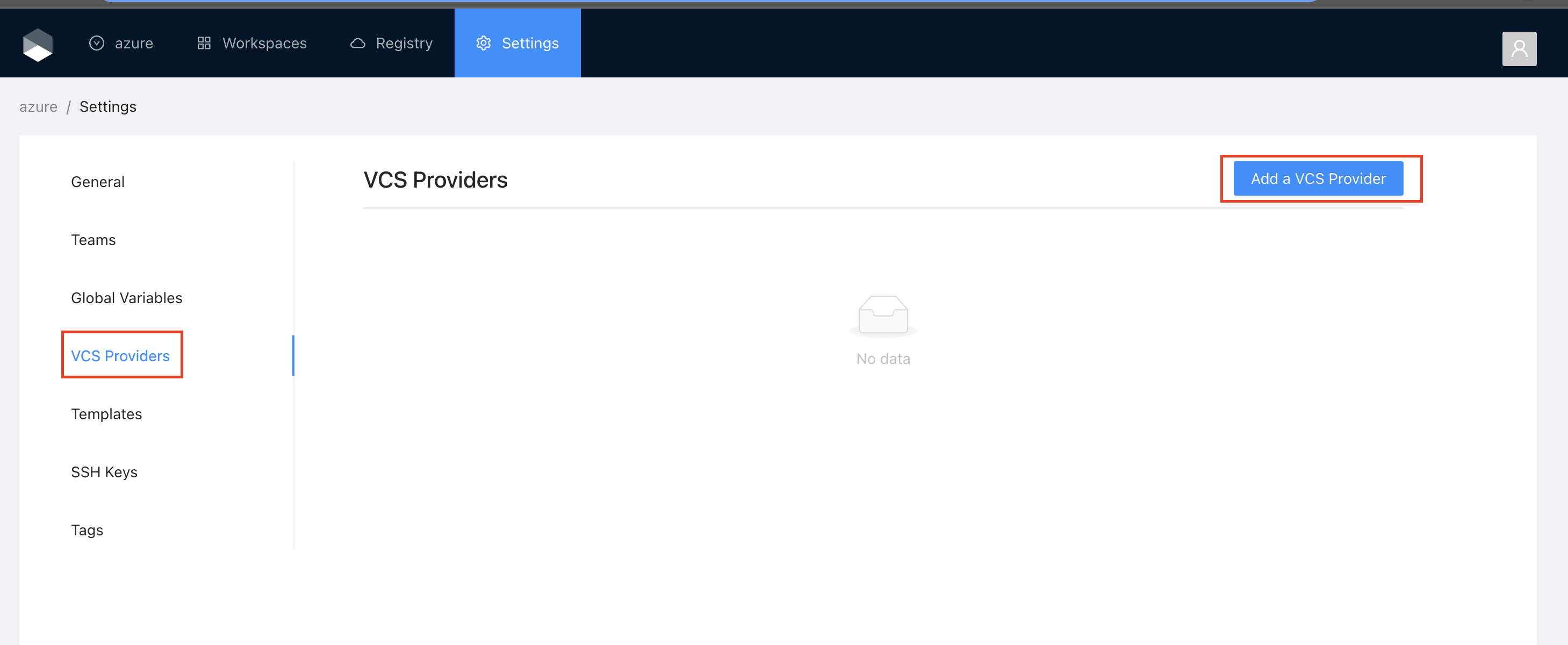
* Got to the organization settings you want to configure. Select the **VCS Providers** on the left menu and click the **Add VCS provider** button on the top right corner..

<figure><img src="https://4014930676-files.gitbook.io/~/files/v0/b/gitbook-x-prod.appspot.com/o/spaces%2F-MfAN3V983Y82_trlbcu%2Fuploads%2Fgit-blob-ccbd0f841c7fd2775101a51a14accf890bc30fd1%2Fimage.png?alt=media" alt=""><figcaption></figcaption></figure>

{% hint style="info" %}
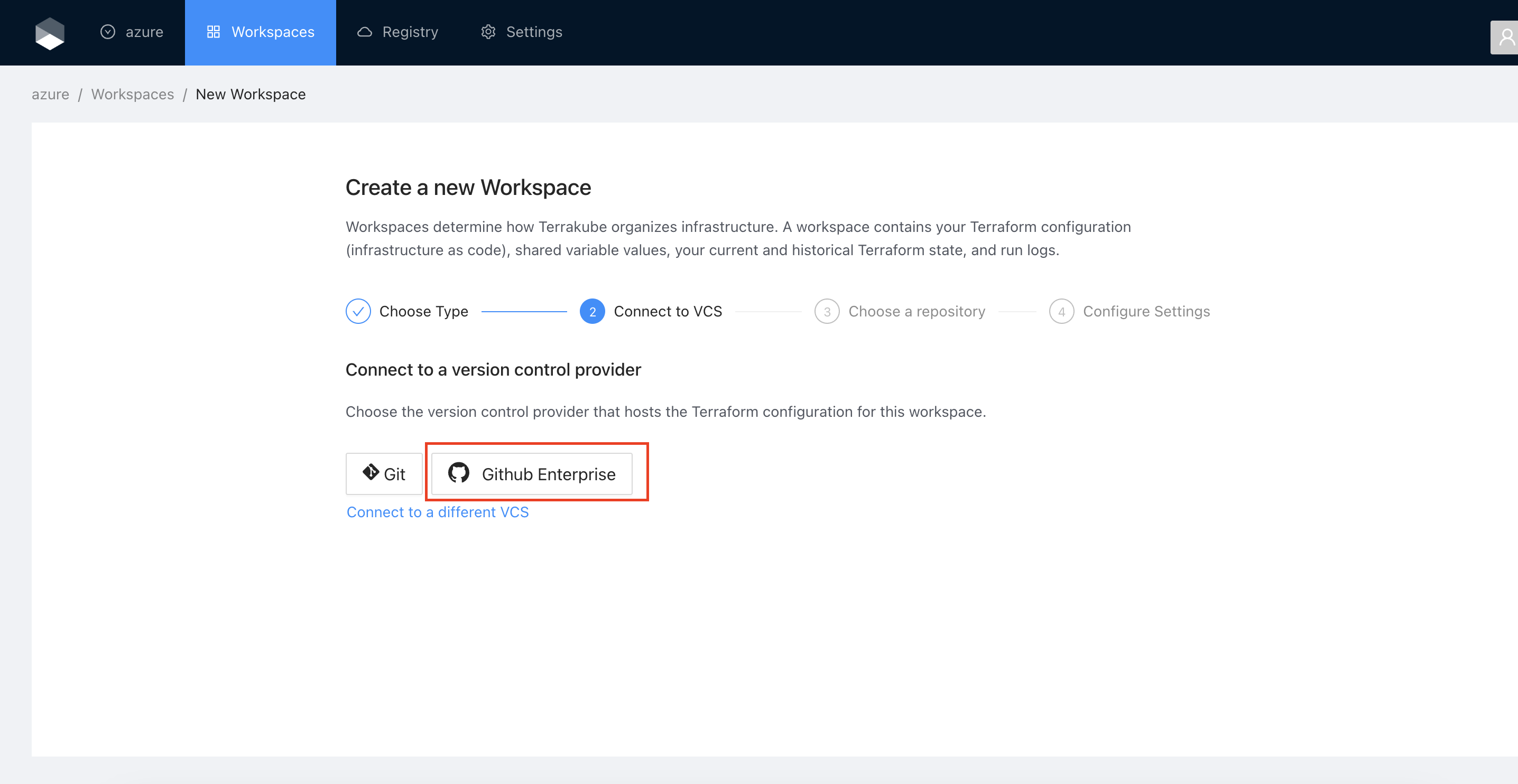
If you prefer, you can add a new VCS Provider directly from the [Create workspace](https://docs.terrakube.io/user-guide/workspaces/creating-workspaces) or Create Module screen.
{% endhint %}

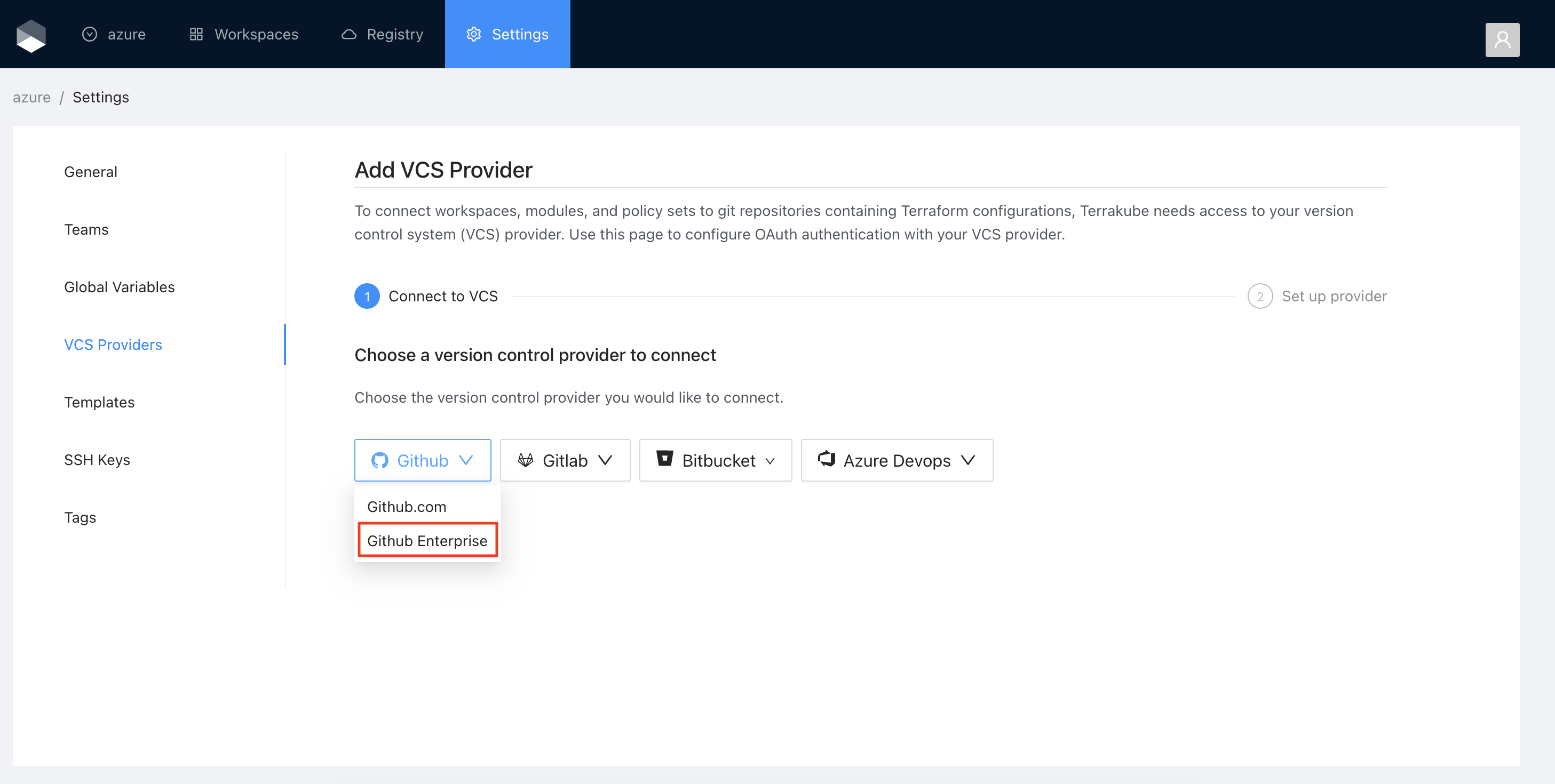
* Click the **Github button** and then click the **Github Enterprise option.**

<figure><img src="https://4014930676-files.gitbook.io/~/files/v0/b/gitbook-x-prod.appspot.com/o/spaces%2F-MfAN3V983Y82_trlbcu%2Fuploads%2Fgit-blob-6cd95fe71f70a7af97a2b52a1df9ac4ad4760eb4%2Fimage.png?alt=media" alt=""><figcaption></figcaption></figure>

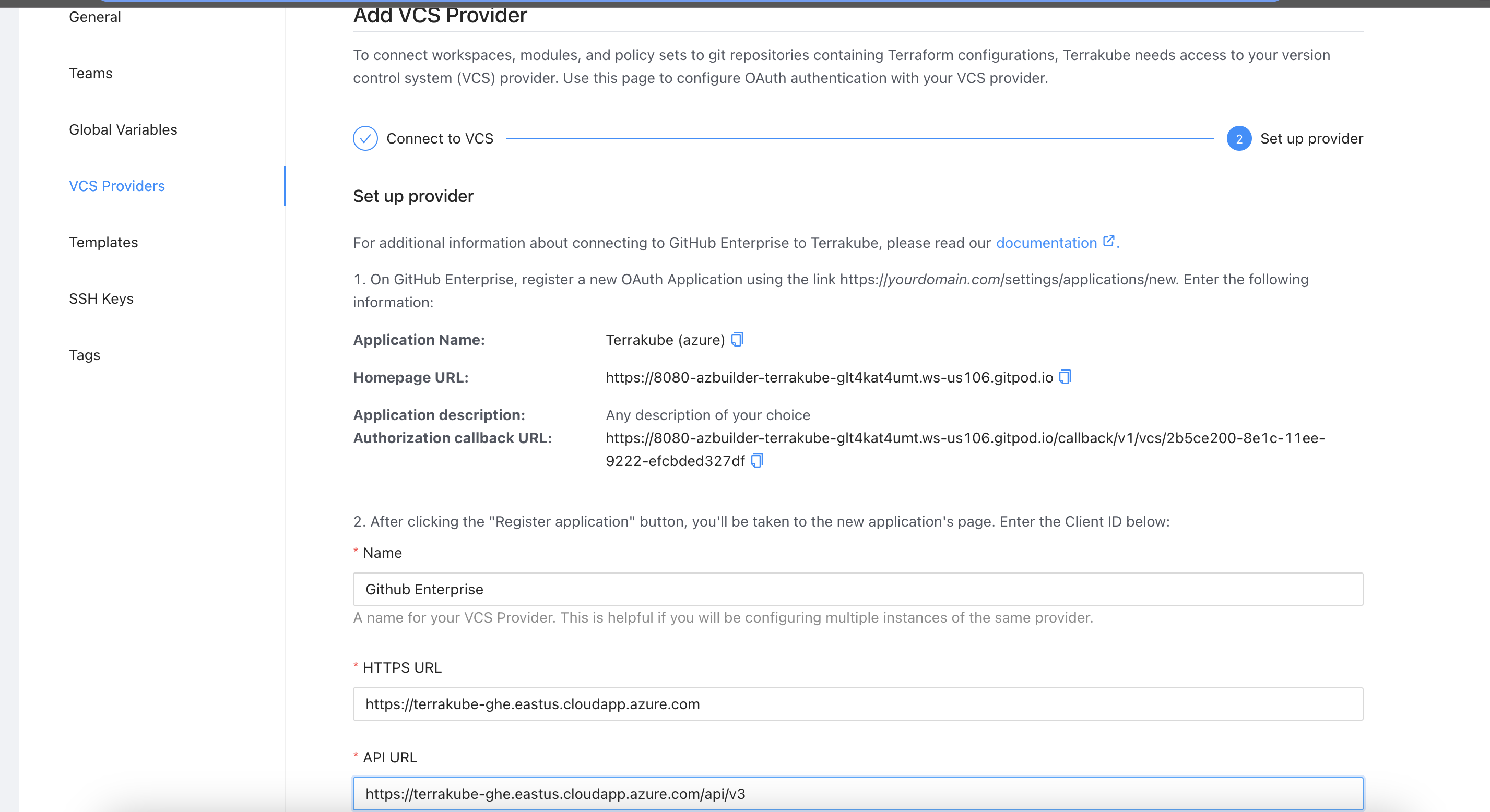
* On the next screen, enter the following information about your Github Enterprise instance:

<table><thead><tr><th width="203">Field</th><th>Value</th></tr></thead><tbody><tr><td>HTTP URL</td><td><code>https://&#x3C;GITHUB INSTANCE HOSTNAME></code></td></tr><tr><td>API URL</td><td><code>https://&#x3C;GITHUB INSTANCE HOSTNAME>/api/v3</code></td></tr></tbody></table>

<figure><img src="https://4014930676-files.gitbook.io/~/files/v0/b/gitbook-x-prod.appspot.com/o/spaces%2F-MfAN3V983Y82_trlbcu%2Fuploads%2Fgit-blob-7ce98947f3745106b98b19b5486da8ea499dd2b8%2Fimage.png?alt=media" alt=""><figcaption></figcaption></figure>

* Use a different browser tab to access your GitHub Enterprise instance and sign in with the account that you want Terrakube to use. You should use a service user account for your organization, but you can also use a personal account.

{% hint style="info" %}
Note: The account that connects Terrakube with your GitHub Enterprise instance needs to have admin rights to any shared Terraform configuration repositories. This is because creating webhooks requires admin permissions.
{% endhint %}

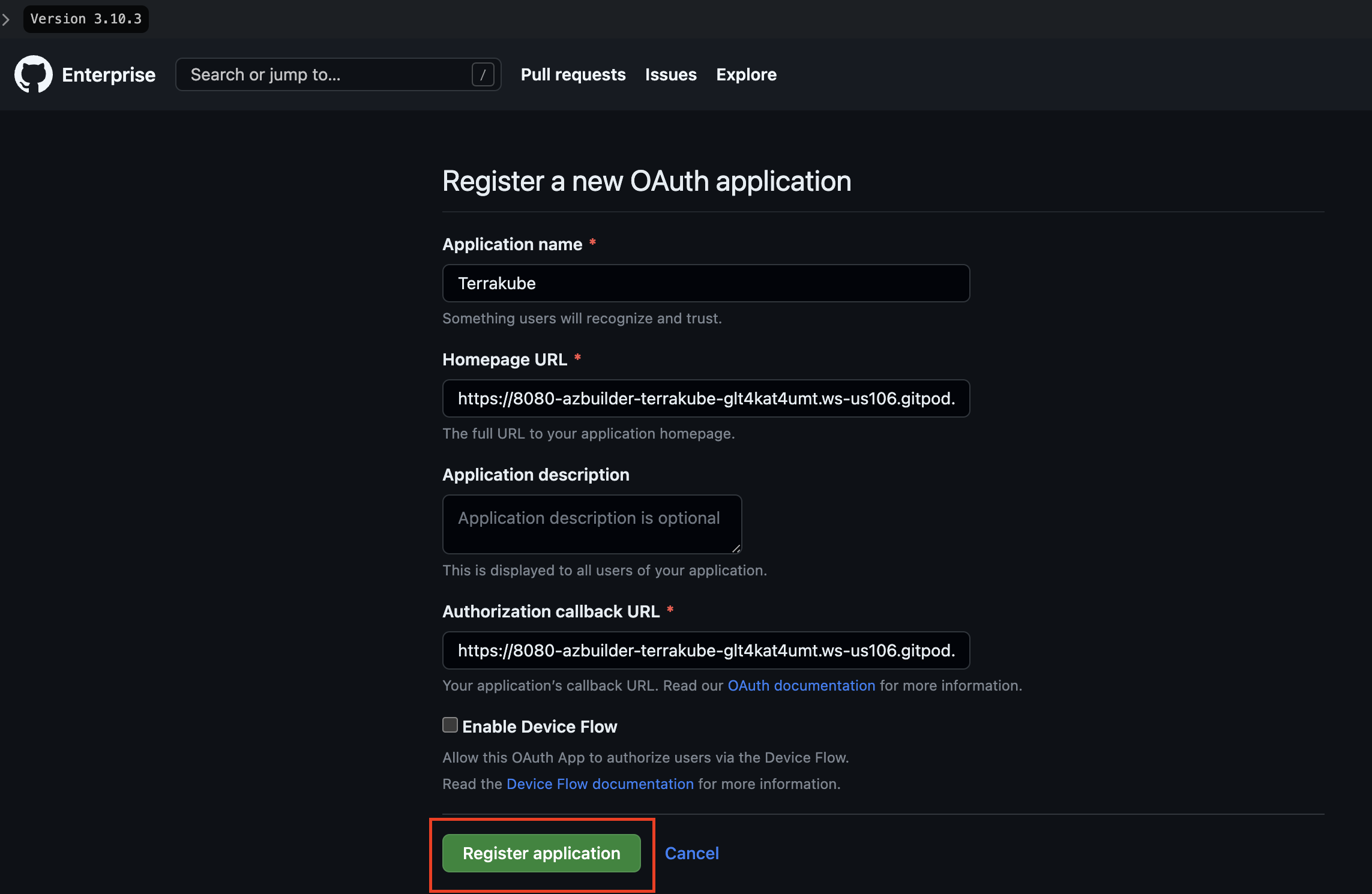
* Navigate to GitHub's Register a New OAuth Application page. This page is located at `https://<GITHUB INSTANCE HOSTNAME>/settings/applications/new`
* In the Github Enterprise page, complete the required fields and click **Register application**

<table><thead><tr><th width="354">Field</th><th>Description</th></tr></thead><tbody><tr><td>Application Name</td><td>Your application name, for example you can use your organization name.</td></tr><tr><td>Homepage URL</td><td>The url for your application or website,</td></tr><tr><td>Application Description</td><td>Any description you choice</td></tr><tr><td>Authorization Callback URL</td><td>Copy the callback url from the Terrakube UI</td></tr></tbody></table>

{% hint style="info" %}
You can complete the fields using the information suggested by terrakube in the VCS provider screen
{% endhint %}

<figure><img src="https://4014930676-files.gitbook.io/~/files/v0/b/gitbook-x-prod.appspot.com/o/spaces%2F-MfAN3V983Y82_trlbcu%2Fuploads%2Fgit-blob-2279a684a147bfe3548a0df81a930554210cd45f%2Fimage.png?alt=media" alt=""><figcaption></figcaption></figure>

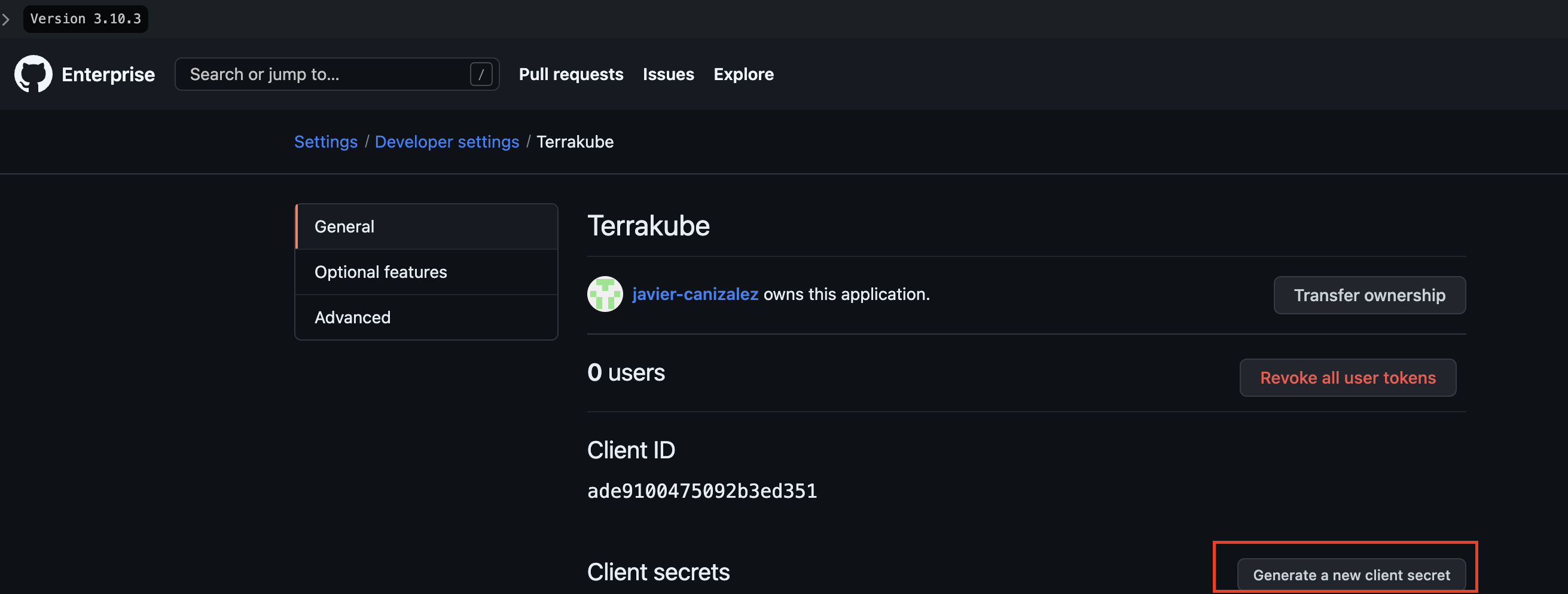
Next, generate a new client secret

<figure><img src="https://4014930676-files.gitbook.io/~/files/v0/b/gitbook-x-prod.appspot.com/o/spaces%2F-MfAN3V983Y82_trlbcu%2Fuploads%2Fgit-blob-a13fbec6553de421a8b3e5633d3d5c2312ac3235%2Fimage.png?alt=media" alt=""><figcaption></figcaption></figure>

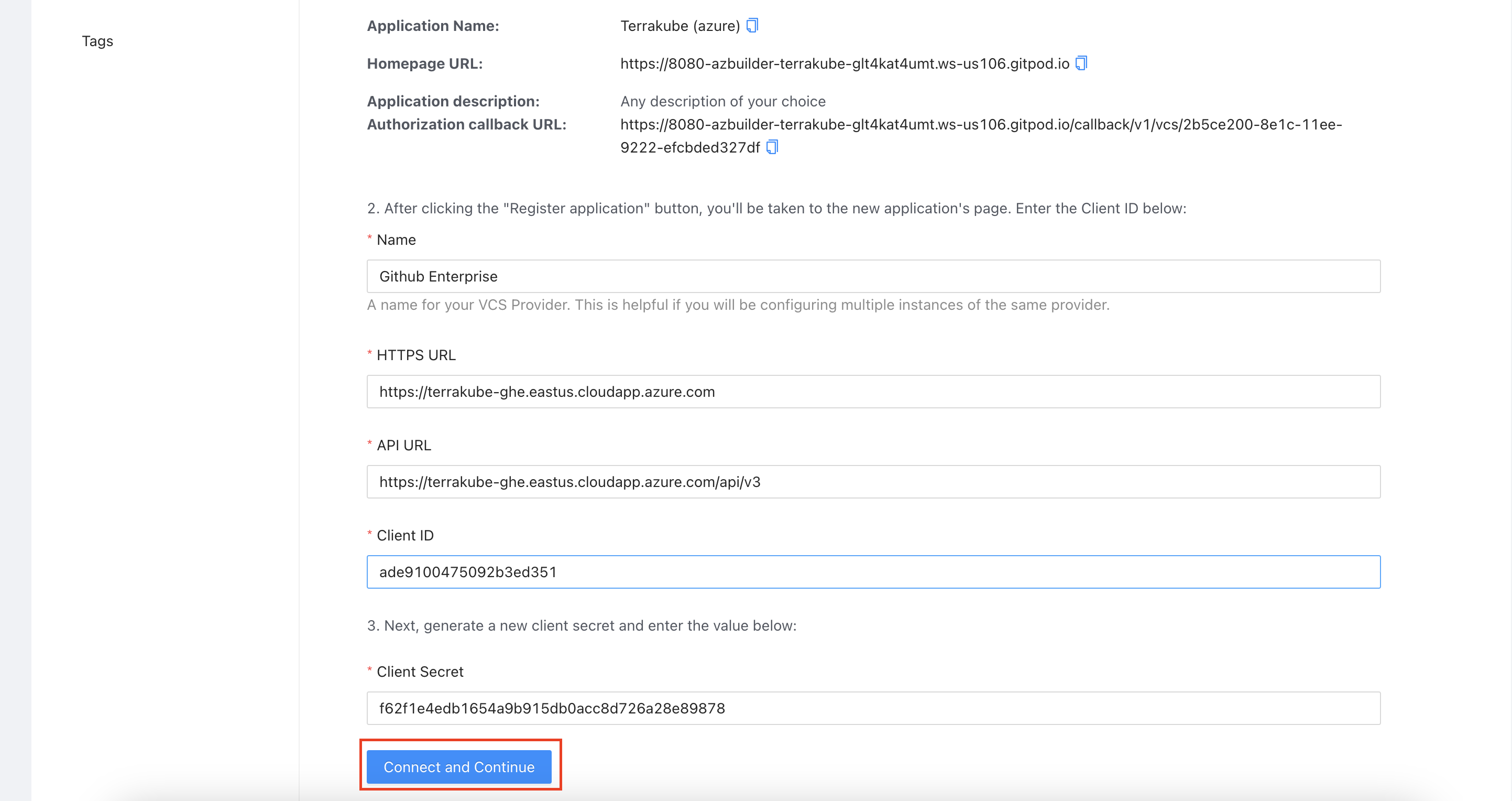
Copy the **Client Id** and **Client Secret** from Github Enterprise and go back to Terrakube to complete the required information. Then, click the **Connect and Continue** button

<figure><img src="https://4014930676-files.gitbook.io/~/files/v0/b/gitbook-x-prod.appspot.com/o/spaces%2F-MfAN3V983Y82_trlbcu%2Fuploads%2Fgit-blob-4a138e5baac4951da5840e19de175a8eb630b1cf%2Fimage.png?alt=media" alt=""><figcaption></figcaption></figure>

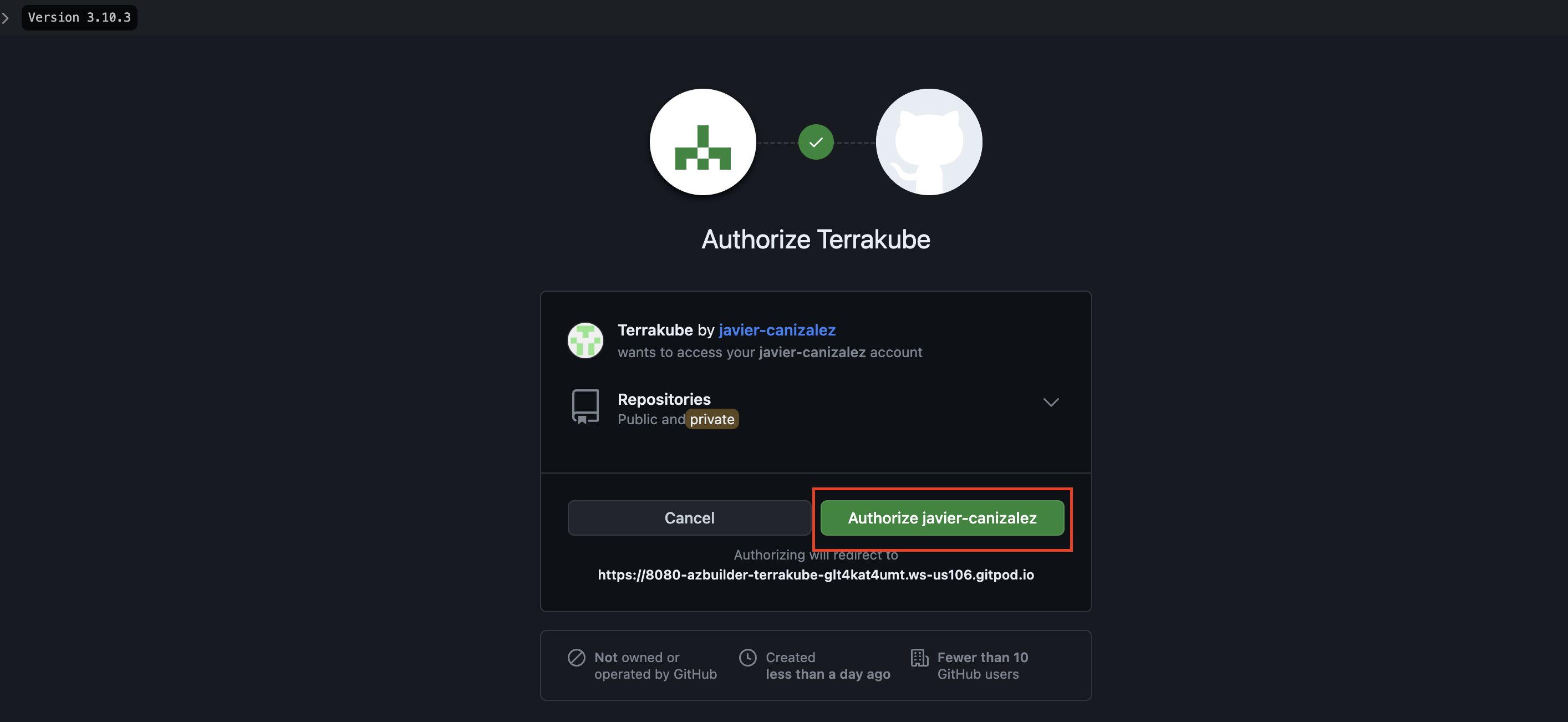
You will be redirected to Github Enterprise. Click the **Authorize** button to complete the connection.

<figure><img src="https://4014930676-files.gitbook.io/~/files/v0/b/gitbook-x-prod.appspot.com/o/spaces%2F-MfAN3V983Y82_trlbcu%2Fuploads%2Fgit-blob-5307cd00f3f012d93d896517007acf3192758d6d%2Fimage.png?alt=media" alt=""><figcaption></figcaption></figure>

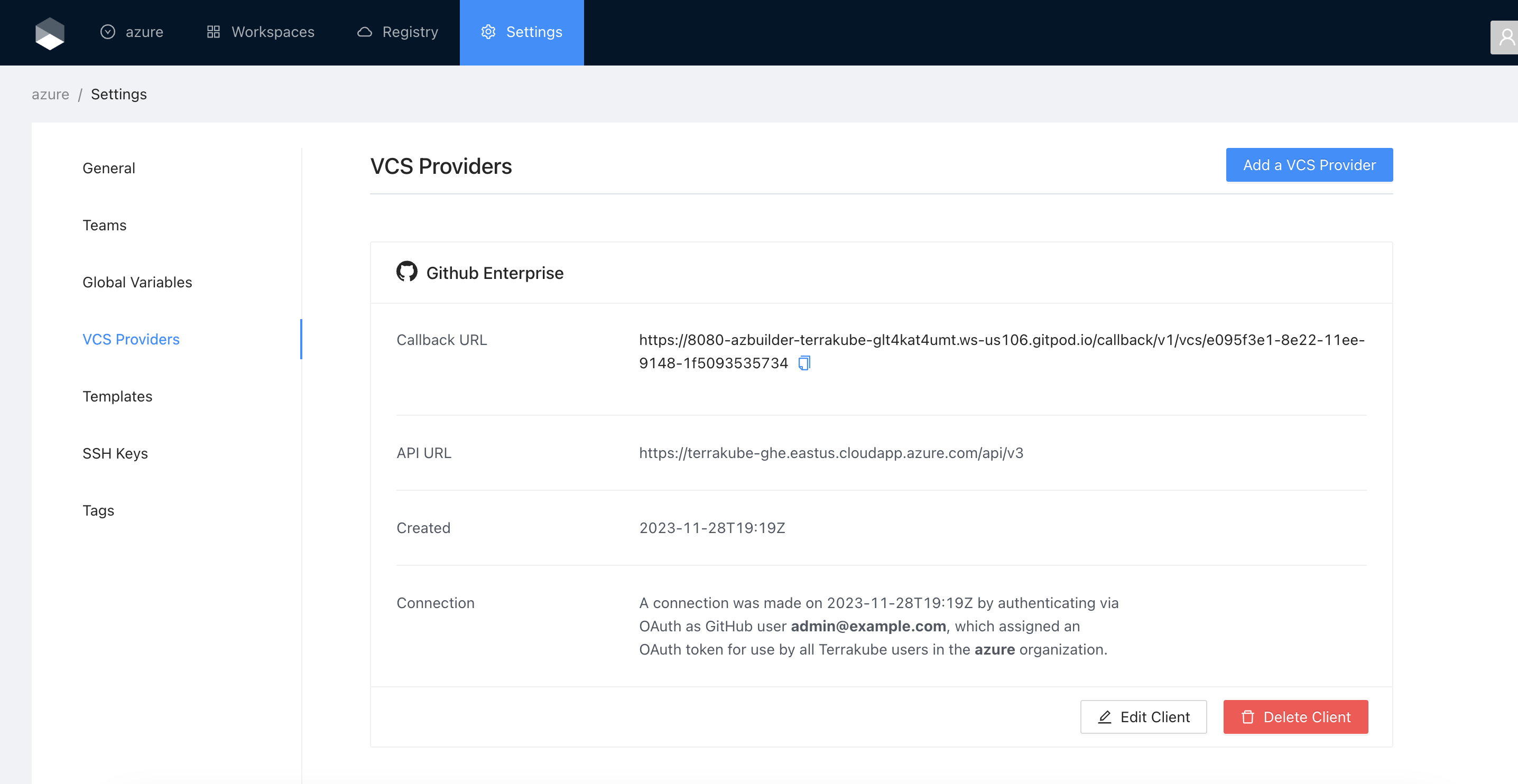
When the connection is successful, you will go back to the VCS provider’s page in your organization. You will see the connection status, the date, and the user who made the connection.

<figure><img src="https://4014930676-files.gitbook.io/~/files/v0/b/gitbook-x-prod.appspot.com/o/spaces%2F-MfAN3V983Y82_trlbcu%2Fuploads%2Fgit-blob-0b62b7a72145133ace3205275d7b2b8e9f813792%2Fimage.png?alt=media" alt=""><figcaption></figcaption></figure>

You can now use the connection for your workspaces and modules.

<figure><img src="https://4014930676-files.gitbook.io/~/files/v0/b/gitbook-x-prod.appspot.com/o/spaces%2F-MfAN3V983Y82_trlbcu%2Fuploads%2Fgit-blob-3067f709dc56bed431159e839c4203c90000ac71%2Fimage.png?alt=media" alt=""><figcaption></figcaption></figure>


---

# Agent Instructions: Querying This Documentation

If you need additional information that is not directly available in this page, you can query the documentation dynamically by asking a question.

Perform an HTTP GET request on the current page URL with the `ask` query parameter:

```
GET https://docs.terrakube.io/user-guide/vcs-providers/github-enterprise.md?ask=<question>
```

The question should be specific, self-contained, and written in natural language.
The response will contain a direct answer to the question and relevant excerpts and sources from the documentation.

Use this mechanism when the answer is not explicitly present in the current page, you need clarification or additional context, or you want to retrieve related documentation sections.