# Getting Started

We use Gitpod to develop the platform. You can have a complete development environment to test all the components and features with one click using the following button.

[![Gitpod ready-to-code](https://camo.githubusercontent.com/791bd446c60d39e9a296e8d02837c81fe0af6108f02a04afbc93edda0cb93ad6/68747470733a2f2f696d672e736869656c64732e696f2f62616467652f476974706f642d72656164792d2d746f2d2d636f64652d626c75653f6c6f676f3d676974706f64267374796c653d666c61742d737175617265)](https://gitpod.io/#https://github.com/AzBuilder/terrakube)

{% hint style="warning" %}
Gitpod is [free for 50 hours](https://www.gitpod.io/pricing) every month, so you dont have to worry for testing the application.
{% endhint %}

Running Terrakube in Gitpod is like running the platform in any Kubernetes distribution in Azure, Aws or GCP, so you will be able to use all the features available with one single click without installing any software in your computer and the environment should be ready in only 1 or 2 minute.

> Terrakube API uses an in memory database, it will be deleted and preloaded with default information in every startup.

#### Gitpod Environment Information.

A file called ***GITPOD.md*** will have the information for the entire workspace
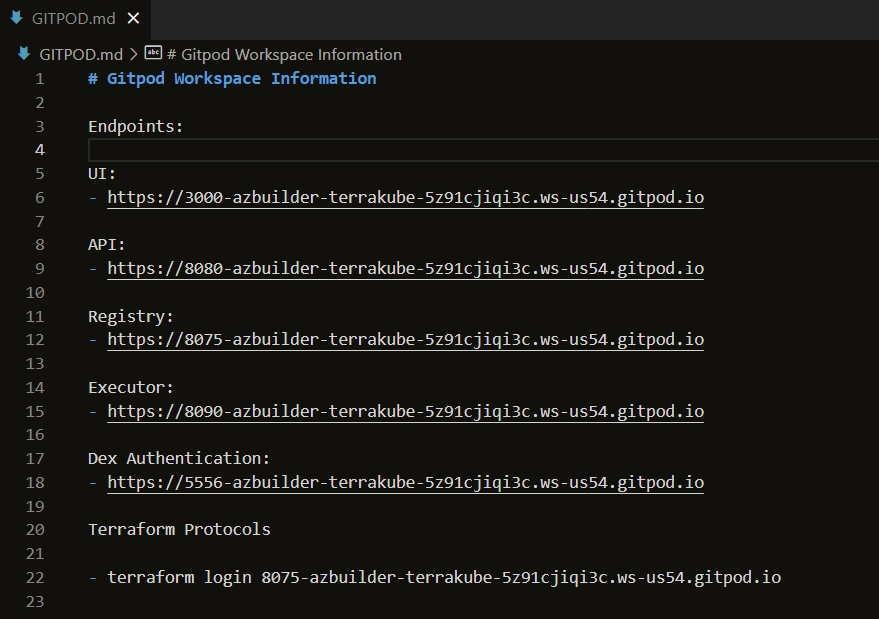
<figure><img src="https://user-images.githubusercontent.com/4461895/181385377-c25610e5-f39b-48f4-aa5c-3bfafce54794.png" alt=""><figcaption></figcaption></figure>

The configuration is generated dynamically using the following bash script. This is executed by Gitpod in the environment startup process.

```
./scripts/setupDevelopmentEnvironment.sh
```

> If for some reason we need to execute the script again, it needs to be executed form the ***/workspace/terrakube*** folder

The development environment will have the following information:

| Groups                |
| --------------------- |
| TERRAKUBE\_ADMIN      |
| TERRAKUBE\_DEVELOPERS |
| AZURE\_DEVELOPERS     |
| AWS\_DEVELOPERS       |
| GCP\_DEVELOPERS       |

| User                | Password | Member Of                               |
| ------------------- | -------- | --------------------------------------- |
| <admin@example.com> | admin    | TERRAKUBE\_ADMIN, TERRAKUBE\_DEVELOPERS |
| <aws@example.com>   | aws      | AWS\_DEVELOPERS                         |
| <azure@example.com> | azure    | AZURE\_DEVELOPERS                       |
| <gcp@example.com>   | gcp      | GCP\_DEVELOPERS                         |

#### Start Development Environment

To run all the Terrakube components run the following task:
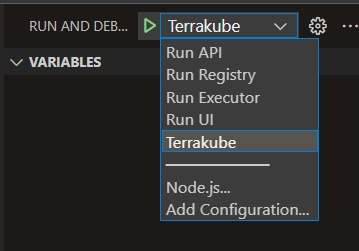
<figure><img src="https://user-images.githubusercontent.com/4461895/181374024-a8f546ba-dbf7-4ac9-a74b-04ff8759f165.png" alt=""><figcaption></figcaption></figure>

After a couple of seconds all the components will be running, you can start/stop/restart any component as needed.
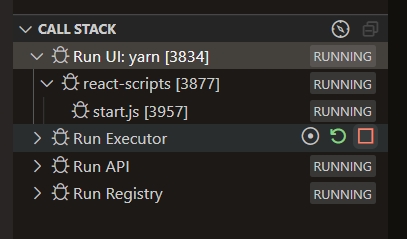
<figure><img src="https://user-images.githubusercontent.com/4461895/181374080-c7486a32-b4f2-41d3-9112-5861e3fdc8d9.png" alt=""><figcaption></figcaption></figure>

#### Login Development Environment

After the application startup is completed, we can login to the development environment, to get the URL you can execute the following command:

```
gp url 3000
```

The Terrakube login will look like this example:
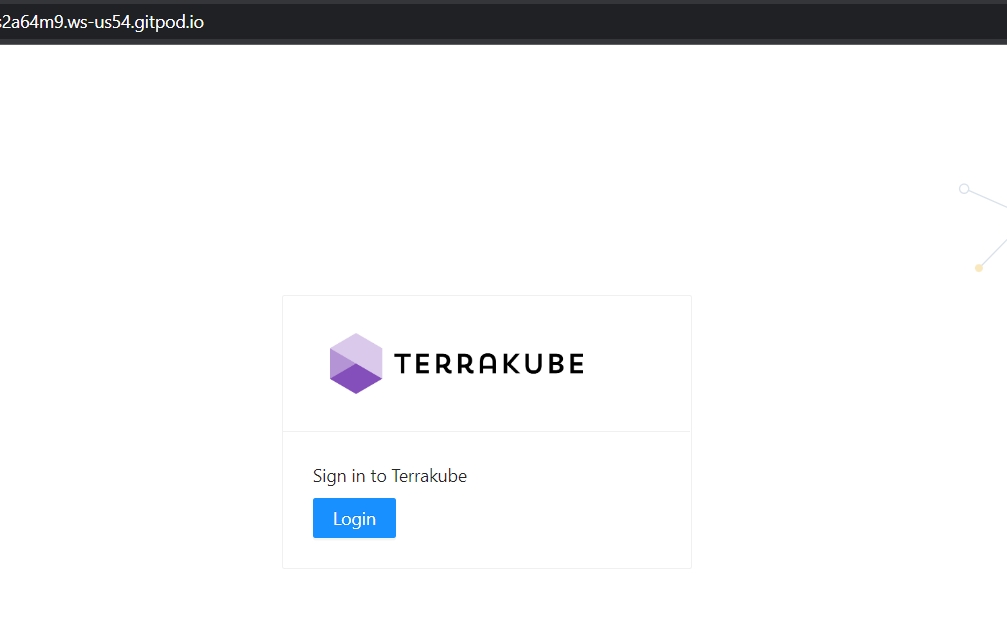
<figure><img src="https://user-images.githubusercontent.com/4461895/181138967-401c142a-9366-4d1b-8506-1c667f5ab543.png" alt=""><figcaption></figcaption></figure>

#### Dex Authentication.

The Gitpod environment is using an OpenLDAP tha is connected to a Dex using the LDAP connector. The OpenLDAP configuration(users and groups) can be found in the following file:

```
scripts/setup/dex/config-ldap.ldif
```

The Dex configuration file is generated dynamically and will be available in the following file:

```
scripts/setup/dex/config-ldap.yaml
```

The template that is used to generate the Dex configuration file can be found in this path:

```
scripts/template/dex/template-config-ldap.yaml
```

Dex login page should look like this example:
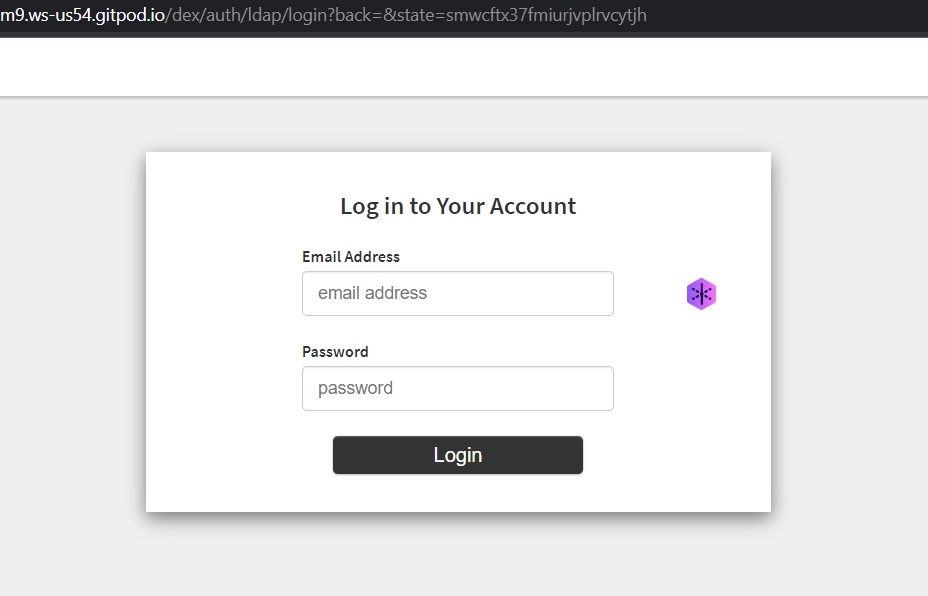
<figure><img src="https://user-images.githubusercontent.com/4461895/181138996-f6ae507f-c3cf-460a-bc12-60ed6cb2e159.png" alt=""><figcaption></figcaption></figure>

#### Sample Organizations

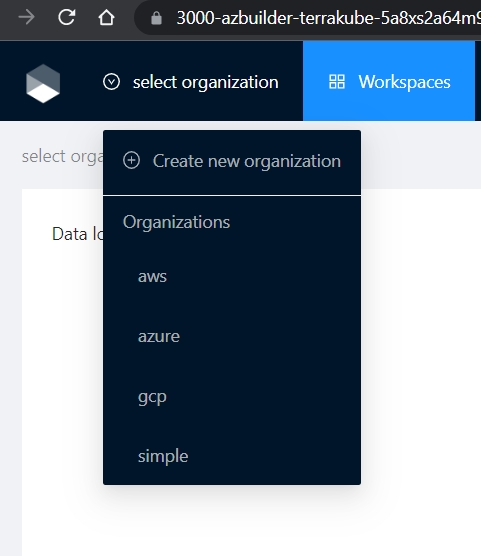
The development environment will be preloaded with 4 organizations(azure, gcp, aws and simple), this information is loaded inside the API startup and the scripts to load the information can be found in the following xml files

```
api/src/main/resources/db/changelog/demo-data/aws.xml
api/src/main/resources/db/changelog/demo-data/gcp.xml
api/src/main/resources/db/changelog/demo-data/azure.xml
api/src/main/resources/db/changelog/demo-data/simple.xml
```

<figure><img src="https://user-images.githubusercontent.com/4461895/181139038-ff3c449a-7c4a-4346-b1d1-08a150b99307.png" alt=""><figcaption></figcaption></figure>

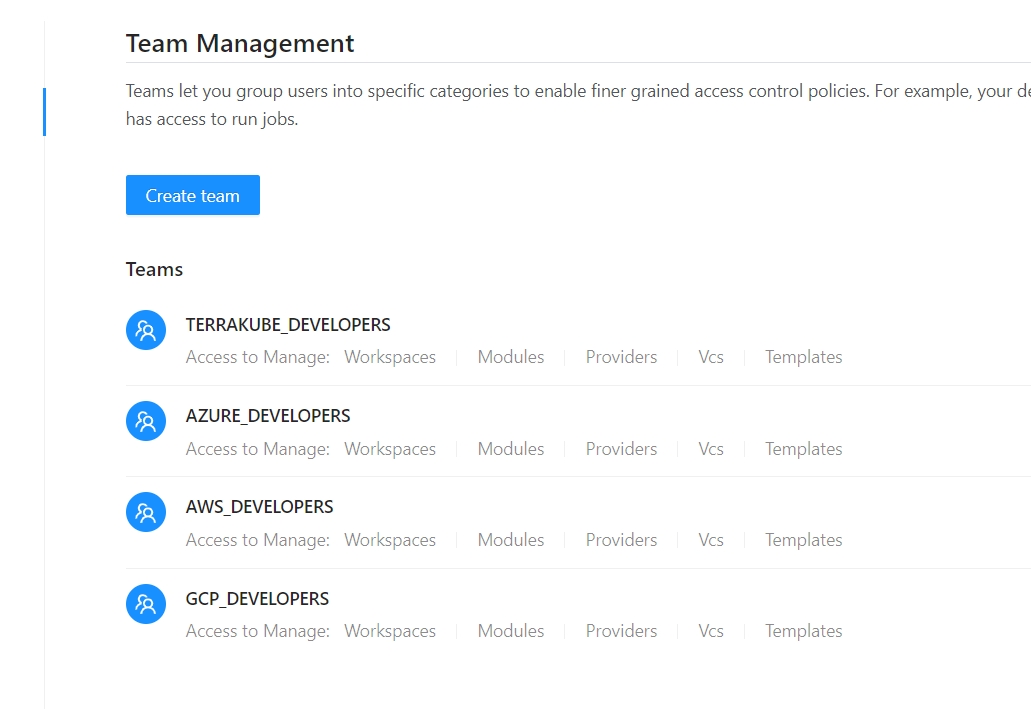
#### Sample Teams

Depending of the selected organization and user you will see different information available.&#x20;

<figure><img src="https://user-images.githubusercontent.com/4461895/181139272-3d73ece3-718c-43ec-aaaf-8cff7ddef227.png" alt=""><figcaption></figcaption></figure>

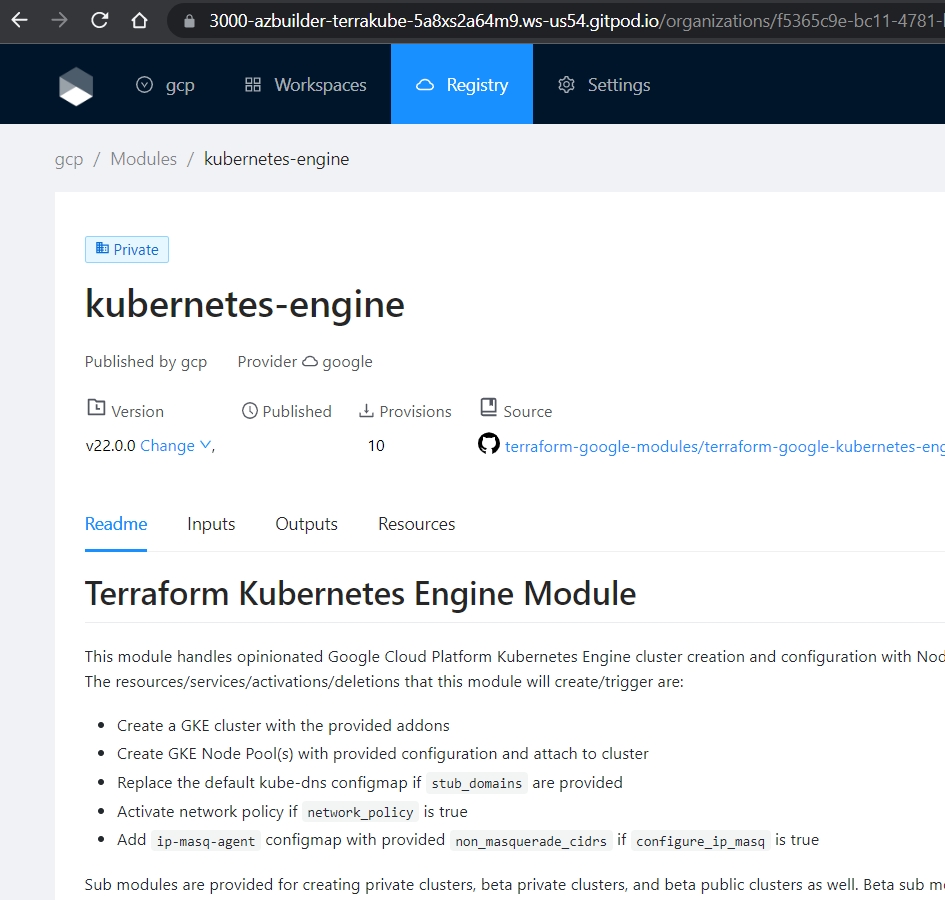
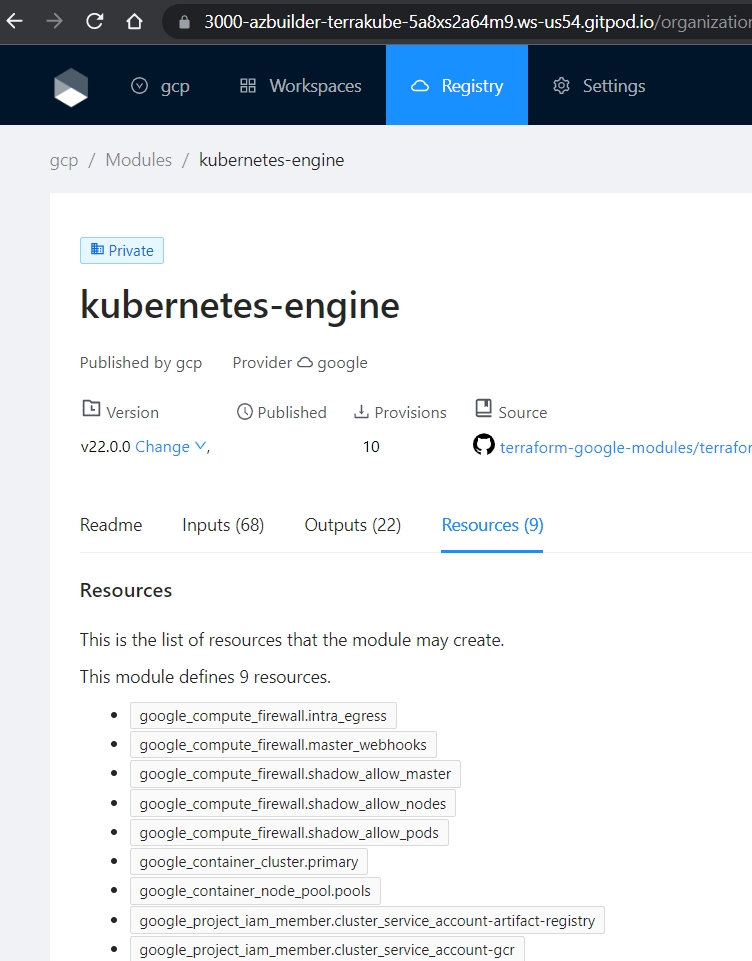
#### Sample Modules

Each organization is preloaded with some modules that can be found in Github like the following:
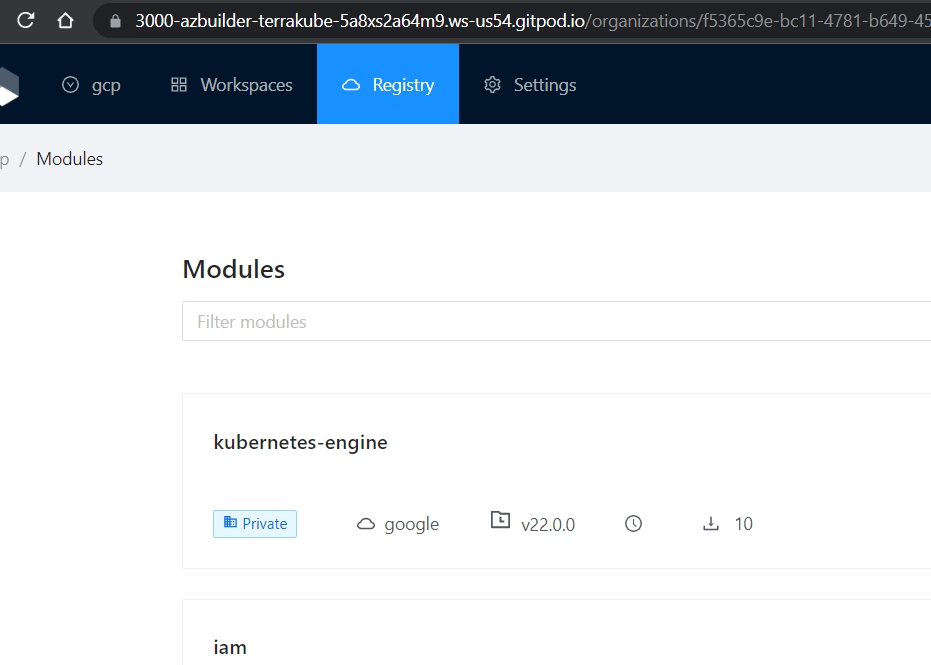
<figure><img src="https://user-images.githubusercontent.com/4461895/181139092-c82fb7b1-6423-4159-ba74-8d842468ab75.png" alt=""><figcaption></figcaption></figure>

<figure><img src="https://user-images.githubusercontent.com/4461895/181139125-8cbe1cc8-9149-4ab7-bd5f-a5430bafb792.png" alt=""><figcaption></figcaption></figure>

<figure><img src="https://user-images.githubusercontent.com/4461895/181139149-a052e4b0-ad63-49f9-bb52-8dfbb1c54915.png" alt=""><figcaption></figcaption></figure>

#### Templates

Each organization is preloaded with the following templates to run Terrakube jobs:
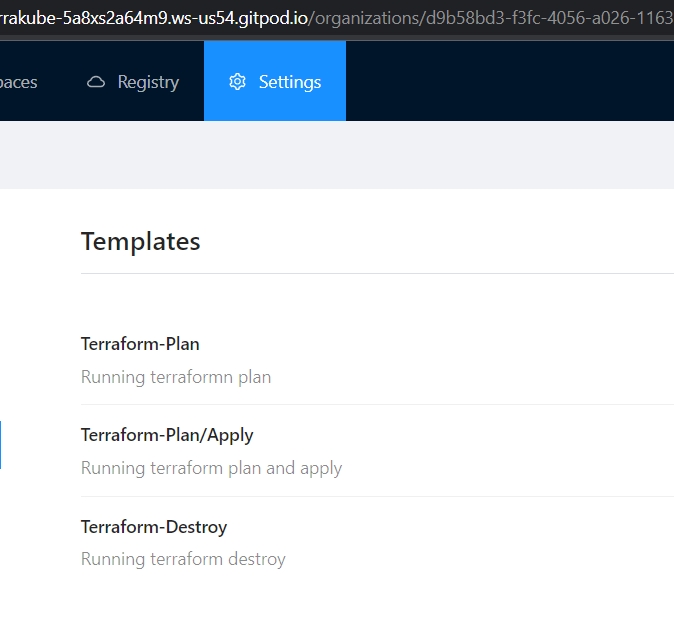
<figure><img src="https://user-images.githubusercontent.com/4461895/181139239-ee39bb71-e52d-43ca-b791-075701d4d9eb.png" alt=""><figcaption></figcaption></figure>

For more information of how to use templates please refer to the following [repository](https://github.com/AzBuilder/terrakube-extensions)

#### Workspaces

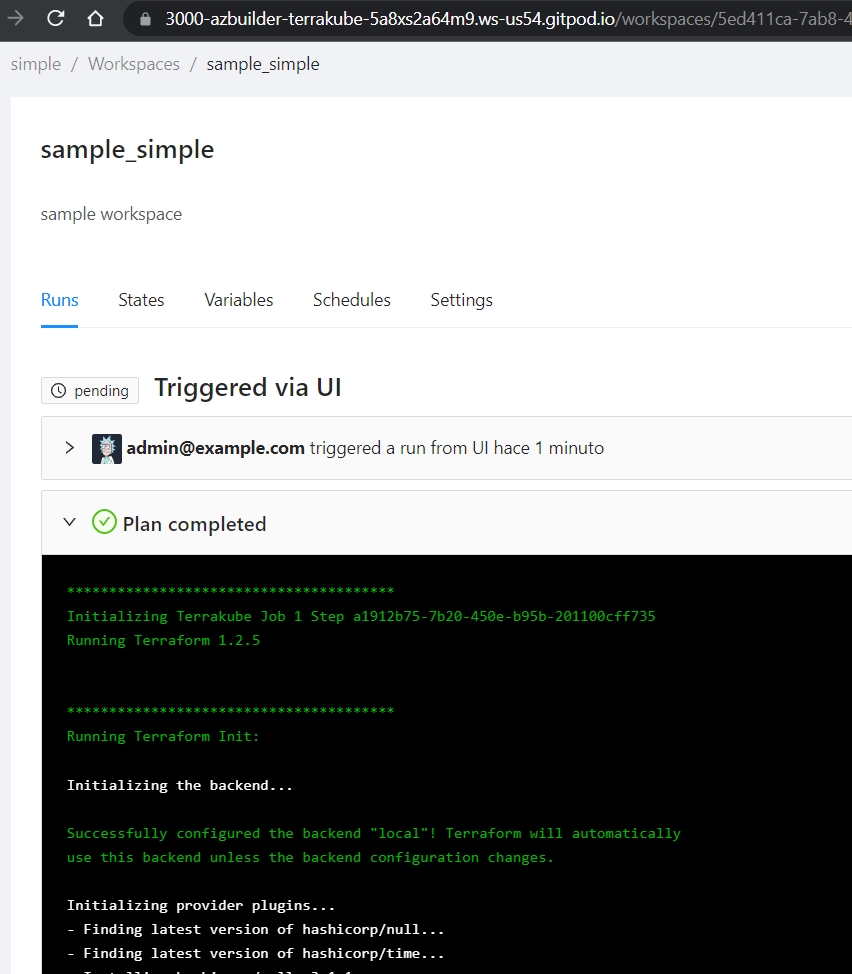
All the organization have different empty workspaces, the ***Simple*** organization can be used for testing because the workspace is using a basic terraform file with the following resources:

* null\_resource
* time\_sleep

Other workspaces can be created but they will be deleted on each restart unless are added inside the initialization scripts:

```
api/src/main/resources/db/changelog/demo-data/simple.xml
```

<figure><img src="https://user-images.githubusercontent.com/4461895/181139337-624bdfcc-684b-4531-9cac-6cc6455232de.png" alt=""><figcaption></figcaption></figure>

#### API Testing

Gitpod has the ***thunder-client*** installed to easily test the API without using the UI.
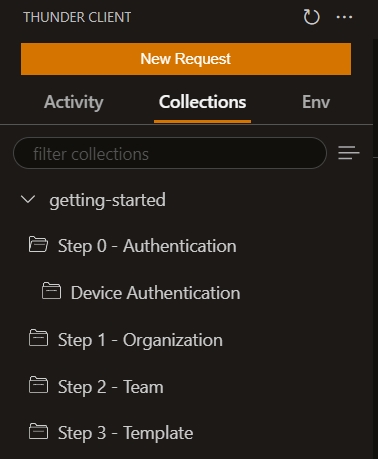
<figure><img src="https://user-images.githubusercontent.com/4461895/181368786-86e18f0f-f04a-49cd-a7c3-345329f2550e.png" alt=""><figcaption></figcaption></figure>

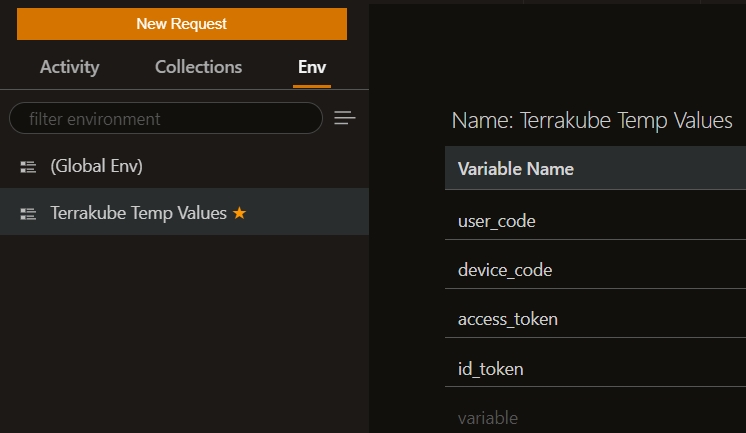
All the environment variables for the collection are generated on each Gitpod workspace startup The environment variables template can be found in the following directory:

```
scripts/template/thunder-tests/thunderEnvironment.json
```

<figure><img src="https://user-images.githubusercontent.com/4461895/181370059-449ea154-ebff-4da7-b498-46cee1437f42.png" alt=""><figcaption></figcaption></figure>

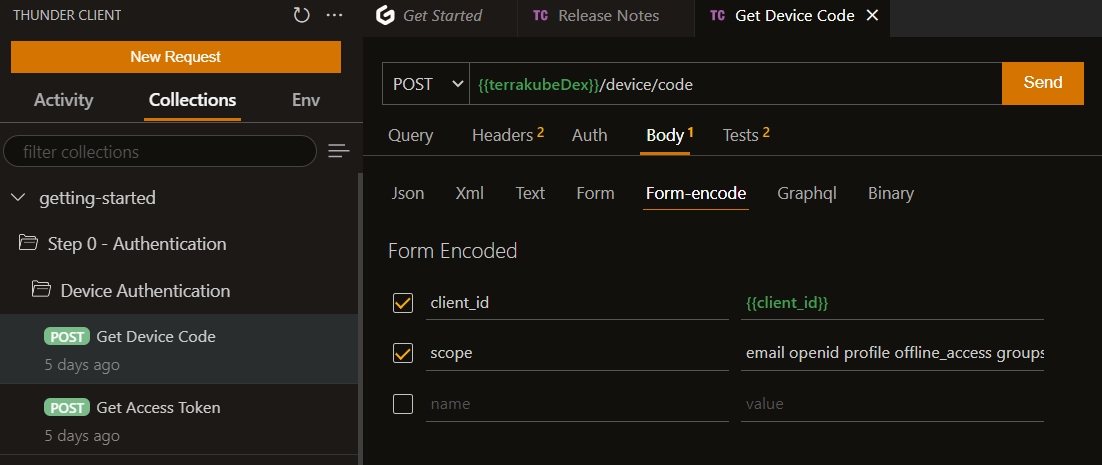
To authenticate the thunder client you can use Dex Device Code Authentication using the following request&#x20;

<figure><img src="https://user-images.githubusercontent.com/4461895/181369061-41cf588c-c5de-41cf-8c81-2d09ae34d416.png" alt=""><figcaption></figcaption></figure>

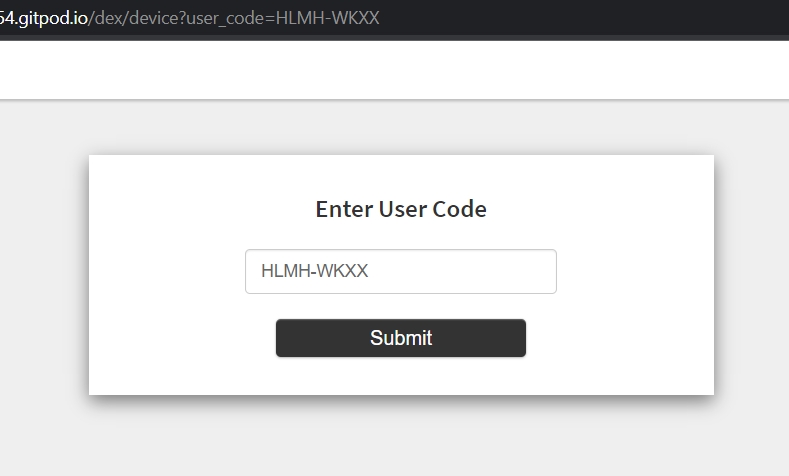
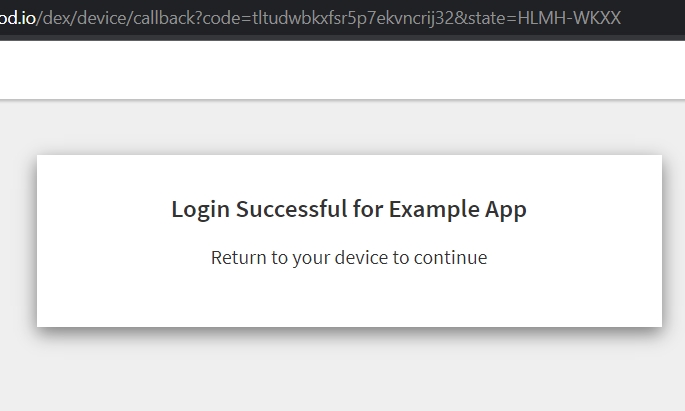
The response should look like the following and you can use the ***verification\_uri\_complete*** to finish the device authentication.

```
{
  "device_code": "htlj4w73ftjfplinifqntp7ept6xaratvgauu2nj3nldlcgxjym",
  "user_code": "HLMH-WKXX",
  "verification_uri": "https://5556-azbuilder-terrakube-XXXXX.ws-us54.gitpod.io/dex/device",
  "verification_uri_complete": "https://5556-azbuilder-terrakube-XXXX.ws-us54.gitpod.io/dex/device?user_code=HLMH-WKXX",
  "expires_in": 300,
  "interval": 5
}
```

<figure><img src="https://user-images.githubusercontent.com/4461895/181369527-9fe35c68-9753-4c59-886a-871795549a56.png" alt=""><figcaption></figcaption></figure>

<figure><img src="https://user-images.githubusercontent.com/4461895/181369588-5a9d26f5-bcf8-439c-8aaa-03ab2eff5a1f.png" alt=""><figcaption></figcaption></figure>

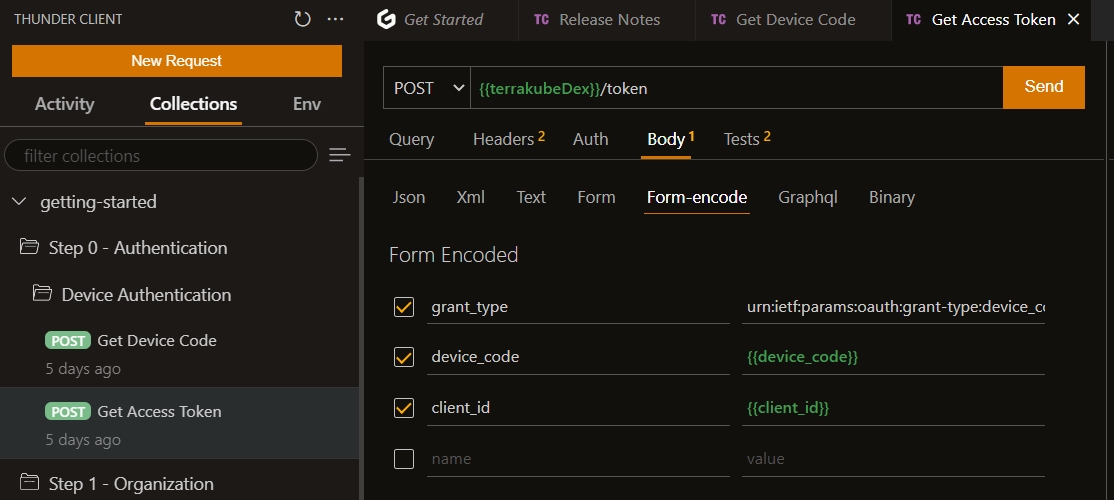
Once the Dex device code authentication is completed you can use the following request to get the access token.
<figure><img src="https://user-images.githubusercontent.com/4461895/181369778-e183a4d6-2506-4960-8824-08b66b4ee1c5.png" alt=""><figcaption></figcaption></figure>

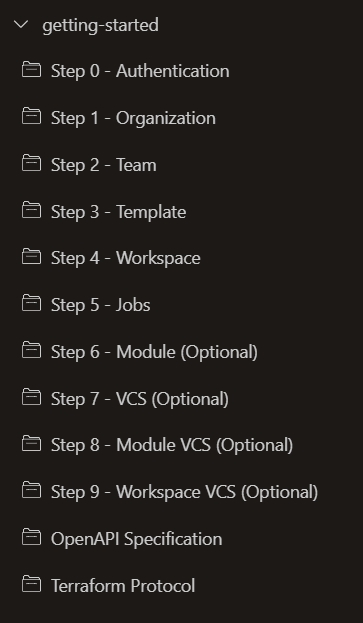
Now you can call any method available in the API without the UI
<figure><img src="https://user-images.githubusercontent.com/4461895/181369869-eddae1d5-0b13-4e6a-b484-3fcefc665d4d.png" alt=""><figcaption></figcaption></figure>

#### Terraform Login Protocol

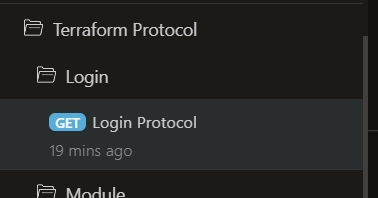
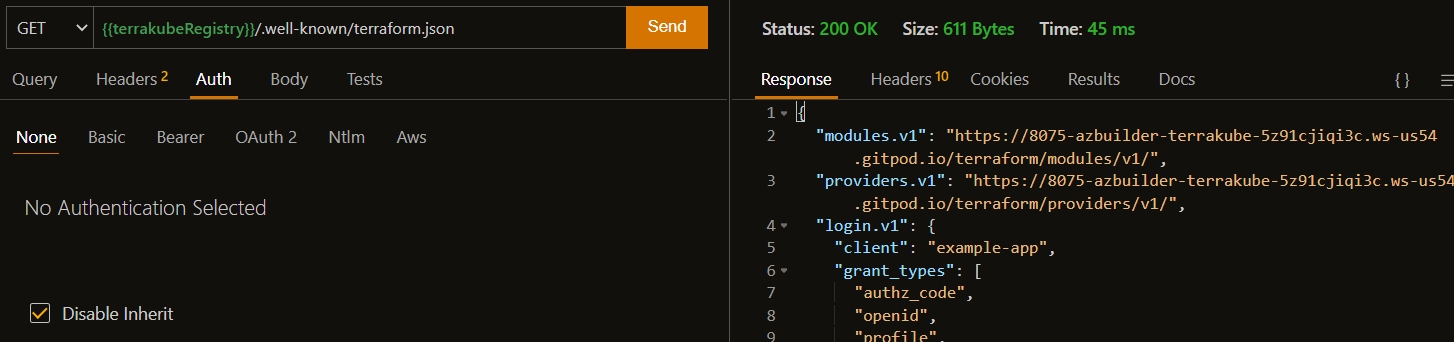
Terraform login protocol can be tested using the ***thunder-client*** collection:

<figure><img src="https://user-images.githubusercontent.com/4461895/181377967-b0178cf5-9378-4305-a6c8-d516c6882f12.png" alt=""><figcaption></figcaption></figure>

The response should look similar to the following:
<figure><img src="https://user-images.githubusercontent.com/4461895/181378021-61ec1041-842c-4b58-bcb3-14df2aeb3ad3.png" alt=""><figcaption></figcaption></figure>

#### Terraform Module Protocol

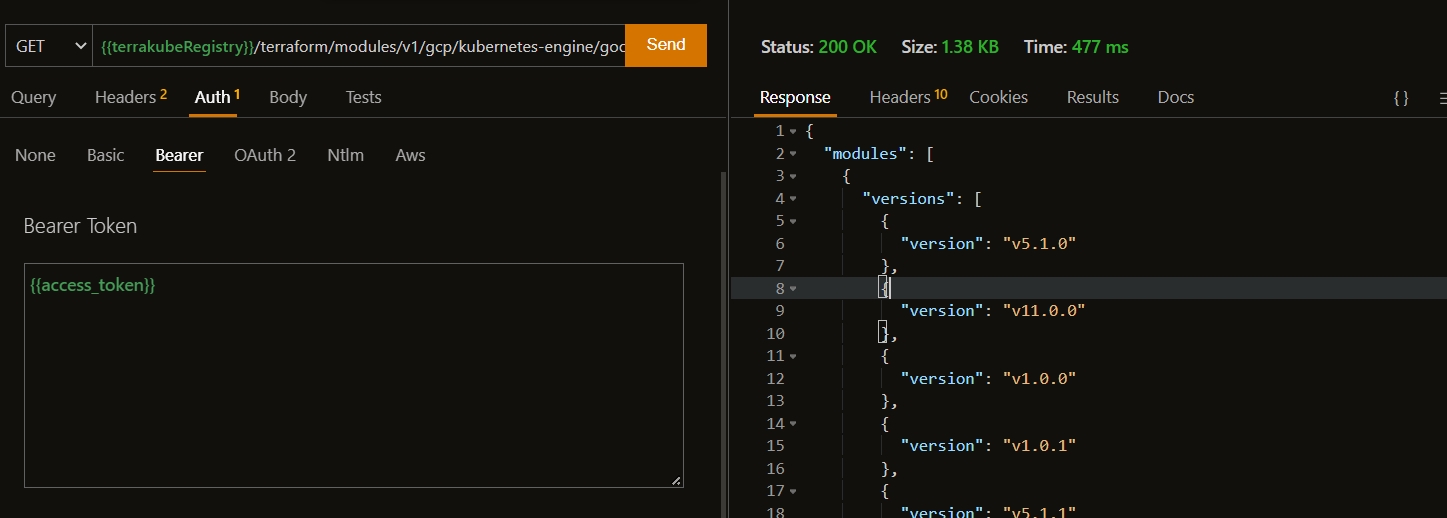
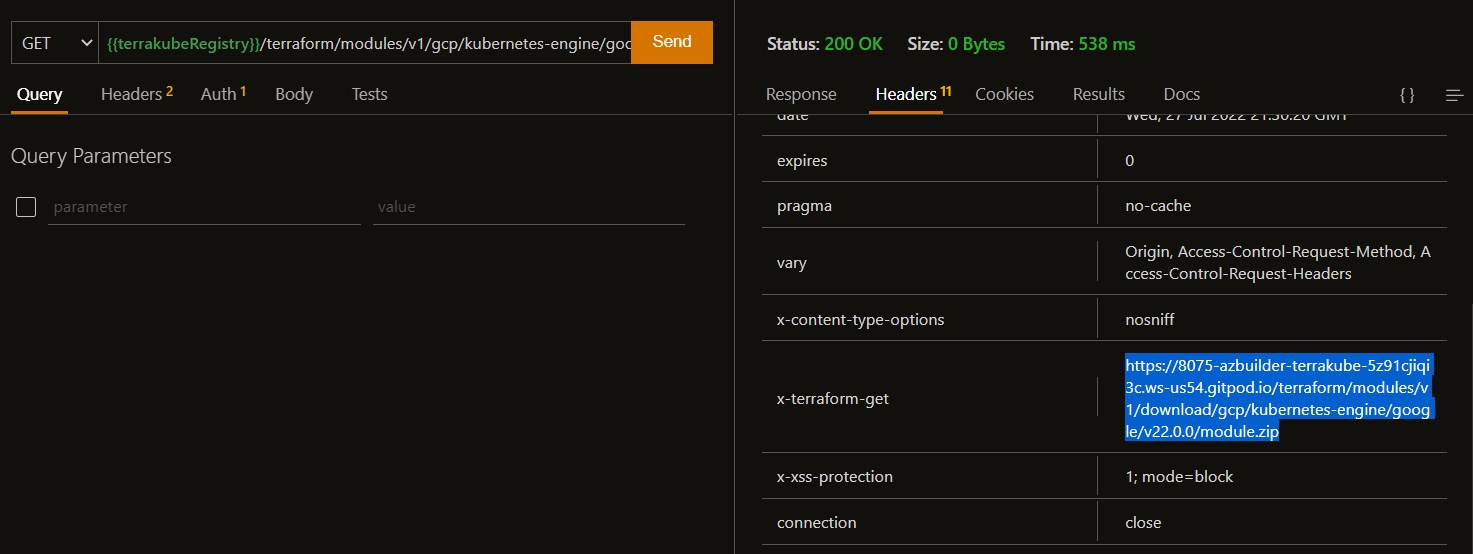
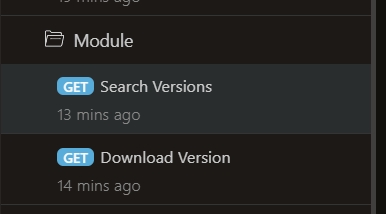
There is one example of terraform module protocol inside the ***thunder-client*** collection that you can be used for testing purposes executing the following two request.
<figure><img src="https://user-images.githubusercontent.com/4461895/181378277-c58250be-1dec-4351-a91e-ae66e0417826.png" alt=""><figcaption></figcaption></figure>

The response should look like the following:

* Getting versions for the module

<figure><img src="https://user-images.githubusercontent.com/4461895/181378462-e2ddb743-5dfe-40f9-b780-db948635f237.png" alt=""><figcaption></figcaption></figure>

* Getting zip file for the module

<figure><img src="https://user-images.githubusercontent.com/4461895/181378504-39aa618f-2d5f-4873-a4c5-3c4e64795191.png" alt=""><figcaption></figcaption></figure>

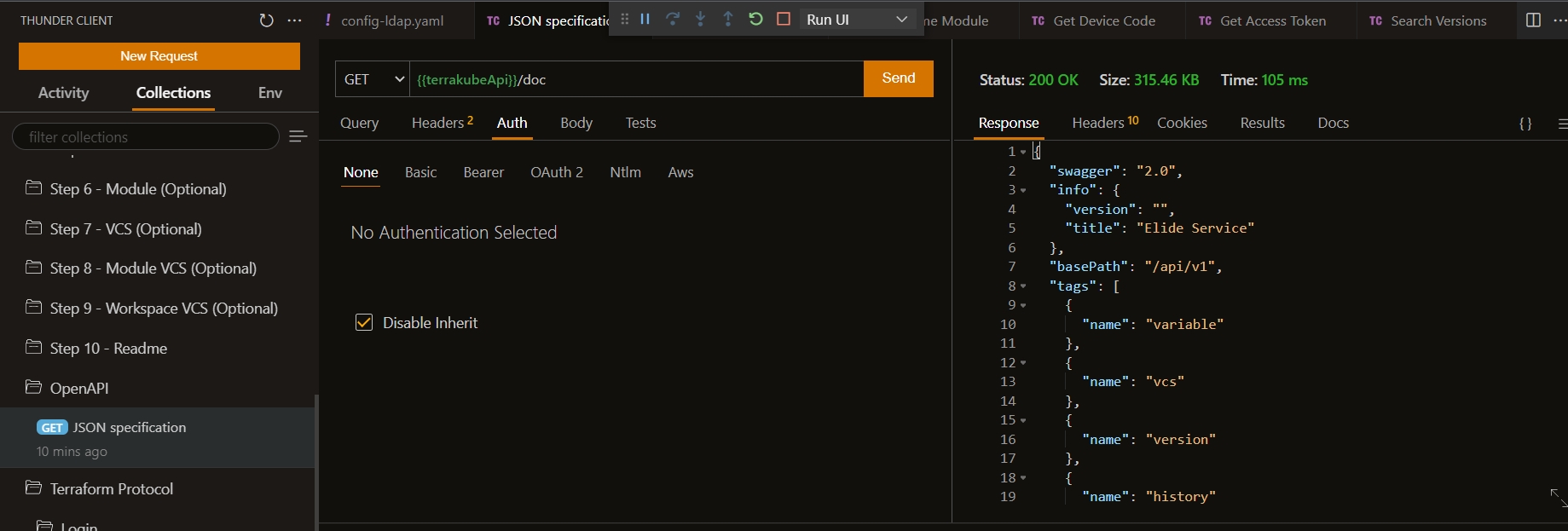
#### OpenAPI Spec

The specification can be obtained using the following request:
<figure><img src="https://user-images.githubusercontent.com/4461895/181378782-4cd46efc-a4ea-472f-9547-9e1d22cc91e5.png" alt=""><figcaption></figcaption></figure>