# Gitlab EE and CE

To use Terrakube’s VCS features with a self-hosted GitLab Enterprise Edition (EE) or GitLab Community Edition (CE), follow these instructions.  For GitLab.com, [see the separate instructions](https://docs.terrakube.io/2.22.0/user-guide/vcs-providers/gitlab.com).

{% hint style="info" %}
**Manage VCS Providers** permission is required to perform this action, please check [team-management](https://docs.terrakube.io/2.22.0/user-guide/organizations/team-management "mention") for more info.
{% endhint %}

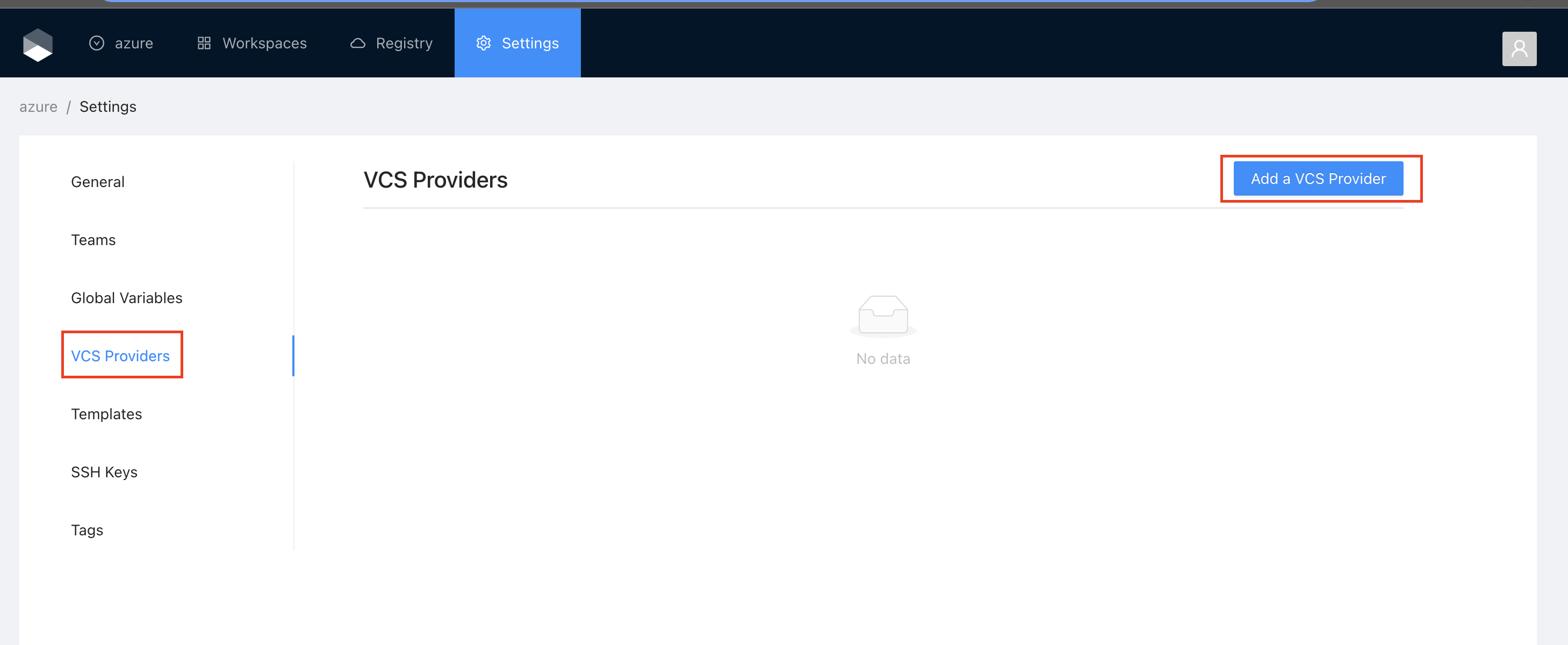
* Got to the organization settings you want to configure.  Select the **VCS Providers** on the left menu and click the **Add VCS provider** button on the top right corner.

<figure><img src="https://content.gitbook.com/content/kJIcmDU7SpMIrNiHYtLu/blobs/QQnRqwgxU6nqb181mCVn/image.png" alt=""><figcaption></figcaption></figure>

{% hint style="info" %}
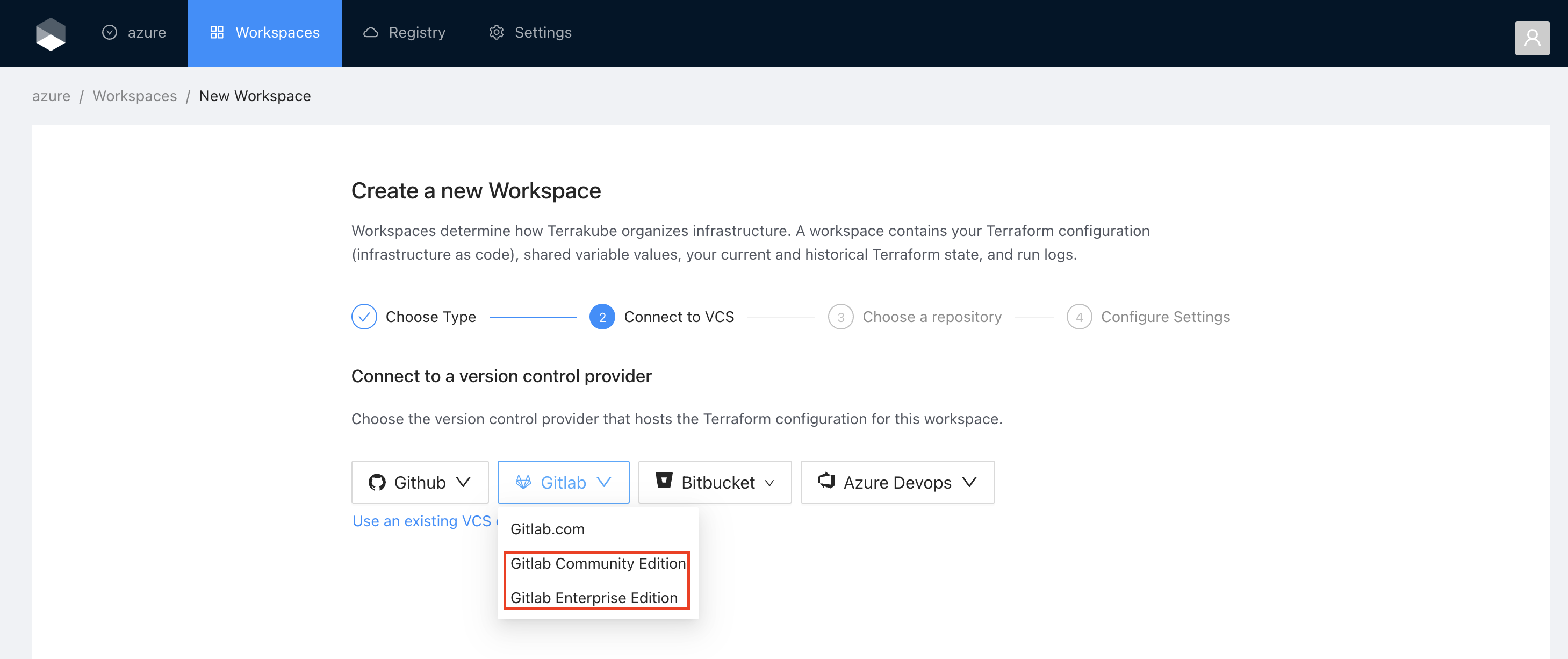
If you prefer, you can add a new VCS Provider directly from the [Create workspace](https://docs.terrakube.io/2.22.0/user-guide/workspaces/creating-workspaces) or Create Module screen.&#x20;
{% endhint %}

* Click the **Gitlab button** and then click the **GitLab Enterprise** optio&#x6E;**.**

<figure><img src="https://content.gitbook.com/content/kJIcmDU7SpMIrNiHYtLu/blobs/T1XqWAu3c2ox7dyEPDxf/image.png" alt=""><figcaption></figcaption></figure>

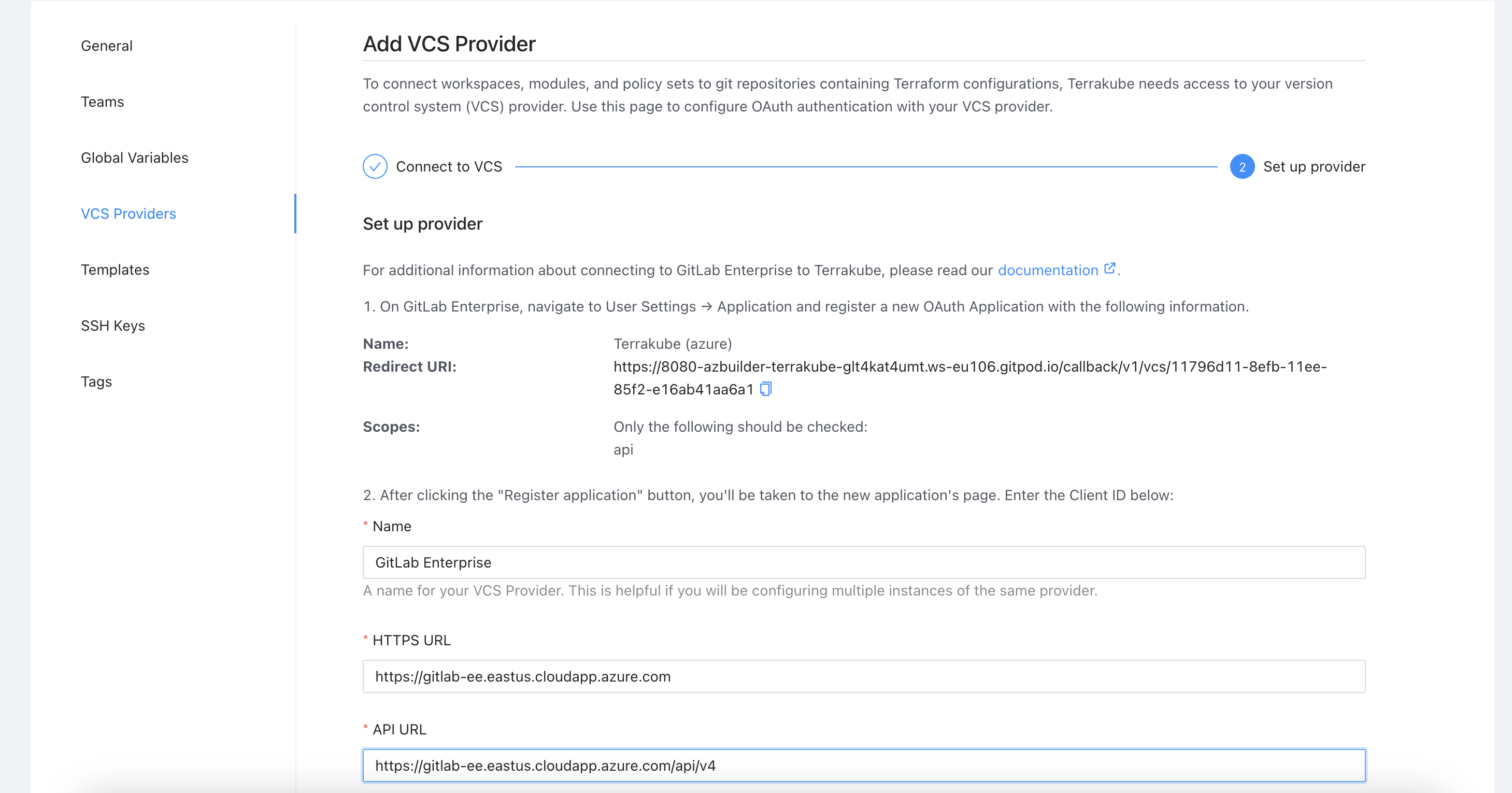
* On the next screen, enter the following information about your GitLab instance:

<table><thead><tr><th width="302">Field</th><th>Value</th></tr></thead><tbody><tr><td>HTTP URL</td><td>https://&#x3C;GITLAB INSTANCE HOSTNAME></td></tr><tr><td>API URL</td><td>https://&#x3C;GITLAB INSTANCE HOSTNAME>/api/v4</td></tr></tbody></table>

<figure><img src="https://content.gitbook.com/content/kJIcmDU7SpMIrNiHYtLu/blobs/F6rl910ug2bIRWJq1LFL/image.png" alt=""><figcaption></figcaption></figure>

* Use a different browser tab to access your GitLab instance and sign in with the account that you want Terrakube to use. You should use a service user account for your organization, but you can also use a personal account.

{% hint style="info" %}
Note: To connect Terrakube, you need an account with admin (master) access to any shared repositories of Terraform configurations. This is because creating webhooks requires admin permissions. Make sure you create the application as a user-owned application, not as an administrative application. Terrakube needs user access to repositories to create webhooks and ingress configurations.
{% endhint %}

{% hint style="warning" %}
If you have GitLab CE or EE 10.6 or higher, you might also need to turn on Allow requests to the local network from hooks and services. You can find this option in the Admin area under Settings, in the “Outbound requests” section (/admin/application\_settings/network). For more details, see the [GitLab documentation](https://docs.gitlab.com/ee/security/webhooks.html#enable-local-requests-for-webhooks-and-services).
{% endhint %}

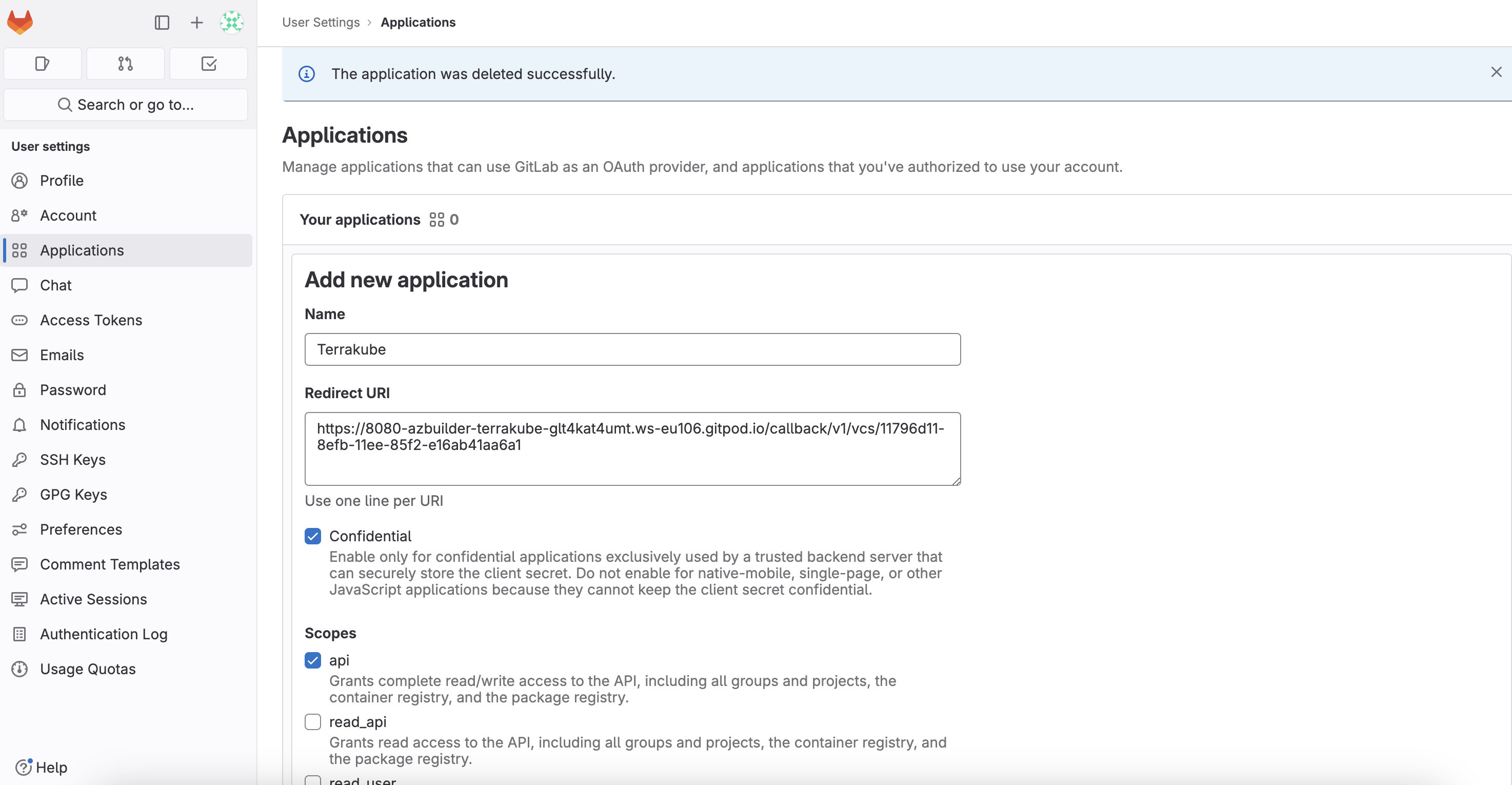
* Navigate to GitLab "User Settings > Applications" page. This page is located at `https://<GITLAB INSTANCE HOSTNAME>/profile/applications`
* In the GitLab page, complete the required fields and click **Save application**

<table><thead><tr><th width="219">Field</th><th>Description</th></tr></thead><tbody><tr><td>Name</td><td>Your application name, for example you can use your organization name.</td></tr><tr><td>Redirect URI</td><td>Copy the Redirect URI from the UI</td></tr><tr><td>Scopes</td><td>Only <strong>api</strong> should be checked</td></tr></tbody></table>

{% hint style="info" %}
You can complete the fields using the information suggested by terrakube in the VCS provider screen
{% endhint %}

<figure><img src="https://content.gitbook.com/content/kJIcmDU7SpMIrNiHYtLu/blobs/lYMPlUmw8bj7ijrHgRMB/image.png" alt=""><figcaption></figcaption></figure>

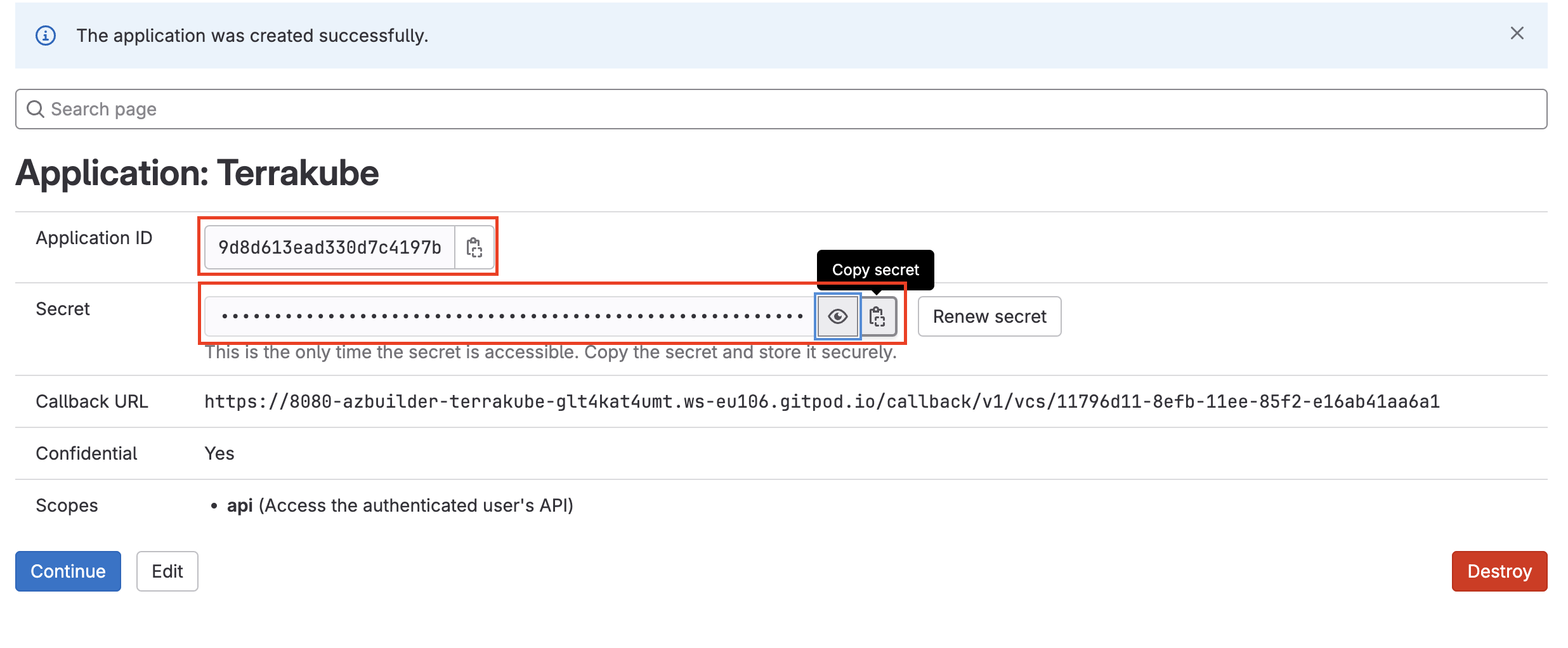
* On the next screen, copy the **Application ID** and **Secret**

<figure><img src="https://content.gitbook.com/content/kJIcmDU7SpMIrNiHYtLu/blobs/oC4yyIlVxrAMhrfRAmwh/image.png" alt=""><figcaption></figcaption></figure>

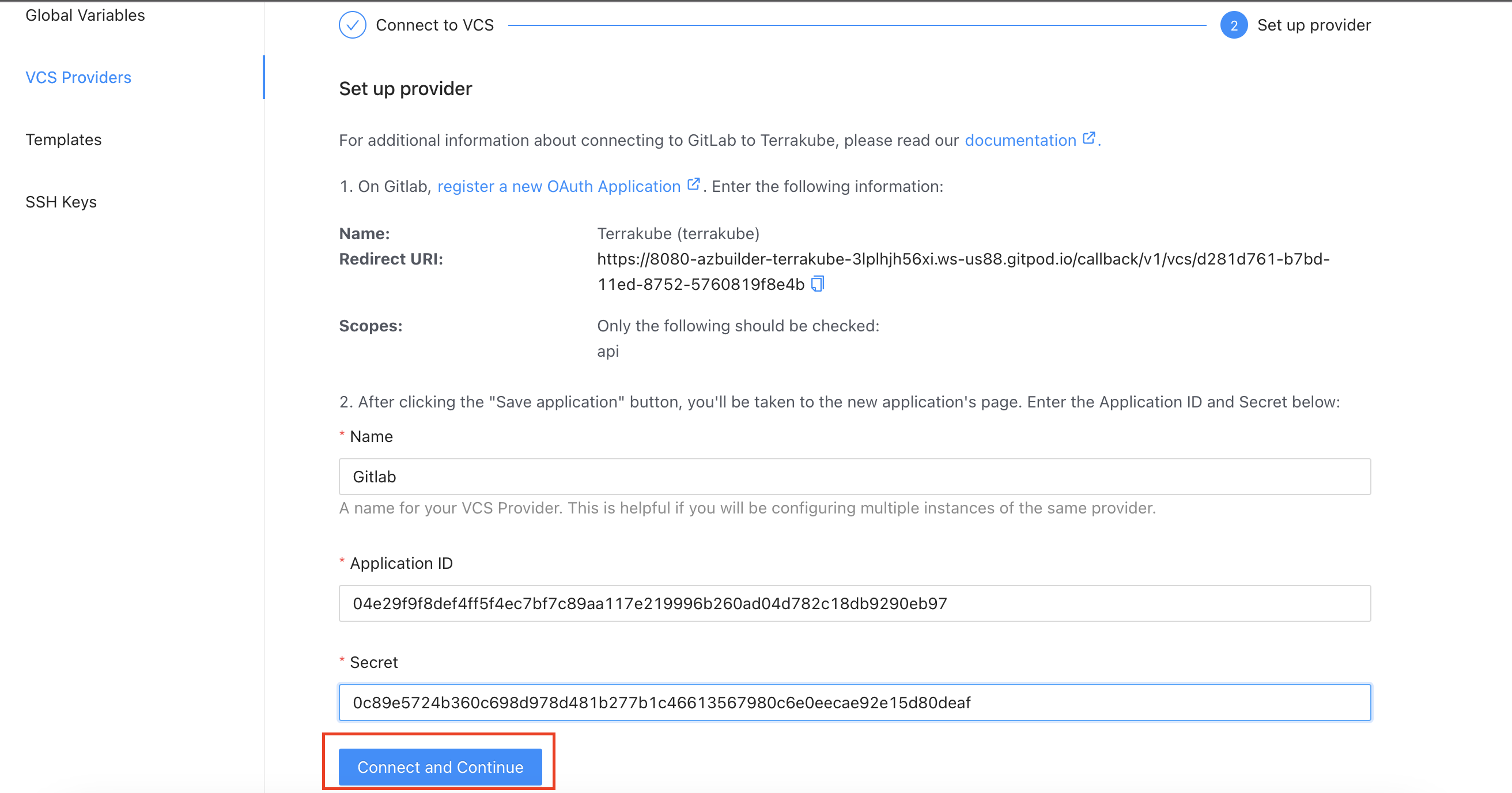
* Go back to Terrakube to enter the information you copied from the previous step. Then, click the **Connect and Continue** button.

<figure><img src="https://content.gitbook.com/content/kJIcmDU7SpMIrNiHYtLu/blobs/KXc9bpvK5zjNE8jrCxao/image.png" alt=""><figcaption></figcaption></figure>

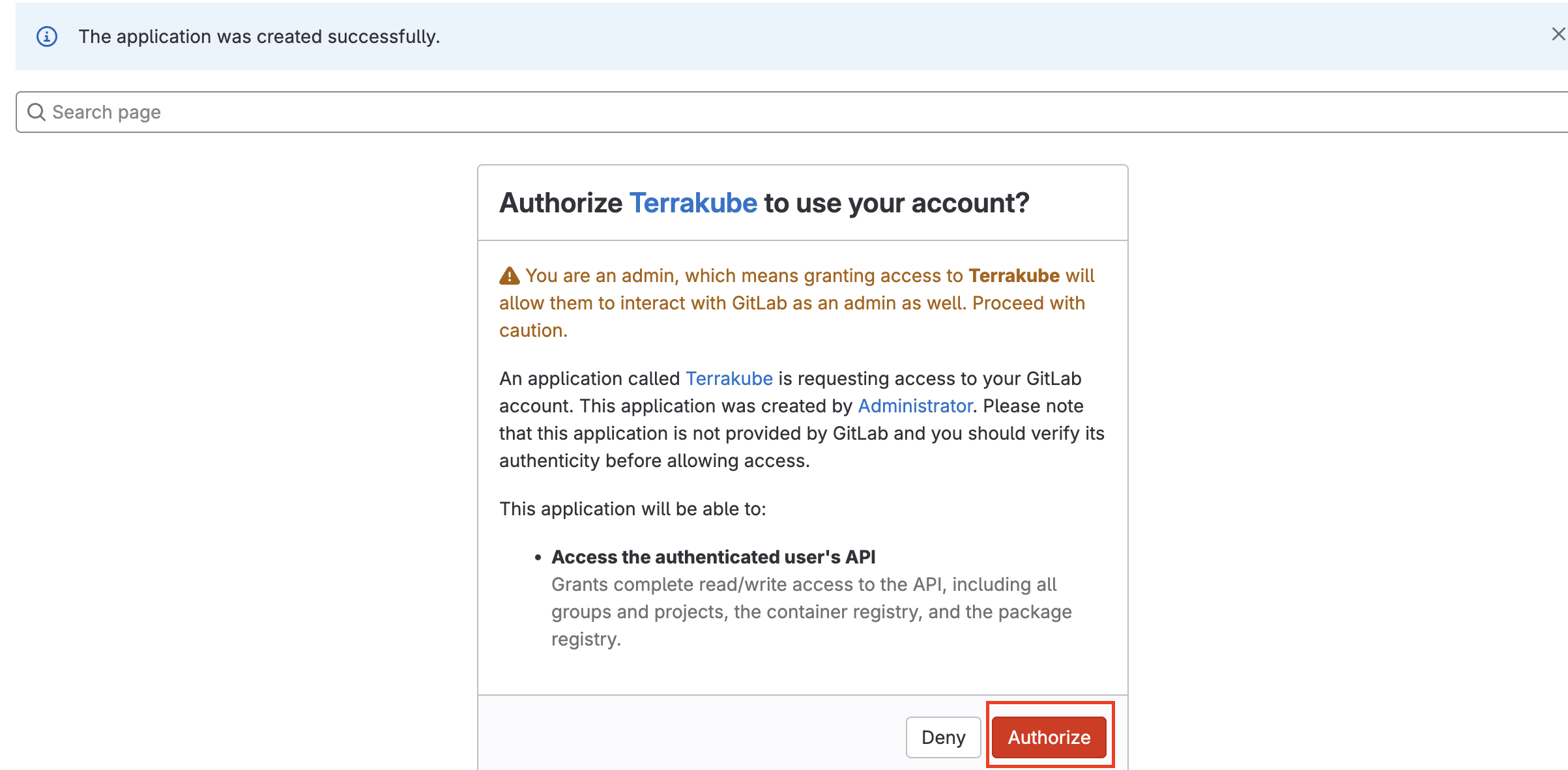
You will be redirected to GitLab. Click the **Authorize** button to complete the connection.

<figure><img src="https://content.gitbook.com/content/kJIcmDU7SpMIrNiHYtLu/blobs/SiiABgDvQiAIEcW1rlYE/image.png" alt=""><figcaption></figcaption></figure>

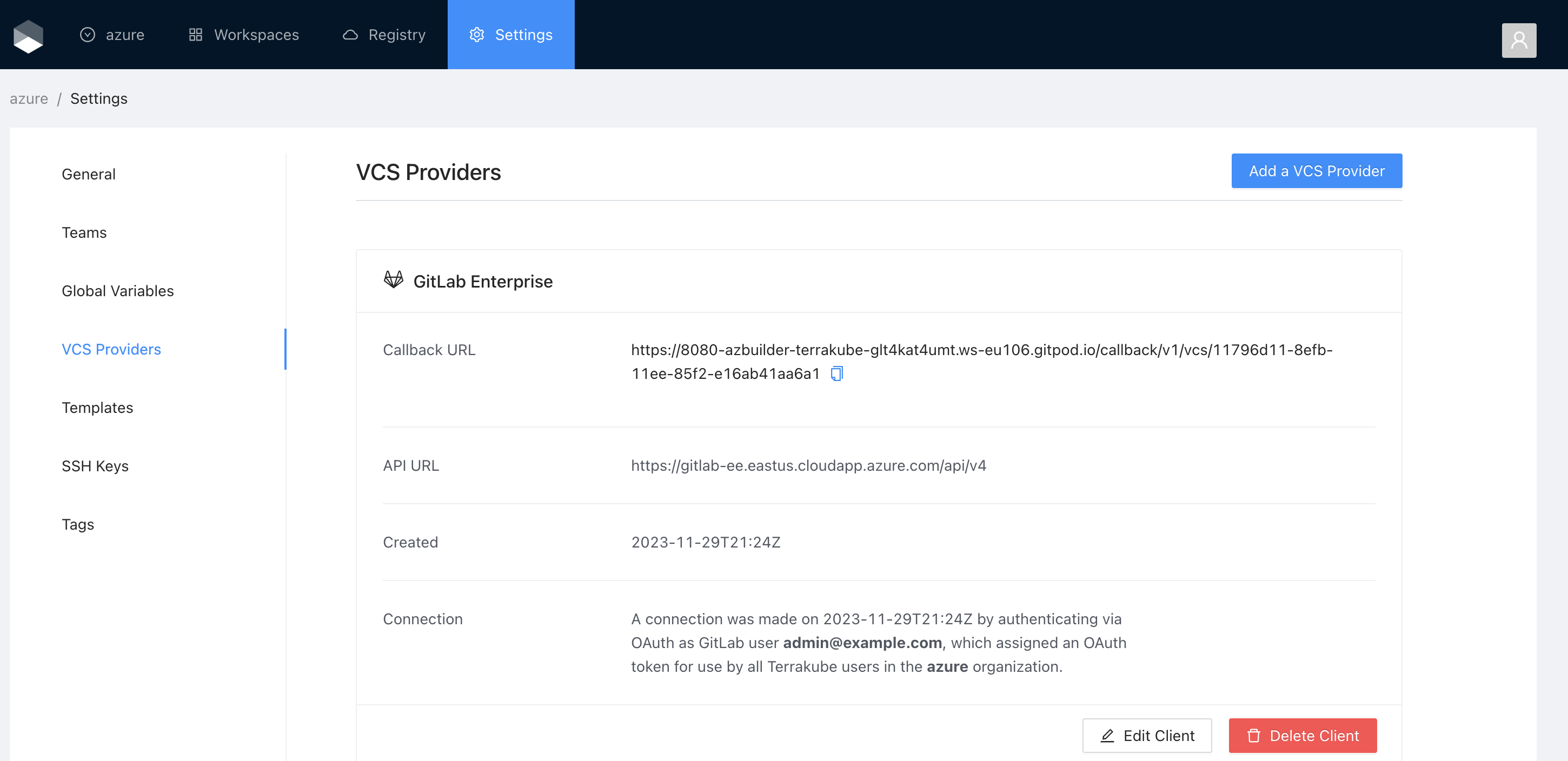
Finally, if the connection was established successfully, you will be redirected to the VCS provider’s page in your organization. You should see the connection status with the date and the user that created the connection.

<figure><img src="https://content.gitbook.com/content/kJIcmDU7SpMIrNiHYtLu/blobs/7jf4qC53PJ3P94L48Zgx/image.png" alt=""><figcaption></figcaption></figure>

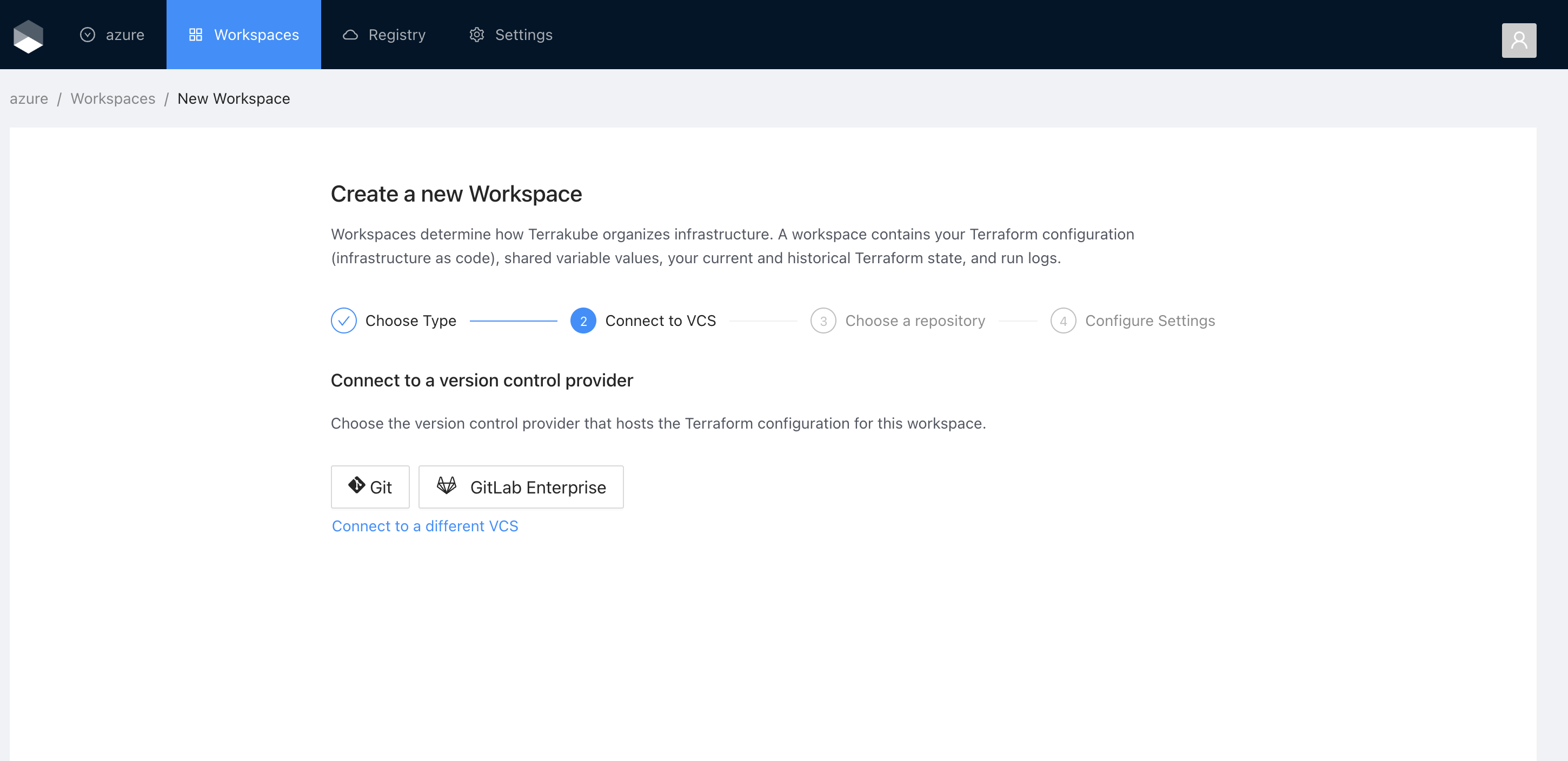
And now, you will be able to use the connection in your workspaces and modules:

<figure><img src="https://content.gitbook.com/content/kJIcmDU7SpMIrNiHYtLu/blobs/CuTOtnQuggMNQKWTTzIC/image.png" alt=""><figcaption></figcaption></figure>