This is the high level architecture of the platform
Component descriptions:
Terrakube API:
Expose a JSON:API or GraphQL API providing endpoints to handle:
Organizations.
Workspace API with the following support:
Terraform state history
Terrakube Jobs:
Automatic process that check for any pending job operations in any workspace to trigger a custom logic flow based on Terrakube Configuration Language
Terrakube Executor:
Service that executes the Terrakube job operations written in Terrakube Configuration Language, handle the terraform state and outputs using cloud storage providers like Azure Storage Account
Terrakube Open Registry:
This component allows to expose an open source private repository protected by Dex that you can use to handle your company private terraform modules or providers.
Cloud Storage:
Cloud storage to handle terraform state, outputs and terraform modules used by terraform CLI
RDBMS:
The platform can be used with any database supported by the Liquibase project.
Security:
All authentication and authorization is handle using .
Terrakube CLI:
Go based CLI that can communicate with the Terrakube API and execute operation for organizations, workspaces, jobs, templates, modules or providers
Terrakube UI:
React based frontend to handle all Terrakube Operations.
Introduction
Terrakube is an open source collaboration platform for running remote infrastructure as code operations using Terraform or OpenTofu that aims to be a complete replacement for close source tools like Terraform Enterprise, Scalr or Env0.
The platform can be easily installed in any kubernetes cluster, you can easily customize the platform using other open source tools already available for terraform (Example: terratag, infracost, terrascan, etc) and you can integrate the tool with different authentication providers like Azure Active Directory, Google Cloud Identity, Github, Gitlab or any other provider supported by Dex.
Terrakube provides different features like the following:
Terraform module protocol:
This allows Terrakube to expose an open source terraform registry that is protected and is private by default using different Dex for the authentication with different providers.
Terraform provider protocol:
This allows Terrakube to expose an open source terraform registry where you can have create your own private terraform providers or create a mirror of the current terraform providers available in the public Hashicorp registry.
Handle you infrastructure as code using Organization like closed source tools like Terraform Enterprise and Scalr.
Easily extended by default integrating with many open source tools available today for terraform CLI.
Support to run the platform using any RDBMS supported by (mysql, postgres, oracle, sql server, etc).
Plugins support to extends functionality using different cloud providers and open source tools using the Terrakube Configuration Languague (TCL).
Easily extends the platform using common technologies like react js, java, spring, elide, liquibase, groovy, bash, go.
Native integration with the most popular VCS like:
Github.
Azure DevOps
Support for SSH key (RSA and ED25519)
Handle Personal Access Token
Extends and create custom flows when running terraform remote operations with custom logics like:
Approvals
Budget reviews
Company
Service
Terraform output history
Terraform Variables (public/secrets)
Environment Variables (public/secrets)
Cron like support to schedule the jobs execution programmatically
Job.
Custom terraform flows based on Terrakube Configuration Language
Modules
Providers
Teams
Teamplate
Terrakube can installed in any kuberentes cluster using any cloud provider. We provide a Helm Chart that can be found in the following link.
Organizations are privately shared spaces for teams to collaborate on infrastructure. Basically are logical containers that you can use to define your company hierarchy to organize the workspaces, modules in the private registry and assign fine grained permissions to your teams.
Terrakube use two secrets internally to sign the personal access token and one internal token for intercomponent comunnication when using the helm deployment you can change this values using the following keys:
When working with Terraform at Enterprise level, you need to organize your infrastructure in different collections. Terrakube manages infrastructure collections with workspaces. A workspace contains everything Terraform needs to manage a given collection of infrastructure, so you can easily organize all your resources based in your requirements.
For example, you can create a workspace for dev environment and a different workspace for production. Or you can separate your workspaces based in your resource types, so you can create a workspace for all your SQL Databases and anothers workspace for all your VMS.
You can create unlimited workspaces inside each Terrakube Organization. In this section:
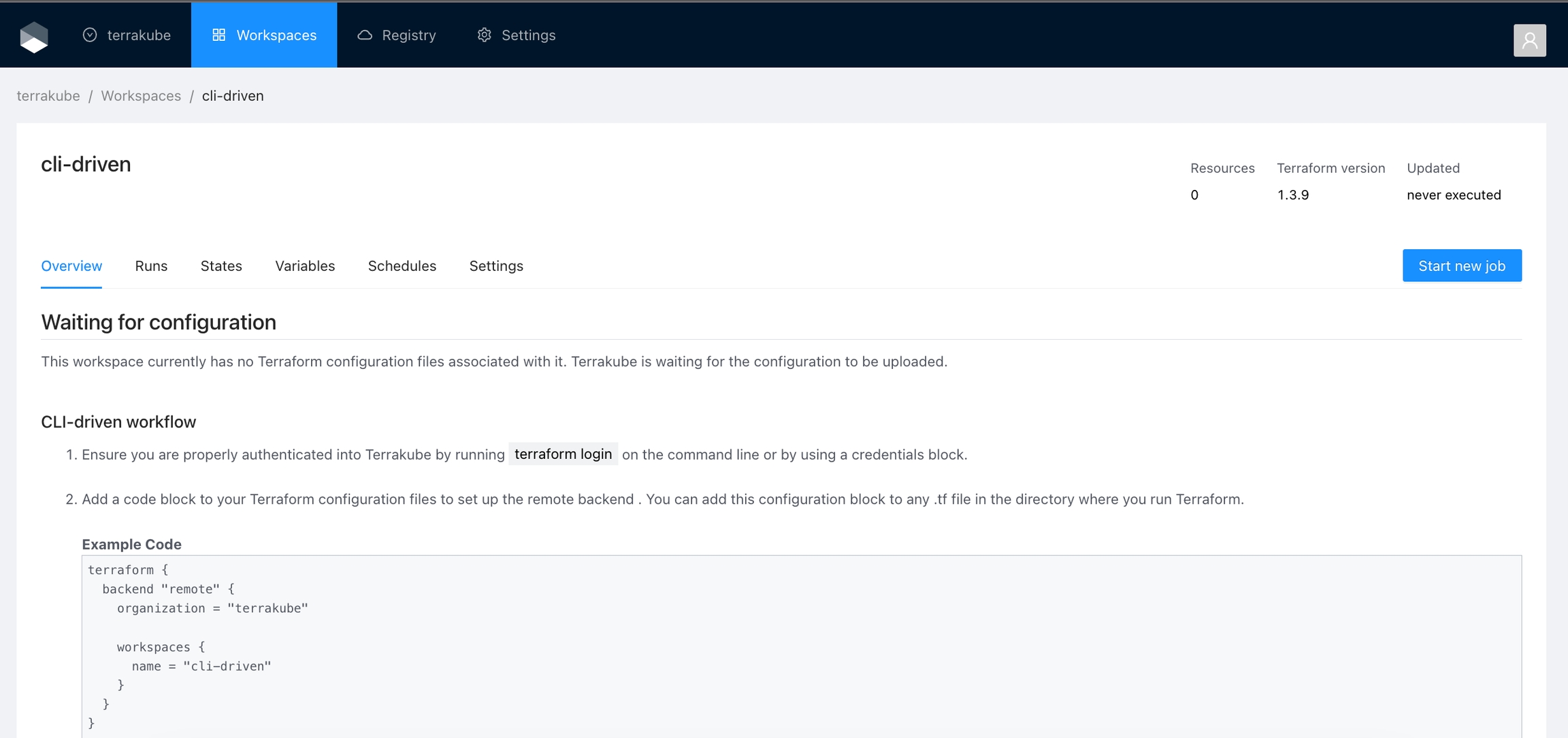
The workspace overview page provides you a summary of the current workspace state.
Managing Workspace Tags
You can manage tags for the workspace in the overview page. The right panel lets you search existing tags or type a new tag name to add or remove tags from the workspace.
Action Types
Action Types define where an action will appear in Terrakube. Here is the list of supported types:
Workspace/Action
The action will appear on the Workspace page, next to the Lock button. Actions are not limited to buttons, but this section is particularly suitable for adding various kinds of buttons. Use this type for actions that involves interaction with the Workspace
Workspace/ResourceDrawer/Action
The action will appear for each resource when you click on a resource using the Overview Workspace page or the Visual State Diagram. Use this when an action applies to specific resources, such as restarting a VM or any actions that involve interaction with the resource. \
Workspace/ResourceDrawer/Tab
The action will appear for each resource when you click on a resource using the Overview Workspace page or the Visual State Diagram. Use this when you want to display additional data for the resource, such as activity history, costs, metrics, and more.
For this type, theLabel property will be used as the name of the Tab pane.
External Redis
By default the helm chart is using bitnami redis, this container is only for testing purposes and for a real cluster it is better to use an external redis.
To enable it, the following values can be used:
To add the additional environment variables to the ephemeral executor the following could be used:
Value:
Creating an Organization
Click the organizations list on the main menu and then click the Create new organization button
Provide organization name and description and click the Create organization button
Then you will redirected to the Organization Settings page where you can define your teams, this is step is important so you can assign the permissions to users, otherwise you won't be able to create workspaces and modules inside the organization.
Default Templates
Terrakube creates the following default templates:
Terrakube use job templates for all executions, Terrakube automatically create the following templates that are used when using the terraform remote state backend operations. This templates are created in all organizations.
Will be used when you execute terraform apply using the terraform cli
Will be used when you execute terraform destroyusing the terraform cli
UI Templates
Terrakube allows you to customize the UI for each step inside your templates using standard HTML. So you can render any kind of content extracted from your Job execution in the Terrakube UI.
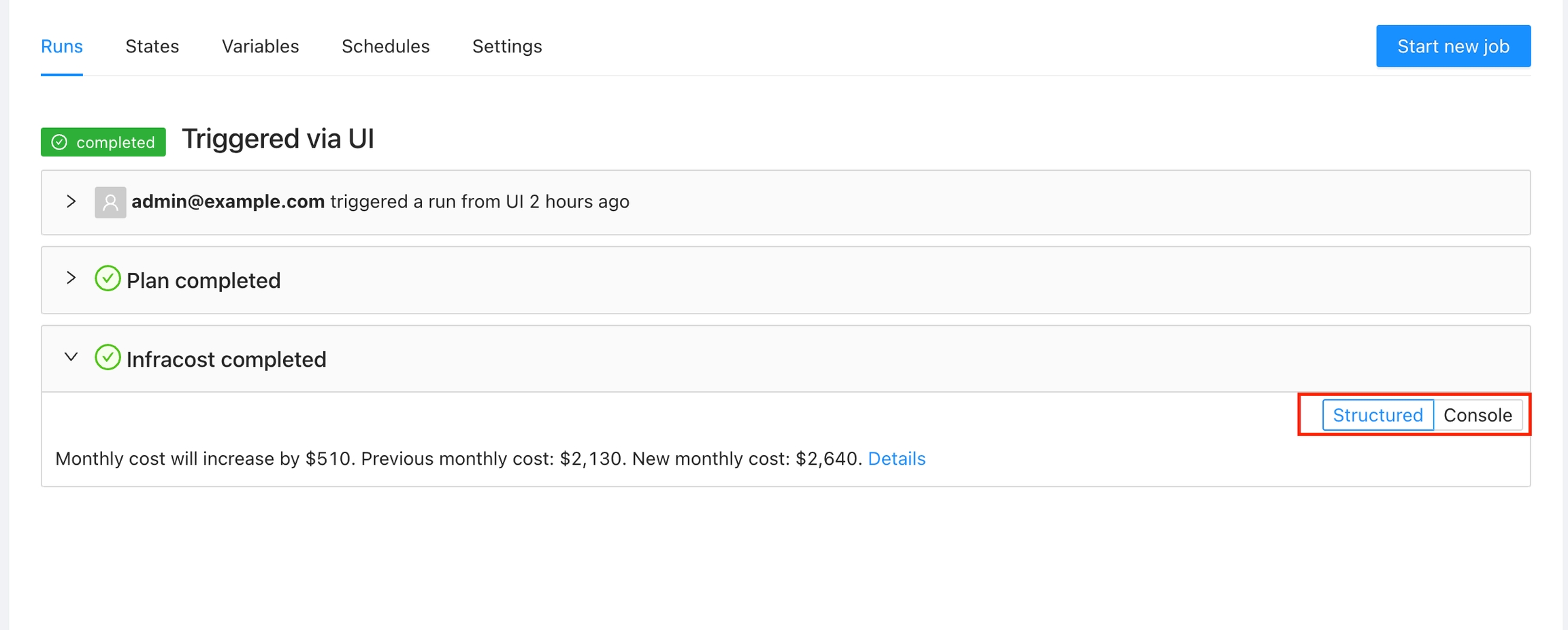
For example you can present the costs using Infracost in a friendly way:
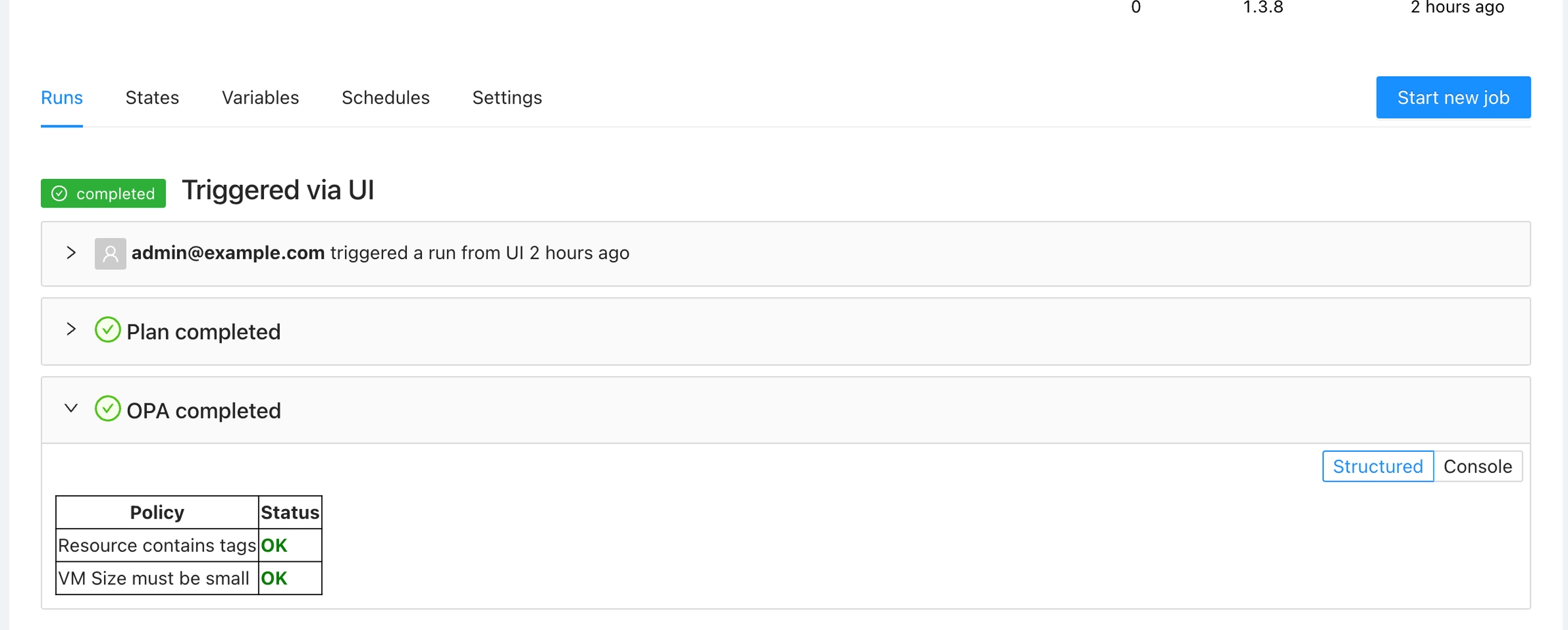
Or present a table with the OPA policies
In order to use UI templates you will need to save the HTML for each template step using the . Terrakube expects the ui templates in the following format.
In the above example the 100 property in the JSON refers to the step number inside your template. In order to save this value from the template you can use the Context extension. For example:
VCS Providers
Terrakube empowers collaboration between different teams in your organization. To achieve this, you can integrate Terrakube with your version control system (VCS) provider. Although Terrakube can be used with public Git repositories or with private Git repositories using SSH, connecting to your Terraform code through a VCS provider is the preferred method. This allows for a more streamlined and secure workflow, as well as easier management of access control and permissions.
Terrakube supports the following VCS providers:
Terrakube uses webhooks to monitor new commits. This features is not available in SSH and Azure DevOps.
When new commits are added to a branch, Terrakube workspaces based on that branch will automatically initiate a Terraform job. Terrakube will use the "Plan and apply" template by default, but you can specify a different Template during the Workspace creation.
Terraform State
Each Terrakube workspace has its own separate state data, used for jobs within that workspace. In Terrakube you can see the Terraform state in the standard provided by the Terraform cli or you can see a , this is a diagram created by Terrakube to represent the resources inside the JSON state.
Go to the workspace and click the States tab and then click in the specific state you want to see.
You will see the state in JSON format
You can click the Download button to get a copy of the JSON state file
Share Workspace State
Terrakube support sharing the terraform state between workspaces using the following data block.
For example it can be used in the following way:
Provider Cache
The component use to execute terraform/opentofu configuration is stateless so everytime that it is executing a job will try to download the terraform/opentofu providers, in order to speed up the execution the following environment variable can be added to have a provider cache.
When deploying the helm chart the following can be used to add an emptyDir volume to cache the providers.
When running tofu init, temporary files such as .terraform.lock.hcl are generated based on the current machine’s architecture. On subsequent runs, OpenTofu verifies that the required providers match the architecture specified in the lock file to decide whether a new download is necessary.
However, when working locally on macOS, the architecture (e.g., darwin/amd64 or darwin/arm64) differs from the architecture used by remote Terrakube jobs (linux/arm64). This mismatch forces OpenTofu to redownload providers each time.
If you want to avoid that issue you need to run this command to generate lock file for Terrakube's image architecture.
Workspace scheduler
Terrakube allows to schedule a job inside workspaces, this will allow to execute a specific in an specific time.
To create a workspace schedule click the "schedule" tab and click "Add schedule" like the following image.
This is usefull for example when you want to destroy your infrastructure by the end of every week to save some money with your cloud provider and recreate it every monday morning.
Example.
Lets destroy the workspace every friday at 6 pm
Action Context
The context object contains data related to the Workspace that you can use inside the action. The properties depends on the .
Contains the workspace information in the Terrakube api format. See the for more details on the properties available.
context.workspace.id: Id of the workspace
context.workspace.attributes.name: Name of the workspace
Built-in Actions
The following actions are added by default in Terrakube. However, not all actions are enabled by default. Please refer to the documentation below if you are interested in activating these actions.
: Adds a button to quickly navigate to the Terraform registry documentation for a specific resource.
: Adds a new panel to visualize the state attributes and dependencies for a resource.
Open Documentation
The Open Documentation action is designed to provide quick access to the Terraform registry documentation for a specific provider and resource type. By using the context of the current state, this action constructs the appropriate URL and presents it as a clickable button.
By default this Action is enabled and will appear for all the resources. If you want to display this action only for certain resources, please check .
Navigate to the Workspace Overview or the Visual State and click a resource name.
Resource Details
The Resource Details action is designed to show detailed information about a specific resource within the workspace. By using the context of the current state, this action provides a detailed view about the properties and dependencies in a tab within the resource drawer.
By default this Action is enabled and will appear for all the resources. If you want to display this action only for certain resources, please check .
Navigate to the Workspace Overview or the Visual State and click a resource name.
Open in Azure Portal
The Open In Azure Portal action is designed to provide quick access to the Azure portal for a specific resource. By using the context of the current state, this action constructs the appropriate URL and presents it as a clickable button.
By default, this Action is disabled and when enabled will appear for all the azurerm resources. If you want to display this action only for certain resources, please check .
Navigate to the Workspace Overview or the Visual State and click a resource name.
Restart Azure VM
The Restart VM action is designed to restart a specific virtual machine in Azure. By using the context of the current state, this action fetches an Azure access token and issues a restart command to the specified VM. The action ensures that the VM is restarted successfully and provides feedback on the process.
By default, this Action is disabled and when enabled will appear for all resources that have resource type azurerm_virtual_machine. If you want to display this action only for certain resources, please check .
This action requires the following variables as or in the Workspace Organization:
ARM_CLIENT_ID: The Azure Client ID used for authentication.
Private Registry
Terraform provides a public registry, where you can share and reuse your terraform modules or providers, but sometimes you need to define a Terraform module that can be accessed only within your organization.
Terrakube provides a private registry that works similarly to the and helps you share and privately across your organization. You can use any of the main to maintain your terraform module code.
In this section:
Getting Started
To quickly run terrakube in your test environment please check the following:
Helm Chart
You can deploy Terrakube to any Kubernetes cluster using the helm chart available in the following repository:
To use the repository do the following:
Deployment
The easiest way to deploy Terrakube is using our Helm Chart, to learn more about this please review the following:
You can deploy Terrakube using different authentication providers for more information check
When you specify a directory in the Workspace. Terrakube will run the job only if a file changes in that directory
Only users that belongs to Terrakube administrator group can create organizations. This group is defined in the terrakube settings during deployment, for more details see Administrator group
In order to start using your organization you must add at least one team. Terrakube will create some default templates but you can add more based on your needs. See Creating a Team and Templates for further information.
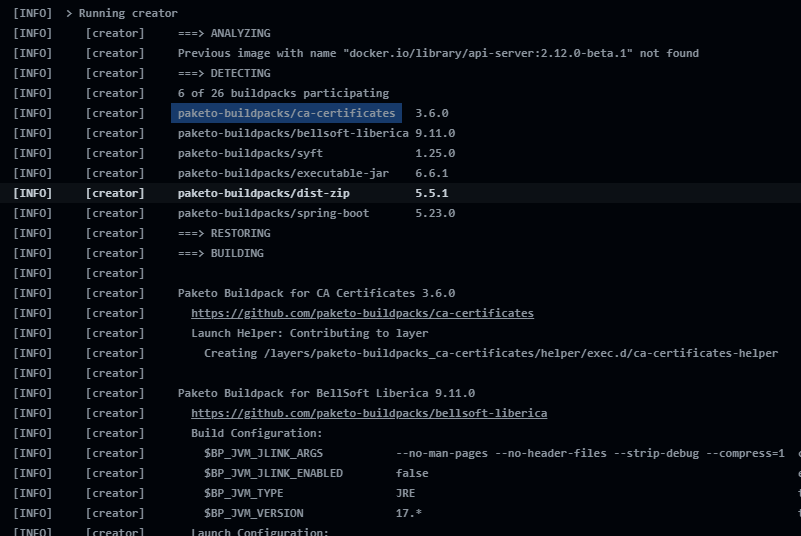
"changeit" is the default password for the java keystore included in the container in this path "/layers/paketo-buildpacks_bellsoft-liberica/jre/lib/security/cacerts"
Ephemeral Executor with Redis SSL
Using EPHEMERAL_JOB_ENV_VARS is supported from version 2.28.0
CLI-Driven Templates
Terraform Plan/Apply Cli Template
Terraform Plan/Destroy Cli Templates
This templates can be updated if need it but in order for the terraform remote state backed to work properly the step number and the template names should not be changed. So if you delete or modify this templates
Make sure to use the correct size for the volume mount, in the example is only using 1024Mi, more information can be found in this link
If you want to use cache with EphemeralJob you will need to provision a volume with in ReadWriteMany as several jobs can be writing to the cache at the same time.
The import commands are using a public repository, we will add support for private repositories in the future.
Persistent Context
Persistent Context is helpfull when you need to save information from the job execution, for example it can be used to save the infracost or save the thread id when using the Slack extension. We can also use it to save any JSON information generated inside Terrakube Jobs.
Using Persistent Contexts with the Terrakube API
In order to save the information the terrakube API exposes the following endpoint
POST {{terrakubeApi}}/context/v1/{{jobId}}
{
"slackThreadId": "12345667",
"infracost": {}
}
Job context can only be updated when the status of the Job is running.
To get the context you can use the Terrakube API
Using Persistent Contexts in Templates
The persistent context can be used using the Context extension from the Terrakube extension repository. It supports saving a JSON file or saving a new property inside the context JSON.
This is an example of a Terrakube template using the persistent job context to save the infracost information.
You can use persistent context to customize the Job UI, see UI templates for more details.
H2
To use a H2 with your Terrakube deployment create a terrakube.yaml file with the following content:INT
H2 database is just for testing, each time the api pod is restarted a new database will be created
loadSampleData this will add some organization, workspaces and modules by default in your database, keep databaseHostname, databaseName, databaseUser and databasePassword empty
context.workspace.attributes.terraformVersion: Terraform version
workspace/action
workspace/resourcedrawer/action
workspace/resourcedrawer/tab
Contains the settings that you configured in the display criteria.
context.settings.Repository: the value of repository that you set for the setting. Example:
workspace/action
workspace/resourcedrawer/action
workspace/resourcedrawer/tab
For workspace/action this property contains the full terraform or open tofu state. For workspace/resourcedrawer/action and workspace/resourcedrawer/tab contains only the section of the resource
workspace/action
workspace/resourcedrawer/action
workspace/resourcedrawer/tab
Contains the Terrakube api Url. Useful if you want to use the Action Proxy or execute a call to the Terrakube API.
workspace/action
workspace/resourcedrawer/action
workspace/resourcedrawer/tab
Tip
Inside your action you can use console.log(context) to quickly explore the available properties for the context
The Client ID should have at least Virtual Machine Contributor access on the VM or resource group.
Usage
API Tokens
Terrakube has two kinds of API tokens: user and team. Each token type has a different access level and creation process, which are explained below.
API tokens are only shown once when you create them, and then they are hidden. You have to make a new token if you lose the old one.
User API Tokens
API tokens may belong directly to a user. User tokens inherit permissions from the user they are associated with.
User API tokens can be generated inside the User Settings.
Click the Generate and API token button
Add some small description to the token and the duration
The new token will be showed and you can copy it to star calling the Terrakube API using Postman or some other tool.
To delete an API token, navigate to the list of tokens, click the Delete button next to the token you wish to remove, and confirm the deletion.
API tokens may belong to a specific team. Team API tokens allow access Terrakube, without being tied to any specific user.
To manage the API token for a team, go to Settings > Teams > Edit button on the desired team.
Click the Create a Team Token button in the Team API Tokens section.
Add the token description and duration and click the Generate token button
The new token will be showed and you can copy it to star calling the Terrakube API using Postman or some other tool.
To delete an API token, navigate to the list of tokens, click the Delete button next to the token you wish to remove, and confirm the deletion.
Filter global variables in jobs
In some special cases it is necesarry to filter the global variables used inside the job execution, if the "inpursEnv" or "inpustTerraform" is not defined all global variables will be imported to the job context.
You can use tags to categorize, sort, and even filter workspaces based on the tags.
You can manage tags for the organization in the Settings panel. This section lets you create and remove tags. Alternatively, you can add existing tags or create new ones in the Workspace overview page.
Creating a Tag
Once you are in the desired organization, click the Settings button, then in the left menu select the Tags option and click the Add global variable button
In the popup, provide the required values. Use the below table as reference:
Field
Description
Finally click the Save tag button and the variable will be created
You will see the new tag in the list. And now you can use the tag in the workspaces within the organization
Click the Edit button next to the tag you want to edit.
Change the fields you need and click the Save tag button
Click the Delete button next to the tag you want to delete, and then click the Yes button to confirm the deletion. Please take in consideration the deletion is irreversible and the tag will be removed from all the workspaces using it.
SSH
Terrakube can use SSH keys to authenticate to your private repositories. The SSH keys can be uploaded inside the settings menu.
To handle SSH keys inside Terrakube your team should have "Manage VCS settings" access
Terrakube support keys with RSA and ED25519
SSH keys can be used to authenticate to private repositories where you can store modules or workspaces
Once SSH keys are added inside your organization you can use them like the following example:
Modules:
The selected SSH key will be used to clone the workspace information at runtime when running the job inside Terrakube, but it will also be injected to the job execution to be use inside our terraform code.
For example if you are using a module using a GIT connection like the following:
When running the job, internally terraform will be using the selected SSH key to clone the necesary module dependencies like the below image:
When using a VCS connection you can select which SSH key should be injected when downloading modules in the workspace settings:
This will allow to use modules using the git format inside a workspace with VCS connection like the following:
AWS Dynamic Provider Credentials
Requirements
The dynamic provider credential setup in AWS can be done with the Terrraform code available in the following link:
The code will also create a sample workspace with all the require environment variables that can be used to test the functionality using the CLI driven workflow.
Make sure to mount your public and private key to the API container as explained here
Mare sure the private key is in "pkcs8" format
Validate the following terrakube api endpoints are working:
The code will also create a sample workspace with all the require environment variables that can be used to test the functionality using the CLI driven workflow.
Make sure to mount your public and private key to the API container as explained here
Mare sure the private key is in "pkcs8" format
Validate the following terrakube api endpoints are working:
The code will also create a sample workspace with all the require environment variables that can be used to test the functionality using the CLI driven workflow.
Make sure to mount your public and private key to the API container as explained here
Mare sure the private key is in "pkcs8" format
Validate the following terrakube api endpoints are working:
Set terraform variables using: "variables.auto.tfvars"
Run Terraform apply to create all the federated credential setup in GCP and a sample workspace in terrakube for testing
To test the following terraform code can be used:
Display Criteria
Display Criteria offer a flexible way to determine when an action will appear. While you can add logic inside your component to show or hide the action, using display criteria provides additional advantages:
Optimize Rendering: Save on the loading cost of each component.
Multiple Criteria: Add multiple display criteria based on your requirements.
Conditional Settings: Define settings to be used when the criteria are met.
A display criteria is a JavaScript condition where you can use the data from the t to decide if the action will appear.
You can set specific settings for each display criteria, which is useful when the action provides configurable options. For example, suppose you have an action that queries GitHub issues using the GitHub API and you want to display the issues using GraphQL. Your issues are stored in two different repositories: one for production and one for non-production.
In this case, you can create settings based on the display criteria to select the repository name. This approach allows your action code to be reusable. You only need to change the settings based on the criteria, rather than modifying the action code itself.
For instance:
Production Environment: For workspaces starting with prod, use the repository name for production issues.
Non-Production Environment: Use the repository name for non-production issues
By setting these configurations, you ensure that your action dynamically adapts to different environments or conditions, enhancing reusability and maintainability.
You might be tempted to store secrets inside settings; however, display criteria settings don't provide a secure way to store sensitive data. For cases where you need to use different credentials for an action based on your workspace, organization or any other condition, you should use template notation instead. This approach allows you to use or to store sensitive settings securely.
For example, instead of directly storing an API key in the settings, you can reference a variable:
For the development environment: ${{var.dev_api_key}}
For the production environment: ${{var.prod_api_key}}
For the previous example, you will need to create the variables at workspace level or use global variables with the names dev_api_keyand prod_api_key
For more details about using settings in your action and template variables check .
You can define multiple display criteria for your actions. In this case, the first criteria to be met will be applied, and the corresponding settings will be provided via the context.
Action Proxy
The Action Proxy allows you to call other APIs without needing to add the Terrakube frontend to the CORS settings, which is particularly useful if you don't have access to configure CORS. Additionally, it can be used to inject Workspace variables and Global variables into your requests.
Calling the Action Proxy
The proxy supports POST, GET, PUT, and DELETE methods. You can access it using the axiosInstance variable, which contains an Axios object.
To invoke the proxy, use the following URL format: ${context.apiUrl}/proxy/v1
When calling the Action Proxy, use the following required parameters:
targetUrl: Contains the URL that you want to invoke.
proxyHeaders: Contains the headers that you want to send to the target URL.
workspaceId: The workspace ID that will be used for some validations from the proxy side
If you need to access sensitive keys or passwords from your API call, you can inject variables using the template notation ${{var.variable_name}}, where variable_name represents a or a.
Example Usage
In this example:
${{var.OPENAI_API_KEY}} is a placeholder for a sensitive key that will be injected by the proxy.
proxyBody contains the data to be sent in the request body.
proxyHeaders contains the headers to be sent to the target URL.
By using the Action Proxy, you can easily interact with external APIs while using Terrakube's capabilities to manage and inject necessary variables securely.
Open AI
Security Warning
The current action shares the state with the OpenAI API, so it's not recommended for sensitive workspaces. Future versions will provide a mask method before sending the data.
Description
The Ask Workspace action allows users to interact with OpenAI's GPT-4o model to ask questions and get assistance related to their Terraform Workspace. This action provides a chat interface where users can ask questions about their Workspace's Terraform state and receive helpful responses from the AI.
Display Criteria
By default, this Action is disabled and when enabled will appear for all resources. If you want to display this action only for certain resources, please check display criteria.
OPENAI_API_KEY: The API key to authenticate requests to the OpenAI API. Please check this guide in how to get an OPEN AI api key
Usage
Navigate to the Workspace and click on the Ask Workspace button.
Enter your questions and click the Send button or press the Enter key.
Publishing Private Modules
Manage Modules permission is required to perform this action, please check for more info.
Click Registry in the main menu and then click the Publish module button
Select an existing version control provider or click Connect to a different VCS to configure a new one. See VCS Providers for more details.
Provide the git repository URL and click the Continue button.
In the next screen, configure the required fields and click the Publish Module button.
The module will be published inside the specified organization. On the details page, you can view available versions, read documentation, and copy a usage example.
To release a new version of a module, create a new release tag to its VCS repository. The registry automatically imports the new version.
In the Module details page click the Delete Module button and then click the Yes button to confirm
Security
General security
Terrakube security is based organizations and groups.
All Dex connectors that implement the groups claims can be used inside Terrakube.
An organization can have one or multiple groups and each group have different kind of access to manage the following options:
Module
Manage terraform modules inside an organization
VCS
Manage private connections to different VCS like Github, Bitbucket, Azure DevOps and Gitlab and handle SSH keys
Template
Manage the custom flows written in Terrakube Configuration Language when running any job inside the platform
Workspaces
Manage the terraform workspaces to run remote terraform operations.
Providers
Manage the terraform providers available inside the platform
There is one special group inside Terrakube called TERRAKUBE_ADMIN, this is the only group that has access to create organizations and grant access to a teams to manage different organization features, you can also customize the group name if you want to use a different name depending on which you are using when running Terrakube.
Minio (S3 compatible)
This guide will assume that you are using the minikube deployment, but the storage backend can be used in any real kubernetes environment.
The first step will be to deploy a minio instance inside minikube in the terrakube namespace
MINIO helm deployment
Create the file minio-setup.yaml that we can use to create the default user and buckets
Once the minio storage is installed lets get the service name.
kubectl get svc -o wide -n terrakube
The service name for the minio storage should be "miniostorage"
Once minio is installed with a bucket you will need to get the following:
access key
secret key
bucket name
endpoint (http://miniostorage:9000)
Now you have all the information we will need to create a terrakube.yaml for our terrakube deployment with the following content:
Now you can install terrakube using the command:
Google Cloud Storage
This guide will assume that you are using the minikube deployment, but the storage backend can be used in any real kubernetes environment.
The first step will be to create one google storage bucket with private access
Create storage bucket tutorial
Once the google storage bucket is created you will need to get the following:
project id
bucket name
JSON GCP credentials file with access to the storage bucket
Now you have all the information we will need to create a terrakube.yaml for our terrakube deployment with the following content:
Now you can install terrakube using the command:
Azure Storage Account
This guide will assume that you are using the minikube deployment, but the storage backend can be used in any real kubernetes environment.
The first step will be to create one azure storage account with the following containers:
content
registry
tfoutput
tfstate
Once the storage account is created you will have to get the ""
Now you have all the information we will need to create a terrakube.yaml for our terrakube deployment with the following content:
Now you can install terrakube using the command
PostgreSQL
By default the helmchart deploy a postgresql database in your terrakube namespace but if you want to customize that you can change the default deployment values.
To use a PostgreSQL with your Terrakube deployment create a terrakube.yaml file with the following content:
Postgresql SSL mode can be use adding databaseSslMode parameter by default the value is "disable", but it accepts the following values; disable, allow, prefer, require, verify-ca, verify-full. This feature is supported from Terrakube 2.15.0. Reference:
Github App
For using repositories from GitHub.com with Terrakube workspaces and modules you will need to follow these steps:
Navigate to the desired organization and click the Settings button, then on the left menu select VCS Providers
Select the option for Github App
In the next page click to create a new application adding the required information
Complete the information like the following:
GitLab
For using repositories from Gitlab.com with Terrakube workspaces and modules you will need to follow these steps:
Navigate to the desired organization and click the Settings button, then on the left menu select VCS Providers
Click the Gitlab button
In the next screen click the link to in Gitlab
On Gitlab, complete the required fields and click
Docker Compose
We will be using following domains to run Terrakube with docker compose:
Install to generate the local certificates.
We will be using 10.25.25.253 for our the traefik gateway
Update the /etc/hosts file adding the following entries:
After 1 or 2 minutes Terrakube will be available in the following URL once all the container are initialized correctly:
Ingress Configuration
The default ingress configuration for terrakube can be customize using a terrakube.yaml like the following:
Now you can install terrakube using the command
Amazon Cloud Storage
The first step will be to create one s3 bucket with private access
Once the s3 bucket is created you will need to get the following:
access key
secret key
Docker Images
Images for Terrakube components can be found in the following links:
Component
Link
Custom Terraform CLI Builds
Terrakube will support terraform cli custom builds or custom cli mirrors, the only requirement is to expose an endpoint with the following structure:
Example Endpoint:
https://eov1ys4sxa1bfy9.m.pipedream.net/
To support custom terrafom cli releases when using the helm chart us the following:
Adding a group to an organization will grant access to read the content inside the organization but to be able to manage any option like module, workspace, templates or providers or VCS a Terrakube administrator will need to grant it
When using SSH keys make sure to use your repository URL using the ssh format. For github it is something like git@github.com:AzBuilder/terrakube-docker-compose.git
Grant the require repository, organization or account permissions and in which type of account you will do the installation.
Add "Contents" with "Read-Only"
Add "Webhooks" with "Read and Write"
Add "Commit statuses" to "Read and write"
Finally click "Create Github App"
After creating the application you need to copy the APP Id to the Terrakube UI
Scroll down and search for "Generate Private Key" and generate a new private key.
After downloading the private key we need to to transform the key to PKCS8 using the following command:
Now we can add the private key in the Terrakube UI.
The github app will be added to Terrakube and will be shown like this:
The final step will be to install the application to your Github account like this.
And select which repositories will be used with terrakube
The installation should look like this
Now to use the Github Application when creating a new workspace we just need to add our new connection.
This feature is supported from Terrakube 2.23.0
NOTE: Token generation and refresh in 'Github App' mode are primarily driven by the APP ID. If multiple VCS instances share the same APP ID, the system will only regenerate the token for the first one encountered.
Webhooks are need it if you will create workspace with webhooks enabled
The above command assumes the downloaded key from github name is "my-terrakube-app.private-key.pem" and that you want to save the key to a file called "kcs8.key"
Save application
button
Field
Description
Name
Your application name, for example you can use your organization name.
Redirect URI
Copy the Redirect URI from the UI
Scopes
Only api should be checked
In the next screen, copy the Application ID and Secret
Go back to Terrakube to enter the information you copied from the previous step. Then, click the Connect and Continue button.
You will see a Gitlab window, click the Authorize button to complete the connection
Finally, if the connection was established successfully, you will be redirected to the VCS provider’s page in your organization. You should see the connection status with the date and the user that created the connection.
And now, you will be able to use the connection in your workspaces and modules:
Manage VCS Providers permission is required to perform this action, please check Team Management for more info.
If you prefer, you can add a new VCS Provider directly from the Create workspace or Create Module screen.
mkcert -install
Created a new local CA 💥
The local CA is now installed in the system trust store! ⚡️
The local CA is now installed in the Firefox trust store (requires browser restart)! 🦊
From Terrakube 2.17.0 we generate 3 additional docker images for the API, Registry and Executor components that are based on Alpaquita Linux that are designed and optimized for Spring Boot applications.
Default Images are based on Ubuntu Jammy (linux/amd64)
Alpaquita Linux (Experimental)
Alpaquita Linux images for the Executor component does not include GIT, Terraform modules using remote executions like the following wont work:
Local Dev Container
This page contains the configuration for a development container that provides a consistent environment for working with Terrakube.
The devcontainer includes all the necessary tools and dependencies to develop both the Java backend, TypeScript frontend components and includes terraform CLI.
The below was tested using Ubuntu-based distribution and Windows 11 with Firefox browser.
Features
Java 25 (Liberica)
Maven 3.9.9
Node.js 22.x with Yarn
VS Code extensions for Java, JavaScript/TypeScript
Local Development Domains
To use the devcontainer we need to setup the following domains in our local computer:
HTTPS Local Certificates
Install to generate the local certificates.
To generate local CA certificate execute the following:
Local DNS entries
Update the /etc/hosts or C:\Windows\System32\drivers\etc\hosts file adding the following entries:
Clone the Terrakube repository and run the project:
When prompted to "Reopen in Container", click "Reopen in Container". Alternatively, you can:
Press F1 or Ctrl+Shift+P
Type "Remote-Containers: Reopen in Container" and press Enter
Sometimes in windows the postCreateCommand fails because of how windows manage the new lines characters
To fix this it is required to open a terminal in VS Code and run the following:
The devcontainer forwards the following ports:
8080: Terrakube API
8075: Terrakube Registry
8090: Terrakube Executor
3000: Terrakube UI
You can customize the devcontainer by modifying:
.devcontainer/devcontainer.json: VS Code settings and extensions
This page contains the configuration for a development container using GitHub Codespaces that provides a consistent environment for working with Terrakube.
The devcontainer includes all the necessary tools and dependencies to develop both the Java backend, TypeScript frontend components and includes terraform CLI.
Features
Java 25 (Liberica)
Maven 3.9.9
Node.js 24.x with Yarn
VS Code extensions for Java, JavaScript/TypeScript
GitHub Account
The first step is to create a GitHub fork to work with Terrakube
Once you have created a fork you need to create a new branch to work for any new Terrakube feature
Open a new GitHub workspace using "new with options"
Select a 4 CPU configuration like the following.
Dev container setup will take a couple of minutes.
Once the environment setup is completed, you will see the following message
Now we can run the new development environment
You need to accept using the Java "Standard Mode".
The dev container will download all the maven dependencies, this could take a couple of minutes
Once all dependencies are downloaded, you can see the four component running like the following
If not you can simply start the ui, api, registry and executor one by one using the following menu
After we have the components running, we need to change the port configuration, we need to make sure DEX, the api, registry and ui are using public ports.
Example:
In the end it should look like this using public ports:
The development environment automatically creates "DEVCONTAINER.md" that contains all the URL for each component.
You will need to visit the URL for dex, ui, api and registry in order to accept that we need to use a public port for our environment.
You will see a message like this and click "continue"
Once you click continue
You need to do the same for the other components: api, registry, executor and dex
Now you can go back to the UI and click "Sign in"
This will redirect you to dex where you can use "admin@example.com" and "admin" to complete the login.
Grant DEX access
Now you can start testing the development environment and do any required changes
If you need to update the code for any java component, you can simply click "Stop"
Start a new instance
Once all the changes are completed, we pick the files an push the changes to our feature branch
You can return to GitHub and create a new pull request to the Terrakube main repository
In the end the pull request will look like this.
Now you have completed your open source contribution to Terrakube 🙂
Finally you can go to GitHub and delete your codespace.
Keycloak
Requirements
A working Keycloak server with a configured realm.
Steps for configuring Terrakube with Keycloak
For configuring Terrakube with Keycloak using Dex the following steps are involved:
Keycloak client creation and configuration for Terrakube.
Configure Terrakube so it works with Keycloak.
Testing the configuration.
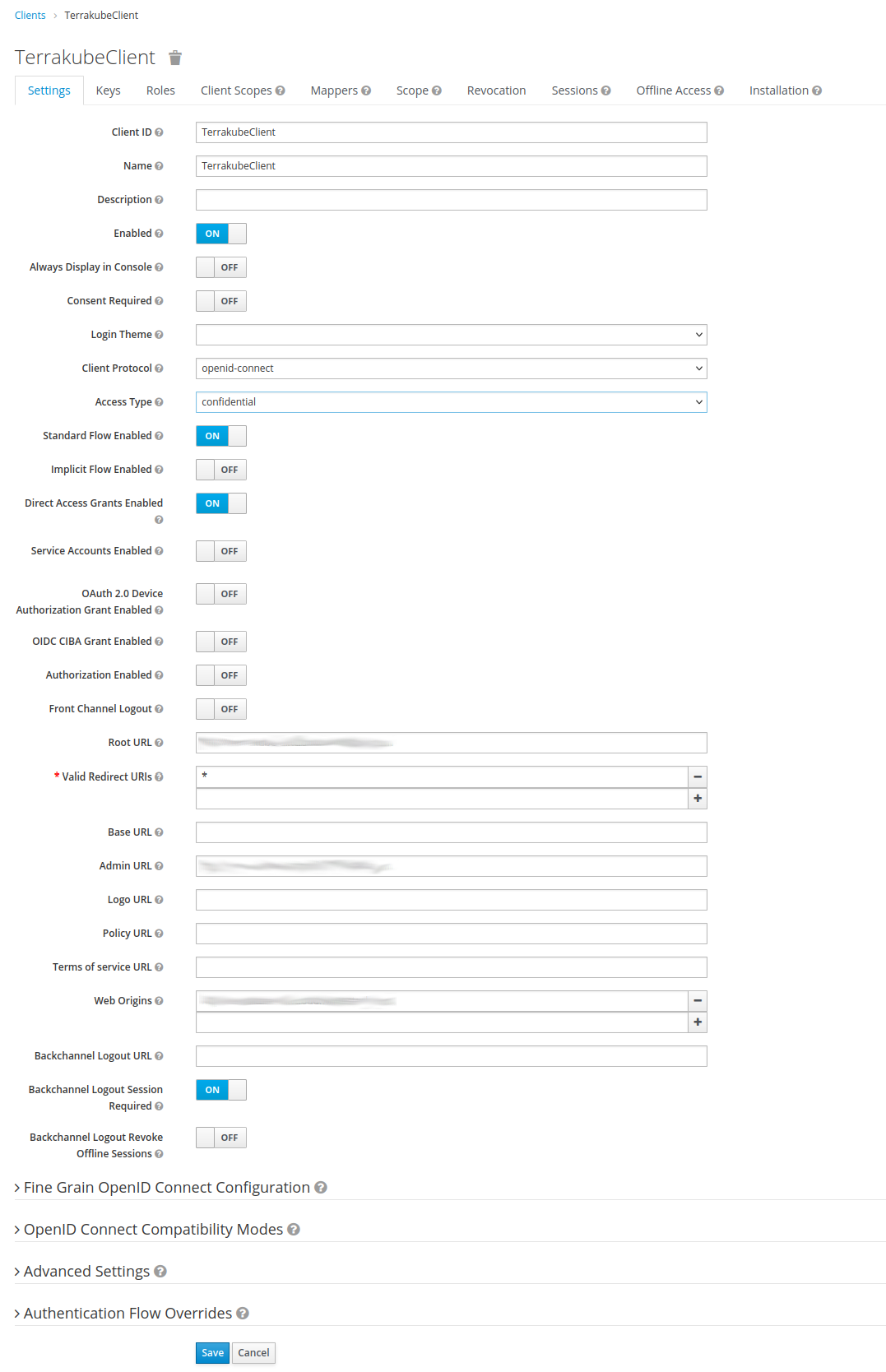
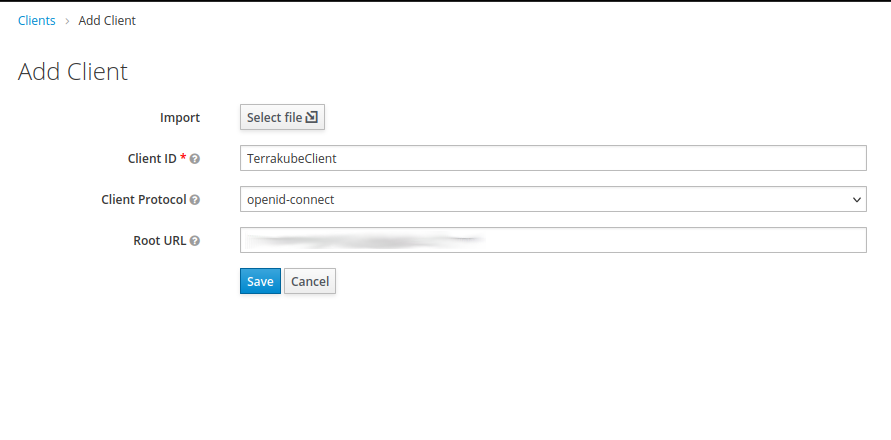
Log in to Keycloak with admin credentials and select Configure > Clients > Create. Define the ID as TerrakubeClient and select openid-connect as its protocol. For Root URL use Terrakube's GUI URL. Then click Save.
A form for finishing the Terrakube client configuration will be displayed. These are the fields that must be fulfilled:
Name: in this example it has the value of TerrakubeClient.
Client Protocol: it must be set to openid-connect.
Access Type: set it to confidential
Then click Save.
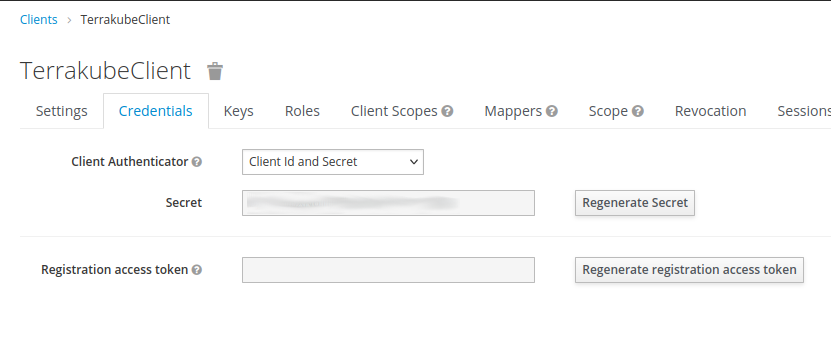
Notice that, since we set Access Type to confidential, we have an extra tab titled Credentials. Click the Credentials tab and copy the Secret value. It will be used later when we configure the Terrakube's connector.
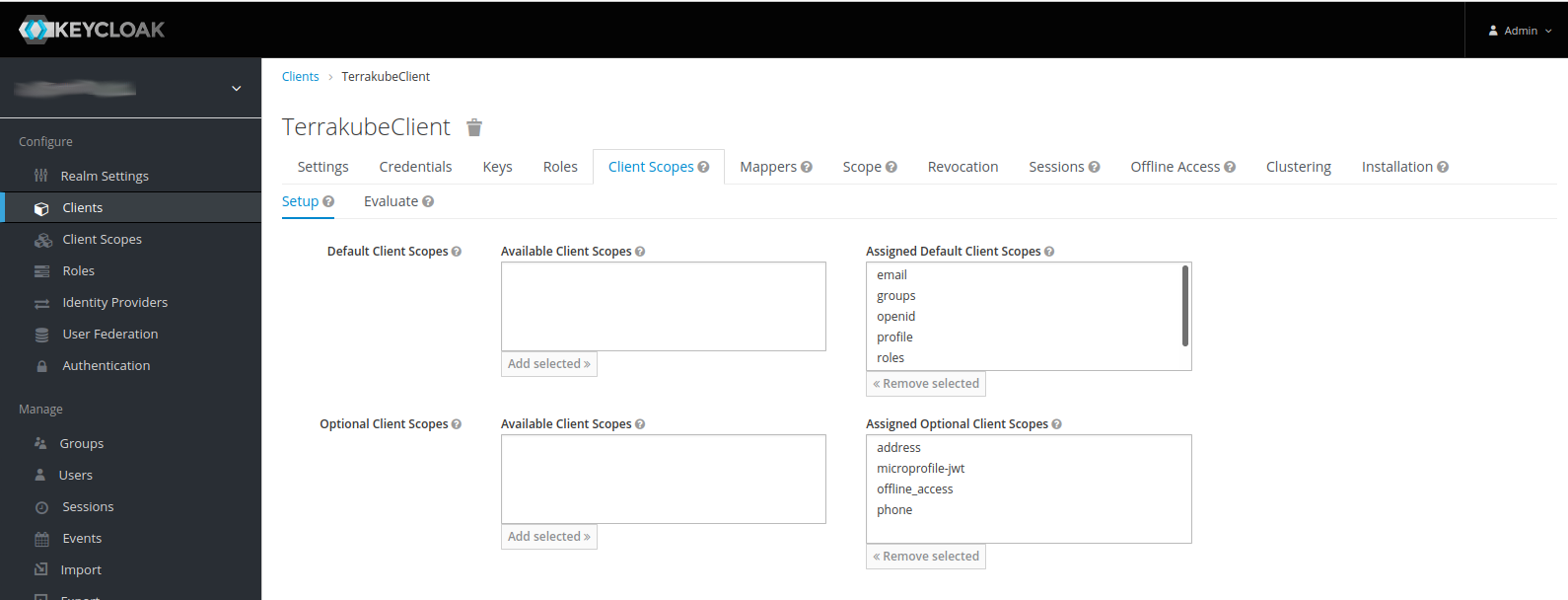
Depending on your configuration, Terrakube might expect different client scopes, such as openid, profile, email, groups, etc. You can see if they are assigned to TerrakubeClient by clicking on the Client Scopes tab (in TerrakubeClient).
If they are not assigned, you can assign them by selecting the scopes and clicking on the Add selected button.
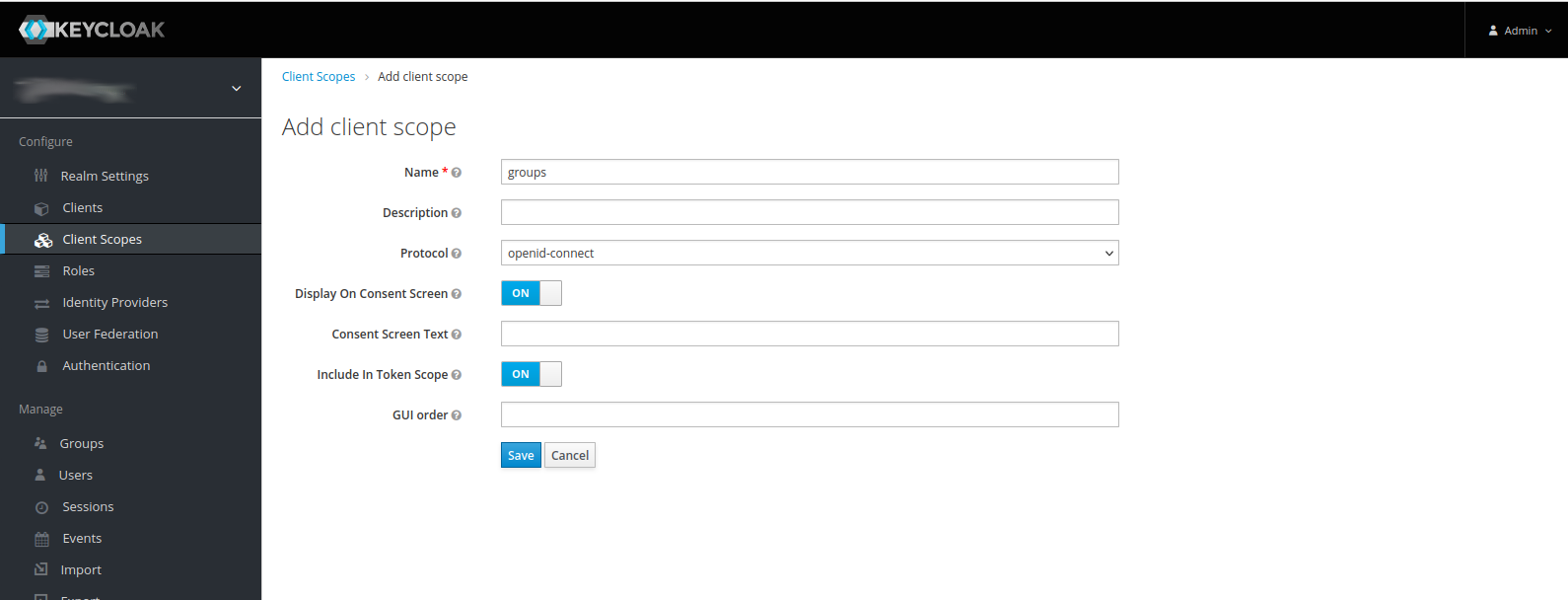
If some scope does not exist, you must create it before assigning it to the client. You do this by clicking on Client Scopes, then click on the Create button. This will lead you to a form where you can create the new scope. Then, you can assign it to the client.
We have to configure a Dex connector to use with Keycloak. Add a new connector in Dex's configuration, so it looks like this:
This is the simpler configuration that we can use. Let's see some notes about this fields:
type: must be oidc (OpenID Connect).
name: this is the string shown in the connectors list in Terrakube GUI.
issuer: it refers to the Keycloak server. It has the form [http|https]://<KEYCLOAK_SERVER>/realms/<REALM_NAME>
{% hint style="info" %} If your users do not have a name set (First Name field in Keycloak), you must tell oidc which attribute to use as the user's name. You can do this giving the userNameKey:
{% endhint %}
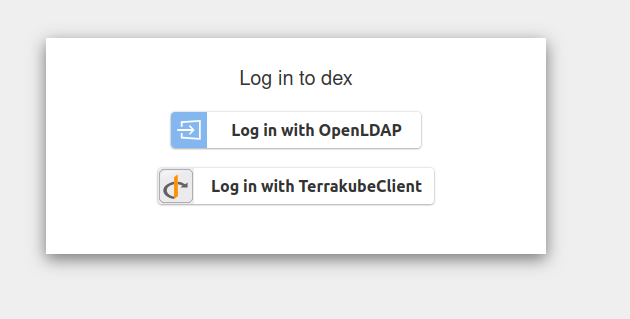
When we click on Terrakube's login button we are given the choice to select the connector we want to use:
Click on Log in with TerrakubeClient. You will be redirected to a login form in Keycloak:
After login, you are redirected back to Terrakube and a dialog asking you to grant access is shown
Click on Grant Access. That is the last step. If everything went right, now you should be logged in Terrakube.
Dex can be further configured by setting dex.config.web.skipApprovalScreen to avoid granting access everytime. It is also recommended to switch to a database mode instead of memory to avoid forcing all users to re-authenticate each time dex pod crashes. Switching to database mode will also allow you to run several dex pods for better availability.
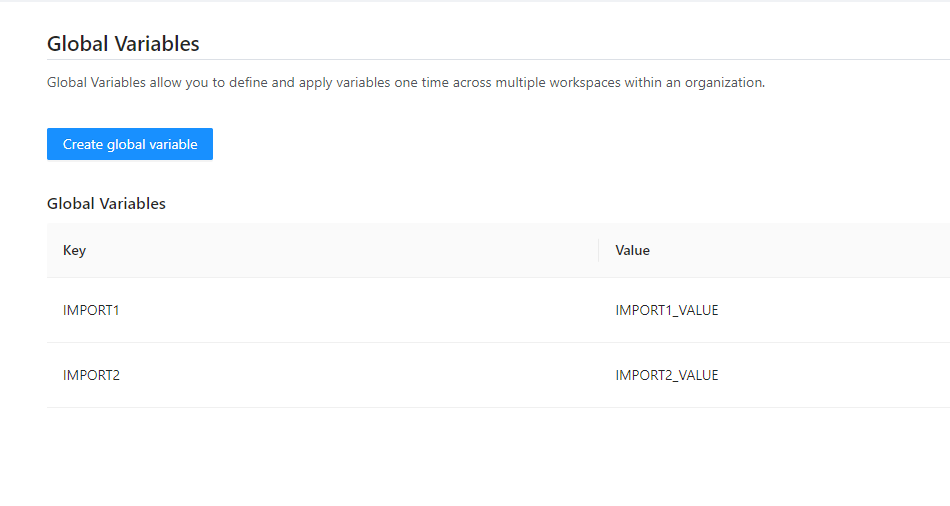
Global Variables
Global Variables allow you to define and apply variables one time across all workspaces within an organization. For example, you could define a global variable of provider credentials and automatically apply it to all workspaces.
Workspace variables have priority over global variables if the same name is used.
Creating a Global Variable
Only users that belongs to Terrakube administrator group can create global variables. This group is defined in the terrakube settings during deployment, for more details see
Once you are in the desired organization, click the Settings button, then in the left menu select the Global Variables option and click the Add global variable button
In the popup, provide the required values. Use the below table as reference:
Field
Description
Finally click the Save global variable button and the variable will be created
You will see the new global variable in the list. And now the variable will be injected in all the workspaces within the organization
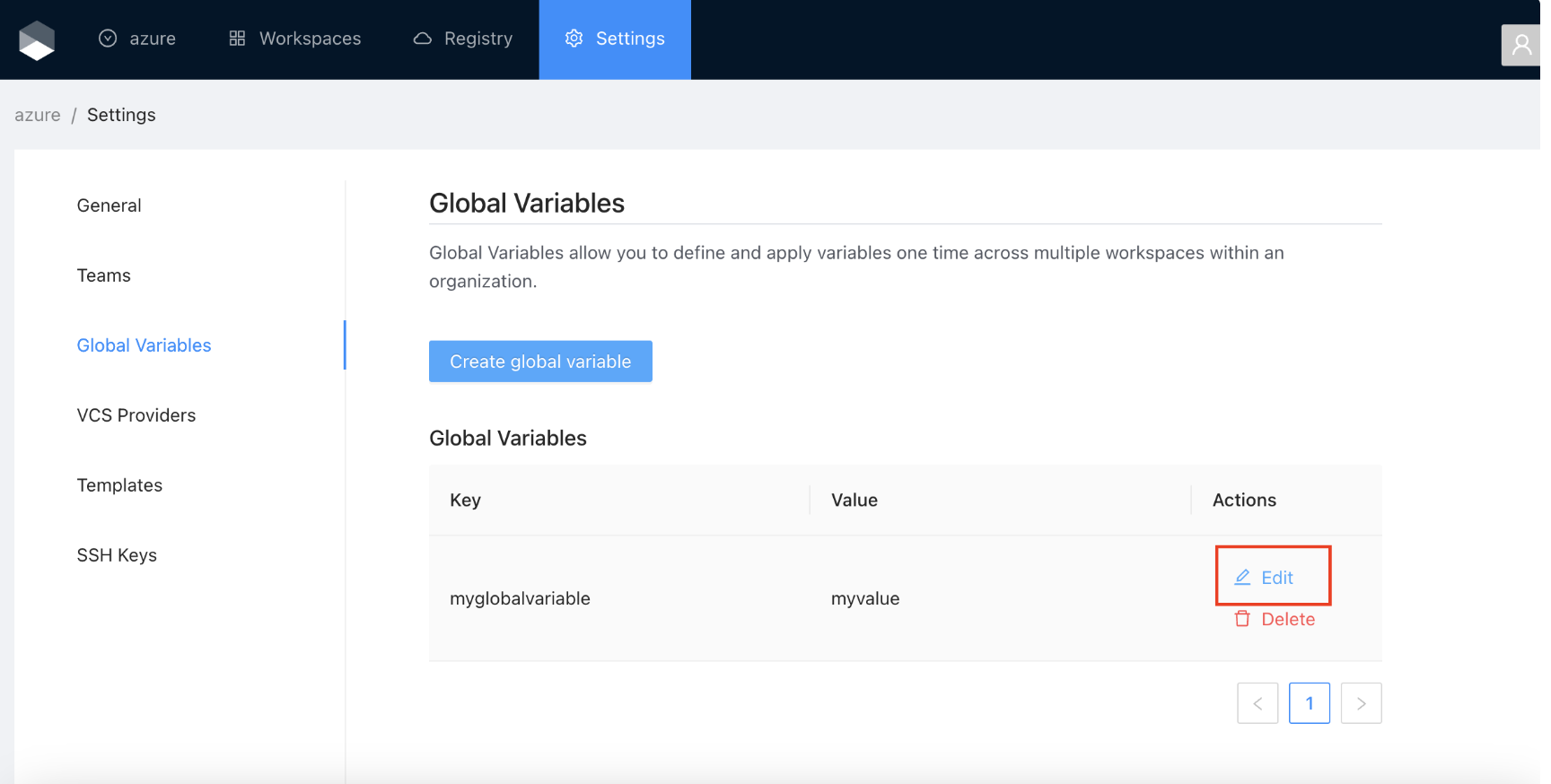
Click the Edit button next to the global variable you want to edit.
Change the fields you need and click the Save global variable button
Click the Delete button next to the global variable you want to delete, and then click the Yes button to confirm the deletion. Please take in consideration the deletion is irreversible
Team Management
In Terrakube you can define user permissions inside your organization using teams.
Creating a Team
Once you are in the desired organization, click the Settings button and then in the left menu select the Teams option.
Click the Create team button
In the popup, provide the team name and the permissions assigned to the team. Use the below table as reference:
Field
Description
Finally click the Create team button and the team will be created
Now all the users inside the team will be able to manage the specific resources within the organization based on the permissions you grantted.
Click the Edit button next to the team you want to edit
Change the permissions you need and click the Save team button
Click the Delete button next to the team you want to delete, and then click the Yes button to confirm the deletion. Please take in consideration the deletion is irreversible
Template Scheduling in Jobs
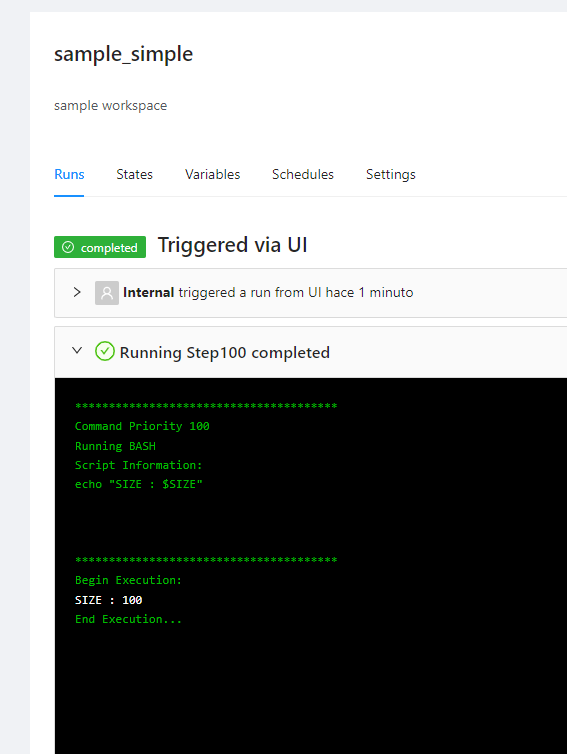
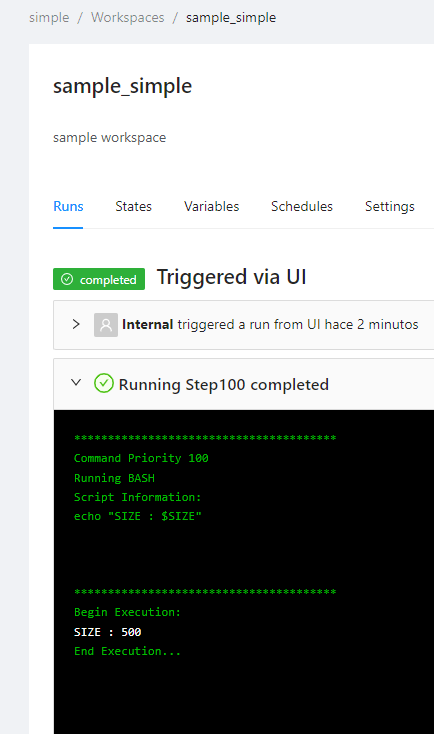
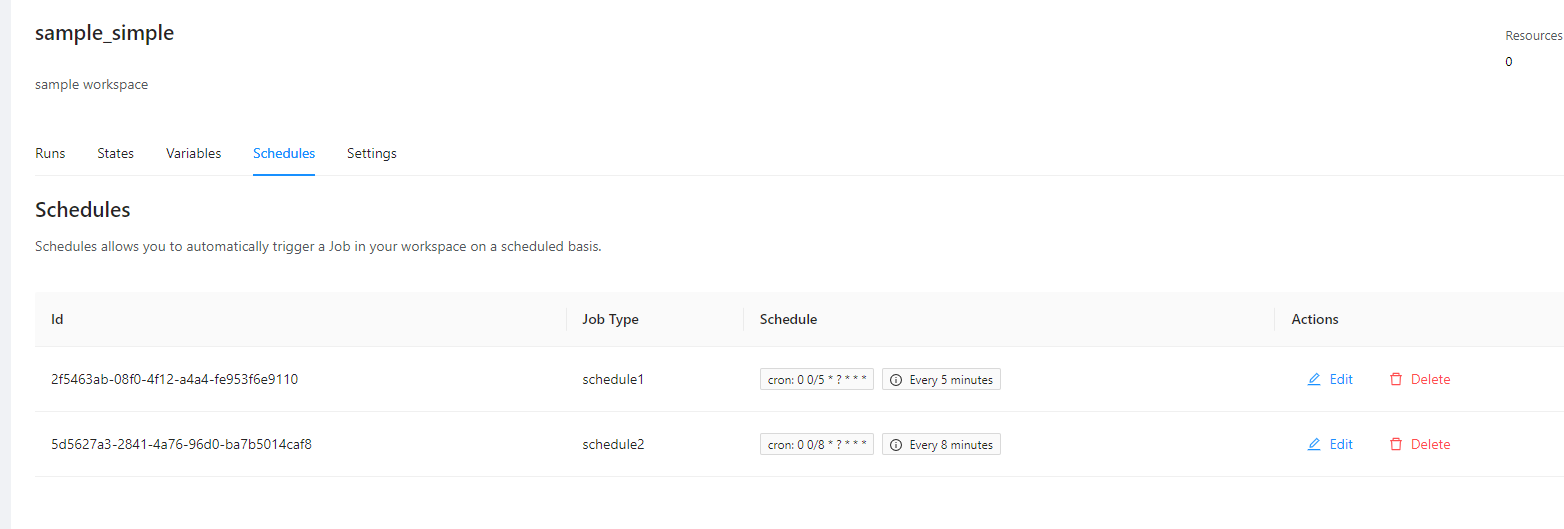
When we deploy some infrastructure we can set some other template to execute in some specific time for example to destroy the infrascturture or resize it.
This example will show the basic logic to accomplish but it is not creaing a real VM it just running some scripts that are showing the injected terraform variables when running the job.
Example
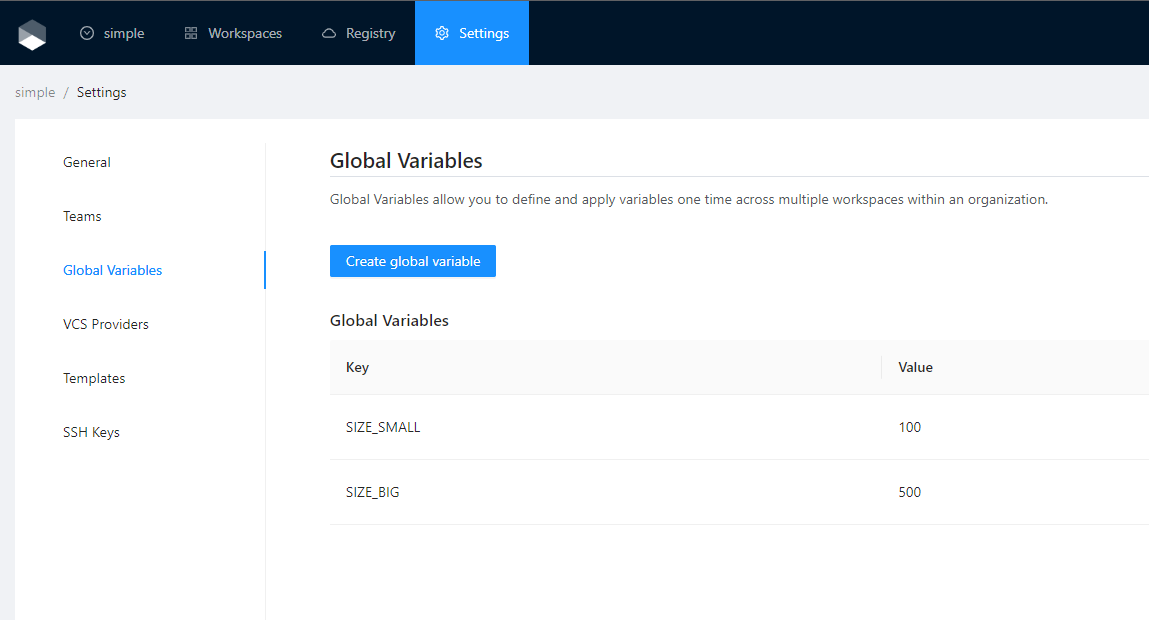
Define the size as global terraform variables for example SIZE_SMALL and SIZE_BIG, this terraform variables will be injected in our future templates "schedule1" and "schedule2" as terraform variables dynamically.\
We define a job template that creates the infrasctucture using some small size and create two schedule at the end of the template.
In the Github page, complete the required fields and click Register application
Field
Description
Next, generate a new client secret
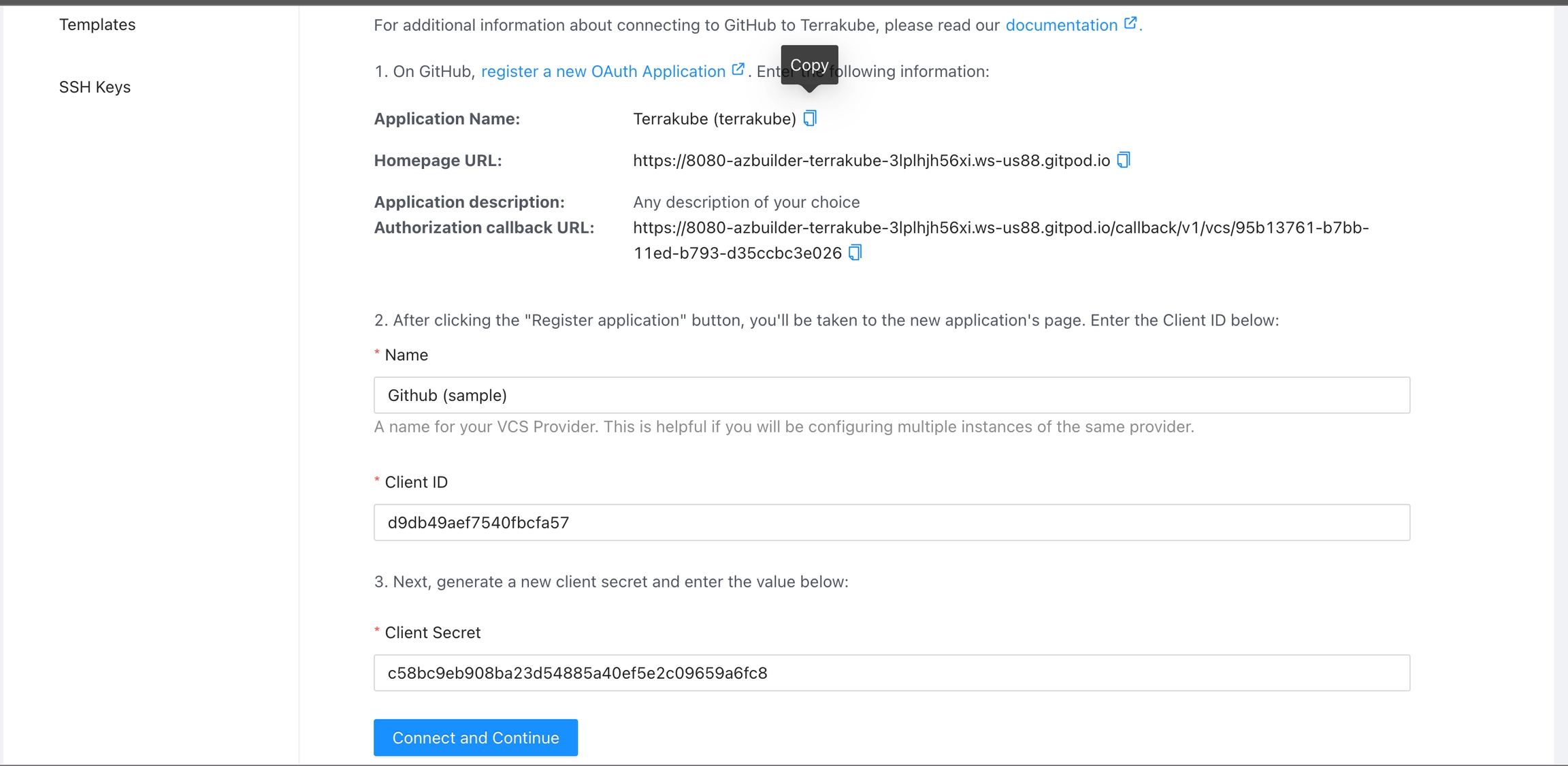
Copy the Client Id and Client Secret from Github and go back to Terrakube to complete the required information. Then, click the Connect and Continue button
You will see the Github page, click the Authorize button to complete the connection
Finally, if the connection was established successfully, you will be redirected to the VCS provider’s page in your organization. You should see the connection status with the date and the user that created the connection.
And now, you will be able to use the connection in your workspaces and modules:
Github Enterprise
To use Terrakube’s VCS features with a self-hosted GitHub Enterprise, follow these instructions. For GitHub.com, see the separate instructions.
Manage VCS Providers permission is required to perform this action, please check for more info.
Got to the organization settings you want to configure. Select the VCS Providers on the left menu and click the Add VCS provider button on the top right corner..
If you prefer, you can add a new VCS Provider directly from the or Create Module screen.
Click the Github button and then click the Github Enterprise option.
On the next screen, enter the following information about your Github Enterprise instance:
Field
Value
Use a different browser tab to access your GitHub Enterprise instance and sign in with the account that you want Terrakube to use. You should use a service user account for your organization, but you can also use a personal account.
Navigate to GitHub's Register a New OAuth Application page. This page is located at https://<GITHUB INSTANCE HOSTNAME>/settings/applications/new
In the Github Enterprise page, complete the required fields and click Register application
Field
Description
Next, generate a new client secret
Copy the Client Id and Client Secret from Github Enterprise and go back to Terrakube to complete the required information. Then, click the Connect and Continue button
You will be redirected to Github Enterprise. Click the Authorize button to complete the connection.
When the connection is successful, you will go back to the VCS provider’s page in your organization. You will see the connection status, the date, and the user who made the connection.
You can now use the connection for your workspaces and modules.
Bitbucket
Work in progress
For using repositories from Bitbucket.com with Terrakube workspaces and modules you will need to follow these steps:
Manage VCS Providers permission is required to perform this action, please check for more info.
Navigate to the desired organization and click the Settings button, then on the left menu select VCS Providers
If you prefer, you can add a new VCS Provider directly from the or Create Module screen.
Click the Bitbucket button and then click the Bitbucket Cloud option
Open Bitbucket Cloud and log in as whichever account you want Terrakube to use and click the settings button in your workspace
Click the OAuth consumers menu and then click the Add consumer button
Complete the required fields and click Save button
Field
Description
In the next screen, copy the Key and Secret
Go back to Terrakube to enter the information you copied from the previous step. Then, click the Connect and Continue button.
You will see a Bitbucket window, click the Grant Access button to complete the connection
Finally, if the connection was established successfully, you will be redirected to the VCS provider’s page in your organization. You should see the connection status with the date and the user that created the connection.
And now, you will be able to use the connection in your workspaces and modules:
Azure DevOps
OAuth apps are deprecated in Azure DevOps. as an alternative for now a managed identity can be used but the setup is only available using the API, for more information please check:
For using repositories from Azure Devops with Terrakube workspaces and modules you will need to follow these steps:
Manage VCS Providers permission is required to perform this action, please check for more info.
Navigate to the desired organization and click the Settings button, then on the left menu select VCS Providers
If you prefer, you can add a new VCS Provider directly from the or Create Module screen.
In the Azure Devops page, complete the required fields and click Create application
Field
Description
In the next screen, copy the App ID and Client Secret
Go back to Terrakube to enter the information you copied from the previous step. Then, click the Connect and Continue button.
You will see an Azure Devops window, click the Accept button to complete the connection
Finally, if the connection was established successfully, you will be redirected to the VCS provider’s page in your organization. You should see the connection status with the date and the user that created the connection.
And now, you will be able to use the connection in your workspaces and modules:
OpenBao/Vault
Requirementes
The dynamic provider credential setup in OpenBao/Vault can be found inside the following link:
The code will also create a sample workspace with all the require environment variables that can be used to test the functionality using the CLI driven workflow.
Make sure to mount your public and private key to the API container as explained here
Mare sure the private key is in "pkcs8" format
Validate the following terrakube api endpoints are working:
Adding test values, policy and jwt role to openbao with the following:
At the workspace level we need to define the following environment variables:
Example:
Now running cli driven workflow with the following terraform code to test
It will show the following:
Self-Hosted Agents
This feature is supported from version 2.20.0 and helm chart version 3.16.0
Terrakube allow to have one or multiple agents to run jobs, you can have as many agents as you want for a single organization.
To use this feature you could deploy a single executor component using the following values:
# Executor should be enable but we need to customize the apiServiceUrl
executor:
enabled: true
apiServiceUrl: "http://terrakube-api-service.terrakube:8080" ## The API is in another namespace called "terrakube"
# We need to disable the default openLdap but we need to provide the internal secret
# so the executor can authenticat with the API and the Registry
security:
useOpenLDAP: false
internalSecret: "AxxPdgpCi72f8WhMXCTGhtfMRp6AuBfj"
# We need to disable dex in this deployment
dex:
enabled: false
# We need to disable default storage MINIO and set some custom values
# in this example will be deploying like using an external MINIO
#(other backend storage could be used too)
storage:
defaultStorage: false
minio:
accessKey: "admin"
secretKey: "superadmin"
bucketName: "terrakube"
endpoint: "http://terrakube-minio.terrakube:9000" ## MINIO is in another namespace called "terrakube"
# We need to disable API, the default redis and default postgresql database
# But we need to provide some properties like the redis connection
api:
enabled: false
defaultRedis: false
defaultDatabase: false
properties:
redisHostname: "terrakube-redis-master.terrakube" ## REDIS is in another namespace called "terrakube"
redisPassword: "7p9iWVeRV4S944"
# We need to disable registry deployment
registry:
enabled: false
# We need to disable ui deployment
ui:
enabled: false
# We need to disable the ingress configuration
# but we need to specify the api and registry URL
ingress:
useTls: false
includeTlsHosts: false
ui:
enabled: false
api:
enabled: false
domain: "terrakube-api.minikube.net"
registry:
enabled: false
domain: "terrakube-reg.minikube.net"
dex:
enabled: false
The above values are assuming the we have deploy terrakube using the domain "minikube.net" inside a namespace called "terrakube"
Now that we have our values.yaml we can use the following helm command:
Now we have a single executor component ready to accept jobs or we could change the number or replicas to have multiple replicas like a pool of agent:
Open Telemetry
Terrakube components support by default to enable effective observability.
To enable telemetry inside the Terrakube components please add the following environment variable:
Once the open telemetry agent is enable we can use other environment variables to setup the monitoring for our application for example to enable jaeger we could add the following using addtional environment variables:
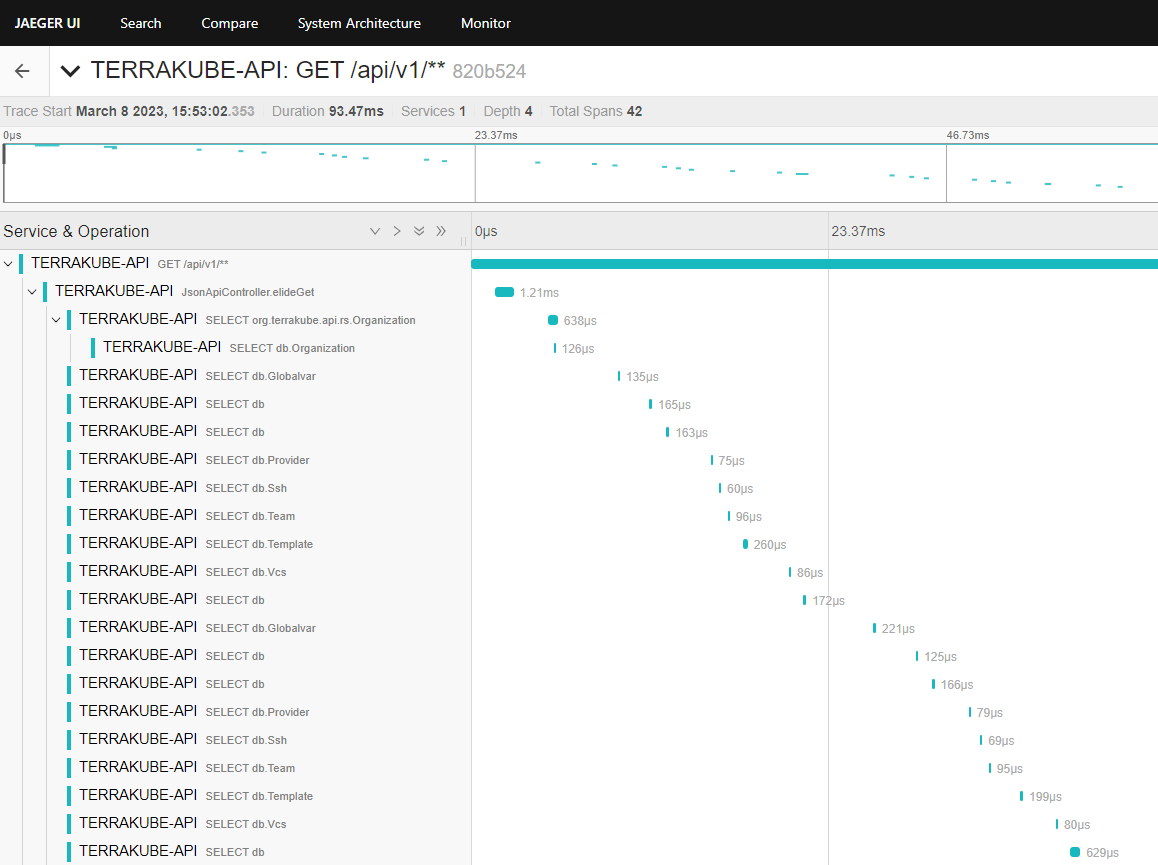
Now we can go the jaeger ui to see if everything is working as expected.
There are several differente configuration options for example:
Gitlab EE and CE
To use Terrakube’s VCS features with a self-hosted GitLab Enterprise Edition (EE) or GitLab Community Edition (CE), follow these instructions. For GitLab.com, .
Got to the organization settings you want to configure. Select the VCS Providers on the left menu and click the Add VCS provider button on the top right corner.
Click the Gitlab button and then click the
Variables
Terrakube workspace variables let you customize configurations and store information like static provider credentials. You can also reference this variables inside your Templates.
You can set or you can create to reuse the same variables across multiple workspaces.
To view and manage a workspace's variables, go to the workspace and click the Variables tab.
The Variables page appears, showing all workspace-specific variables. This is where you can add, edit, and delete workspace-specific variables.
There are 2 kinds of Variables:
Actions
Terrakube actions allow you to extend the UI in Workspaces, functioning similarly to plugins. These actions enable you to add new functions to your Workspace, transforming it into a hub where you can monitor and manage your infrastructure and gain valuable insights. With Terrakube actions, you can quickly observe your infrastructure and apply necessary actions.
Extend Functionality: Customize your Workspace with additional functions specifics to your needs.
Monitor Infrastructure: Gain real-time insights into your infrastructure with various metrics and monitoring tools.
Using Private Modules
All users in an organization with Manage Modules permission can view the Terrakube private registry and use the available providers and modules.
Click Registry in the main menu. And then click the module you want to use.
In the module page, select the version in the dropdown list
You can copy the code reference from the module page
For example:
Prerequisites
Prepare project
Authorization Callback URL
Copy the callback url from the Terrakube UI
Application Name
Your application name, for example you can use your organization name.
Homepage URL
The url for your application or website,
Application Description
Any description you choice
You can complete the fields using the information suggested by terrakube in the VCS provider screen
Your application name, for example you can use your organization name.
Homepage URL
The url for your application or website,
Application Description
Any description you choice
Note: The account that connects Terrakube with your GitHub Enterprise instance needs to have admin rights to any shared Terraform configuration repositories. This is because creating webhooks requires admin permissions.
You can complete the fields using the information suggested by terrakube in the VCS provider screen
Sensitive variables are never shown in the UI or API. They may appear in Terraform logs if your configuration is designed to output them.
Key
Unique variable name
Value
Key value
Category
Category could be Terraform Variable or Environment Variable
Description
Free text to document the reason for this global variable
HCL
Edit a Global Variable
For security, you can't change the Sensitive field. So if you want to change one global variable to sensitive you must delete the existing variable and create a new one
mkcert -install
Created a new local CA 💥
The local CA is now installed in the system trust store! ⚡️
The local CA is now installed in the Firefox trust store (requires browser restart)! 🦊
export VAULT_ADDR='http://localhost:8200'
bao login dev-only-token
bao auth enable userpass
bao write auth/userpass/users/terrakube password=p@ssw0rd
bao auth enable approle
bao write auth/approle/role/terrakube-role secret_id_ttl=10m token_ttl=20m token_max_ttl=30m
bao secrets enable -path shared -version 2 kv
bao kv put -mount shared kv/creds username=terrakube password=p@ssw0rd
bao auth enable jwt
bao write auth/jwt/config oidc_discovery_url="https://terrakube-api.platform.local" bound_issuer="https://terrakube-api.platform.local"
bao policy write tfc-policy terrakube-policy.hcl
bao write auth/jwt/role/tfc-role @vault-jwt-auth-role.json
terraform {
cloud {
hostname = "terrakube-api.platform.local"
organization = "simple"
workspaces {
name = "vault"
}
}
}
provider vault {
skip_tls_verify = true
skip_child_token = true
}
data "vault_kv_secret_v2" "password" {
mount = "shared"
name = "kv/creds"
}
user@pop-os:~/git/terrakube/vault$ terraform plan
Running plan in Terraform Cloud. Output will stream here. Pressing Ctrl-C
will stop streaming the logs, but will not stop the plan running remotely.
Preparing the remote plan...
To view this run in a browser, visit:
https://terrakube-api.platform.local/app/simple/vault/runs/run-1
Waiting for the plan to start...
***************************************
Running Terraform PLAN
***************************************
data.vault_kv_secret_v2.password: Reading...
data.vault_kv_secret_v2.password: Read complete after 0s [id=shared/data/kv/creds]
No changes. Your infrastructure matches the configuration.
Allow members to create and administrate all within the organization
Manage State
Allow members to see the terraform/tofu state from the UI
Name
Must be a valid group based on the Dex connector you are using to manage users and groups.
For example if you are using Azure Active Directory, you must use a valid Active Directory Group like TERRAKUBE_ADMIN, or if you are using Github the format should be MyGithubOrg:TERRAKUBE_ADMIN
Manage Workspaces
Allow members to create and administrate all workspaces within the organization
Manage Modules
Allow members to create and administrate all modules within the organization
Manage Providers
Allow members to create and administrate all providers within the organization
On the next screen, enter the following information about your GitLab instance:
Field
Value
HTTP URL
https://<GITLAB INSTANCE HOSTNAME>
API URL
https://<GITLAB INSTANCE HOSTNAME>/api/v4
Use a different browser tab to access your GitLab instance and sign in with the account that you want Terrakube to use. You should use a service user account for your organization, but you can also use a personal account.
Navigate to GitLab "User Settings > Applications" page. This page is located at https://<GITLAB INSTANCE HOSTNAME>/profile/applications
In the GitLab page, complete the required fields and click Save application
Field
Description
Name
Your application name, for example you can use your organization name.
Redirect URI
Copy the Redirect URI from the UI
Scopes
Only api should be checked
On the next screen, copy the Application ID and Secret
Go back to Terrakube to enter the information you copied from the previous step. Then, click the Connect and Continue button.
You will be redirected to GitLab. Click the Authorize button to complete the connection.
Finally, if the connection was established successfully, you will be redirected to the VCS provider’s page in your organization. You should see the connection status with the date and the user that created the connection.
And now, you will be able to use the connection in your workspaces and modules:
Manage VCS Providers permission is required to perform this action, please check Team Management for more info.
If you prefer, you can add a new VCS Provider directly from the Create workspace or Create Module screen.
Note: To connect Terrakube, you need an account with admin (master) access to any shared repositories of Terraform configurations. This is because creating webhooks requires admin permissions. Make sure you create the application as a user-owned application, not as an administrative application. Terrakube needs user access to repositories to create webhooks and ingress configurations.
If you have GitLab CE or EE 10.6 or higher, you might also need to turn on Allow requests to the local network from hooks and services. You can find this option in the Admin area under Settings, in the “Outbound requests” section (/admin/application_settings/network). For more details, see the .
You can complete the fields using the information suggested by terrakube in the VCS provider screen
These Terraform variables are set using a terraform.tfvars file. To use interpolation or set a non-string value for a variable, click its HCL checkbox.
Go to the workspace Variables page and in the Terraform Variables section click the Add variable button.
In the popup, provide the required values. Use the below table as reference:
Field
Description
Key
Unique variable name
Value
Key value
Description
Free text to document the reason for this global variable
Finally click the Save variable button and the variable will be created.
Click the Edit button next to the variable you want to edit.
Make any desired changes and click Save variable.
Click the Delete button next to the variable you want to delete.
Click Yes to confirm your action.
These variables are set in Terraform's shell environment using export.
Go to the workspace Variables page and in the Environment Variables section click the Add variable button.
In the popup, provide the required values. Use the below table as reference:
Field
Description
Key
Unique variable name
Value
Key value
Description
Free text to document the reason for this global variable
Finally click the Save variable button and the variable will be created.
Click the Edit button next to the variable you want to edit.
Make any desired changes and click Save variable.
Click the Delete button next to the variable you want to delete.
Manage Resources: Directly manage and interact with your resources from within the Workspace.
Flexibility: Quickly disable an action if it is not useful for your organization or set conditions for actions to appear, such as if a resource is hosted in GCP or if the workspace is Dev.
Cloud-Agnostic Hub: Manage multi-cloud infrastructure from a single point, providing observability and actionability without needing to navigate individual cloud portals.
Manage Infrastructure: Restart your Azure VM or add an action to quickly navigate to the resource in the Azure portal directly from Terrakube.
Monitor Metrics: Track and display resource metrics for performance monitoring using tools like Prometheus, Azure Monitor or AWS Cloudwatch.
Integrate with Tools: Seamlessly integrate with tools like Infracost to display resource and Workspace costs.
AI Integration: Use AI to diagnose issues in your Workspaces. By integrating with models like OpenAI, Claude, and Gemini, you can quickly resolve errors in your infrastructure.
Project and Incident Management: Integrate with Jira, GitHub Issues, and ServiceNow to identify Workspaces with pending work items or reported errors.
Documentation: Link your Confluence documentation or wiki pages in your preferred tool, allowing quick access to documents related to your Workspace infrastructure.
Terrakube provides several built-in actions that you can start using some are enabled by default. Please refer to the documentation for detailed information on each action, including usage and setup instructions.
If you are interested in creating your own actions, you only need knowledge of JavaScript and React, as an action is essentially a React component. For more details please check our quick start guide, or visit our GitHub Terrakube Actions repository to see some examples, contribute new actions or suggest improvements.
After you develop your action. To create a new action in Terrakube:
Navigate to the settings in any Terrakube organization.
Click the Add Action button.
Provide the required information as detailed in the table below:
Field Name
Description
ID
A unique ID for your action. Example: terrakube.demo-action or myorg.my-action
Name
A unique name for your action.
Type
Defines the section where this action will appear. Refer to to see the specific area where the action will be rendered.
Click the Save button.
\
Only users that belongs to Terrakube administrator group can create and edit actions. This group is defined in the terrakube settings during deployment, for more details see Administrator group
Key Benefits of Terrakube Actions:
Examples of Terrakube Actions:
Built-in Actions
Developing Actions
Creating an Action
If your repository has submodules, Terrakube will scan the modules folder to identify all the submodules. Then, you will see a dropdown list with the submodules in the UI.
To view the readme file, inputs, outputs, resources and other information for any submodule, you can choose the submodule you want.
You can also copy the details of how to configure any submodule, just like the main module. Example:
In the submodule view you can switch to the differents submodules.
Or you can back to the main module with the Back button on the top of the page.
When running Terraform on the CLI, you must configure credentials in .terraformrc or terraform.rc to access the private modules.
To use Dynamic Provider credentials we need to genera a public and private key that will be use to generate a validate the federated tokens, we can use the following commands
You need to make sure the private key starts with "-----BEGIN PRIVATE KEY-----" if not the following command can be used to transform the private key to the correct format
The public and private key need to be mounted inside the container and the path should be specify in the following environment variables
DynamicCredentialPublicKeyPath
DynamicCredentialPrivateKeyPath
To enable dynamic credentials when using the helm chart add the following values.
To use Dynamic Provider credentials the following public endpoints were added. This endpoint needs to be accessible for your different cloud providers.
The following environment variables can be used to customize the dynamic credentials configuration:
DynamicCredentialId = This will be the kid in the JWKS endpoint (Default value: 03446895-220d-47e1-9564-4eeaa3691b42)
DynamicCredentialTtl= The TTL for the federated token generated internally in Terrakube (Defafult: 30)
DynamicCredentialPublicKeyPath= The path to the public key to validate the federated tokens
Terrakube will generate a JWT token internally, this token will be used to authenticate to your cloud provider.
The token structure looks like the following for Azure
The token structure looks like the following for GCP
The token structure looks like the following for AWS
User Authentication (DEX)
To authenticate users Terrakube implement DEX so you can authenticate using differente providers using dex connectors like the following:
Azure Active Direcory
Google Cloud Identity
Amazon Cognito
Github Authentication
Gitlab Authentictaion
OIDC
LDAP
Keycloak
etc.
The Terrakube is using DEX as dependency, so you can quickly implement it using any exiting dex configuration.
To customize the DEX setup just create a simple terrakube.yaml and update the configuration like the following example:
Minikube
This following will install Terrakube using "HTTP" a few features like the Terraform registry and the Terraform remote state won't be available because they require "HTTPS", to install with HTTPS support locally with minikube check
Terrakube can be installed in minikube as a sandbox environment to test, to use it please follow this:
It will take some minutes for all the pods to be available, the status can be checked using
kubectl get pods -n terrakube
If you found the following message "Snippet directives are disabled by the Ingress administrator", please update the ingres-nginx-controller configMap in namespace ingress-nginx adding the following:
The environment has some users, groups and sample data so you can test it quickly.
Visit http://terrakube-ui.minikube.net and login using admin@example.com with password admin
You can login using the following user and passwords
User
Password
Member Of
Groups
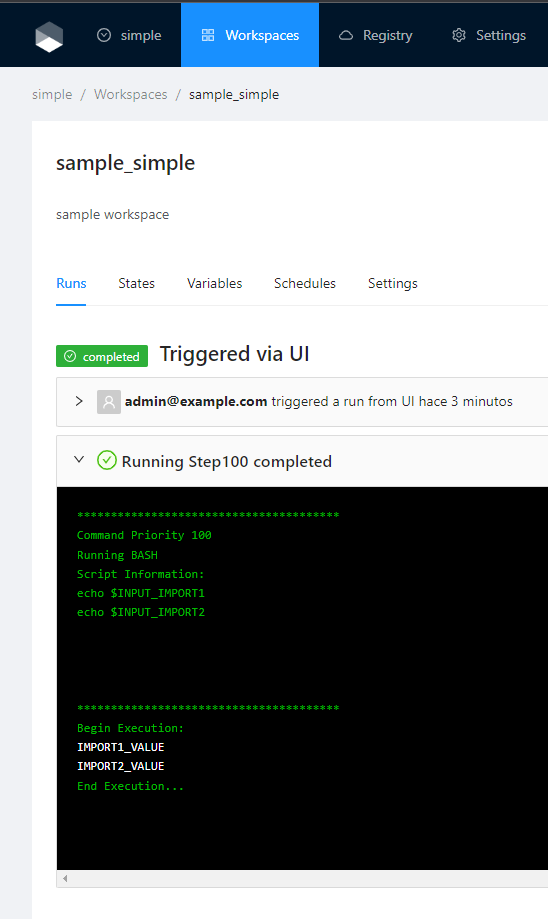
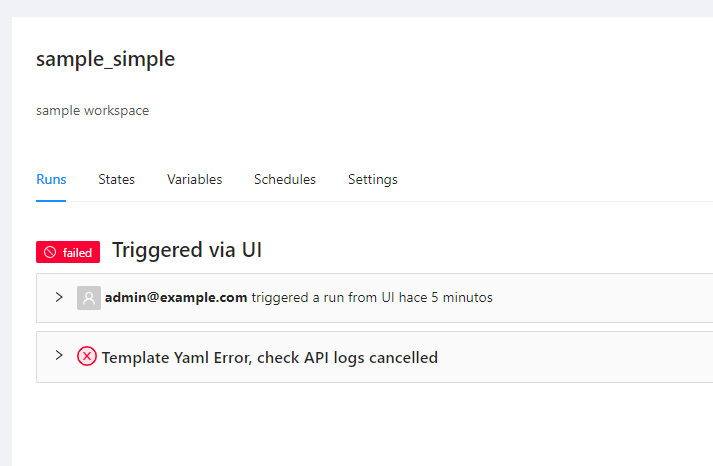
Select the "simple" organization and the "sample_simple" workspace and run a job.
Creating Workspaces
When creating a Workspace, Terrakube supports 3 workflows types and based on the selected workflow you will need to provide some parameters. Please refer to each workflow section for more reference.
: Store your Terraform configuration in a git repository, and trigger runs based on pull requests and merges.
: Trigger remote Terraform runs from your local command line.
Parse this field as HashiCorp Configuration Language (HCL). This allows you to interpolate values at runtime.
Sensitive
Sensitive variables are never shown in the UI or API. They may appear in Terraform logs if your configuration is designed to output them.
HCL
Parse this field as HashiCorp Configuration Language (HCL). This allows you to interpolate values at runtime.
Sensitive
Sensitive variables are never shown in the UI or API. They may appear in Terraform logs if your configuration is designed to output them.
Label
For tabs actions, this will be displayed as the tab name. For action buttons, it should be displayed as the button name.
Category
This helps to organize the actions based on their function. Example: General, Azure, Cost, Monitor.
Version
Must follow semantic versioning (e.g., 1.0.0).
Description
A brief description of the action.
Display Criteria
Defines the conditions under which the action should appear based on the context. For more details, check the Display Criteria documentation.
Action
A JavaScript function equivalent to a React component. Receives the context with some data related to the context. See our quick start guide to start creating actions
DynamicCredentialPrivateKeyPath=The path to the private key to generate the federated tokens
Kubernetes Deployment
Public Endpoints Requirements
Terrakube Environment Variables:
Token structure
Any dex connector that implements the "groups" scope should work without any issue
Make sure to update the dex configuration when deploying terrakube in a real kubernetes environment, by default it is using a very basic openLDAP with some sample data. To disable udpate security.useOpenLDAP in your terrakube.yaml
The sample user and groups information can be updated in the kubernetes secret:
terrakube-openldap-secrets
Minikube will use a very simple OpenLDAP, make sure to change this when using in a real kubernetes environment. Using the option security.useOpenLDAP=false in your helm deployment.
For more advance configuration options to install Terrakube visit:
# UPDATE THE DEX CLIENT ID AND SCOPE
security:
dexClientId: "example-app"
dexClientScope: "email openid profile offline_access groups"
useOpenLDAP: false
# UPDATE THE DEX CONFIG
dex:
config:
issuer: http://terrakube-api.minikube.net/dex
storage:
type: memory
web:
http: 0.0.0.0:5556
allowedOrigins: ['*']
skipApprovalScreen: true
oauth2:
responseTypes: ["code", "token", "id_token"]
connectors:
- type: ldap
name: OpenLDAP
id: ldap
config:
# The following configurations seem to work with OpenLDAP:
#
# 1) Plain LDAP, without TLS:
host: terrakube-openldap-service:389
insecureNoSSL: true
#
# 2) LDAPS without certificate validation:
#host: localhost:636
#insecureNoSSL: false
#insecureSkipVerify: true
#
# 3) LDAPS with certificate validation:
#host: YOUR-HOSTNAME:636
#insecureNoSSL: false
#insecureSkipVerify: false
#rootCAData: 'CERT'
# ...where CERT="$( base64 -w 0 your-cert.crt )"
# This would normally be a read-only user.
bindDN: cn=admin,dc=example,dc=org
bindPW: admin
usernamePrompt: Email Address
userSearch:
baseDN: ou=People,dc=example,dc=org
filter: "(objectClass=person)"
username: mail
# "DN" (case sensitive) is a special attribute name. It indicates that
# this value should be taken from the entity's DN not an attribute on
# the entity.
idAttr: DN
emailAttr: mail
nameAttr: cn
groupSearch:
baseDN: ou=Groups,dc=example,dc=org
filter: "(objectClass=groupOfNames)"
userMatchers:
# A user is a member of a group when their DN matches
# the value of a "member" attribute on the group entity.
- userAttr: DN
groupAttr: member
# The group name should be the "cn" value.
nameAttr: cn
staticClients:
- id: example-app
redirectURIs:
- 'http://terrakube-ui.minikube.net'
- '/device/callback'
- 'http://localhost:10000/login'
- 'http://localhost:10001/login'
name: 'example-app'
public: true
Click Workspaces in the main menu and then click the New workspace button
Select the IaC type for now we support terraform and open tofu
Choose the Version control workflow
Select an existing version control provider or click Connect to a different VCS to configure a new one. See VCS Providers for more details.
Provide the git repository URL and click the Continue button.
Configure the workspace settings.
Field
Description
Workspace Name
The name of your workspace is unique and used in tools, routing, and UI. Dashes, underscores, and alphanumeric characters are permitted.
VCS branch
A list of branches separated by comma that jobs are allowed to kicked off from VCS webhook. This is not used for CLI workflow.
Terraform Working Directory
Default workspace directory. Use / for the root folder
Once you fill the settings click the Create Workspace button.
When using a VCS workflow you can select which branches, folder and action (aka, Default template (VCS push)) the runs will be triggered from when a git push action happens.
The VCS branches accepts a list of branches separated by comma, the first in the list is used as the default for the runs kicked off from UI. The branches are compared as prefixes against the branch included in the payload sent from VCS provider.
You will be redirected to the Workspace page
And if you navigate to the Workspace menu, you will see the workspace in the Workspaces list
Once you create your workspace, Terrakube sets up a webhook with your VCS. This webhook runs a job based on the selected template every time you push new changes to the set workspace branches. However, this feature does not work yet with Azure DevOps VCS provider.
Click Workspaces in the main menu and then click the New workspace button
Choose the CLI-driven workflow
Configure the workspace settings.
Field
Description
Workspace Name
The name of your workspace is unique and used in tools, routing, and UI. Dashes, underscores, and alphanumeric characters are permitted.
Terraform Version
The version of Terraform to use for this workspace. Check if you want to restrict the versions in your Terrakube instance.
Once you fill the settings click the Create Workspace button.
You will be redirected to the Workspace page.
And if you navigate to the Workspace menu you will see the workspace in the Workspaces list
Click Workspaces in the main menu and then click the New workspace button
Choose the API-driven workflow
Configure the workspace settings.
Field
Description
Workspace Name
The name of your workspace is unique and used in tools, routing, and UI. Dashes, underscores, and alphanumeric characters are permitted.
Terraform Version
The version of Terraform to use for this workspace. Check if you want to restrict the versions in your Terrakube instance.
Once you fill the settings click the Create Workspace button.
ou will be redirected to the Workspace page.
And if you navigate to the Workspace menu you will see the workspace in the Workspaces list
Manage Workspaces permission is required to perform this action, please check Team Management for more info.
If you want to connect to a private git repo using SSH Keys you will need to provide the url in ssh format. Example git@github.com:jcanizalez/terraform-sample-repository.git. For more information see
CLI-driven Workflow
The overview page for CLI-driven workspaces show the step to connect to the workspace using the Terraform CLI. For more details see
API-driven Workflow
For more details how to use the Terrakube API. See
The Jaeger gRPC endpoint to connect to. Default is http://localhost:14250.
otel.exporter.jaeger.timeout
OTEL_EXPORTER_JAEGER_TIMEOUT
The maximum waiting time, in milliseconds, allowed to send each batch. Default is 10000.
The Zipkin endpoint to connect to. Default is http://localhost:9411/api/v2/spans. Currently only HTTP is supported.
The local port used to bind the prometheus metric server. Default is 9464.
otel.exporter.prometheus.host
OTEL_EXPORTER_PROMETHEUS_HOST
The local address used to bind the prometheus metric server. Default is 0.0.0.0.
Terrakube componentes (api, registry and executor) are using buildpacks to create the docker images
When using buildpack to add a custom CA certificate at runtime you need to do the following:
Provide the following environment variable to the container:
SERVICE_BINDING_ROOT: /mnt/platform/bindings
Inside the path there is a folder call "ca-certificates"
cnb@terrakube-api-678cb68d5b-ns5gt:/mnt/platform/bindings$ ls
ca-certificates
We need to mount some information to that path
/mnt/platform/bindings/ca-certificates
Inside this folder we should put out custom PEM CA certs and one additional file call type
cnb@terrakube-api-678cb68d5b-ns5gt:/mnt/platform/bindings/ca-certificates$ ls
terrakubeDemo1.pem terrakubeDemo2.pem type
The content of the file type is just the text "ca-certificates"
Finally your helm terrakube.yaml should look something like this because we are mounting out CA certs and the file called type in the following path " /mnt/platform/bindings/ca-certificates"
Version 4.2.6 and later will automatically mount certificates passed via security.caCerts. If you are using version 4.2.5 or below of the Helm chart, you also need to explicitly mount the certificates. Repeat for api, executor and registry:
Checking the terrakube component two additional ca certs are added inside the sytem truststore
Additinal information about buildpacks can be found in this link:
Terrakube allow to add the certs when building the application, to use this option use the following:
The certs will be added at runtime as the following image.
Azure Monitor
Description
The Azure Monitor Metrics action allows users to fetch and visualize metrics from Azure Monitor for a specified resource.
Display Criteria
By default, this Action is disabled and when enabled will appear for all the azurerm resources. If you want to display this action only for certain resources, please check display criteria.
ARM_CLIENT_ID: The Azure Client ID used for authentication.
ARM_CLIENT_SECRET: The Azure Client Secret used for authentication.
ARM_TENANT_ID: The Azure Tenant ID associated with your subscription.
ARM_SUBSCRIPTION_ID: The Azure Subscription ID where the VM is located.
Navigate to the Workspace Overview or the Visual State and click on a resource name.
Click the Monitor tab to view metrics for the selected resource.
You can view additional details for the metrics using the tooltip.
You can see more details for each chart by navigating through it.
Azure Active Directory
Azure Active Directory
Azure Storage Account
For this example lets image that you will be using the following domains to deploy Terrakube.
Templates
Templates allows you to customize the job workflow inside each workspace. You can define multiple templates inside each organization. Templates are written in yaml and you can specify each step to be executed once you use this template in the workspace. Lets see an example for a basic template:
If you notice inside the flow section you can define any step required, for this case only 2 steps are defined. Using the type property you can specify the kind of step to be performed, in the above case we are using some default types like terraformPlan and terraformApply. However the power of terrakube is that you can extend your workflow to execute additional tasks using bash or groovy code. Lets see a more advanced template:
The previous example is using to add the environment_id to all the resources in the workspace. To acomplish that, the template defines some additional commands during the Terraform Plan, in this case a groovy class is utilized to download the Terratag binary, and a bash script is used to execute the terratag cli to append the required tags.
Using templates you can define all the business logic you need to execute in your workspace, basically you can integrate terrakube with any external tool. For example you can use
Quick start
Let's start writing our Hello World action. This action will include a single button with the text "Quick Start".
As you can see, an action is essentially some JavaScript code, specifically a React component. If you are not familiar with JavaScript and React, I recommend before continuing.
This component contains only one button and receives a context parameter. We will discuss more about the context later. For now, you only need to know that the context provides some data related to the area where the action will appear.
Terrakube uses , so by default, all antd components are available when you are developing an action.
To create the action in your Terrakube instance, navigate to the Organization settings and click the
Using Providers
The following will explain how to add a provider to Terrakube.
Lets add the random provider version 3.0.1 to terrakube, we can get the information that we need from the following endpoints:
Create the provider inside the organization:
Create the provider version
Create the provider implementation
You can change the URL from the above paramaters and use a URL that you control, I was using the terraform registry url for example purposes
Now in your terraform code you can have something like this:
The Client ID should have at least Monitoring Reader or Reader access on resource group or subscription.
Usage
Terraform Version
The version of Terraform to use for this workspace. Check Custom Terraform CLI Builds if you want to restrict the versions in your Terrakube instance.
And when running terraform init you will see something like:
GET https://registry.terraform.io/v1/providers/hashicorp/random/versions
GET https://registry.terraform.io/v1/providers/hashicorp/random/3.0.1/download/linux/amd64
The provider needs to be added using the API, currently there is no support to do it using the UI and if you want to upload a private provider you will need to upload the provider binary and related files to some domain that you can manage.
terraform {
required_providers {
random = {
source = "terrakube-reg.minikube.net/simple/random"
version = "3.0.1"
}
}
}
user@pop-os:~/git/simple-terraform$ terraform init
Initializing the backend...
Initializing modules...
Initializing provider plugins...
- Finding terrakube-reg.minikube.net/simple/random versions matching "3.0.1"...
- Finding latest version of hashicorp/null...
- Finding latest version of hashicorp/time...
- Finding latest version of hashicorp/random...
- Installing hashicorp/null v3.2.2...
- Installed hashicorp/null v3.2.2 (signed by HashiCorp)
- Installing hashicorp/time v0.12.0...
- Installed hashicorp/time v0.12.0 (signed by HashiCorp)
- Installing hashicorp/random v3.6.2...
- Installed hashicorp/random v3.6.2 (signed by HashiCorp)
- Installing terrakube-reg.minikube.net/simple/random v3.0.1...
- Installed terrakube-reg.minikube.net/simple/random v3.0.1 (signed by HashiCorp)
Terraform has created a lock file .terraform.lock.hcl to record the provider
selections it made above. Include this file in your version control repository
so that Terraform can guarantee to make the same selections by default when
you run "terraform init" in the future.
Terraform has been successfully initialized!
You may now begin working with Terraform. Try running "terraform plan" to see
any changes that are required for your infrastructure. All Terraform commands
should now work.
If you ever set or change modules or backend configuration for Terraform,
rerun this command to reinitialize your working directory. If you forget, other
commands will detect it and remind you to do so if necessary.
registry.terrakube.azure.com
ui.terrakube.azure.com
api.terrakube.azure.com
You need to complete the Azure authentication setup for Dex. You can found information in this link
You need to go to your Azure and create a new Application
After the application is created you need to add the redirect URL.
You will also need to add the permission Directory.Read.All and ask a Azure administrator to approve the permission.
Now you can create the DEX configuration, you will use this config later when deploying the helm chart.
The firt step is to clone the repository.
Replace <<CHANGE_THIS>> with the real values, create the values.yaml file and run the helm install
Run the installation
Azure Authentication with Dex Connecor require Terrakube >= 2.6.0 and Helm Chart >= 2.0.0
For any question or feedback please open an issue in our
to calculate the cost of the resources to be created in your workspace or verify some policies using
.
There are some tools that are very common, and you don't want repeat the same code everytime or maybe other engineer already created the code and the logic to integrate with a specific tool. For these cases, inside the template is possible to reuse some logic using Terrakube extensions. Basically if someone else developed an integration with an external third party service, you don't need to implement it again, you can use the extension. Let's see how the template looks like using the Terratag extension:
If you notice the above script is more compact as is reusing some logic. If you want to simplify and reuse some templates in your organization, please check Import Templates.
Using Templates you can even customize the UI for each job, see UI templates for more details.
If you need to store information generated on the steps defined in your template, you can use persistent context.
Once you are in the desired organization, click the Settings button, then in the left menu select the Templates option and click the Add Template button
You will see a list of some predefined templates than you can utilize as a quick start or if you prefer you can click the Blank Template to start from scratch
In the next screen you can define your template and when you are ready click the Continue button.
Finally, you can assign a name and description to your template and click the Create Template button.
Now you template is ready and you can start using it in any workspace within your organization.
Click the Edit button next to the Template you would like to edit
Edit your template definition, description or name as desired and when you are ready click the Save Template button
Click the Delete button next to the Template you want to delete and then click Yes to confirm the deletion
Terrakube extensions can be stored inside a GIT repository that you can configure when starting the platform. This is an example repository that you can fork or customiza to create your custom extensions
To see the complete list for terrakube extensions see the . This repo is always growing so its possible the tool you need is already there. In this repo you can also see more templates examples for things like approvals, variable injection and so on.
Persistent Context
Creating a Template
Manage VCS Templates permission is required to perform this action, please check for more info
By default Terrakube don't create any template, so you have to define the templates in your organization based on your requirements.
If you go to any workspace, the quick start button should appear.
Now let's add some interaction to the button. In the next example, we will use the Ant Design Messages component.
Now, if you update the action code, navigate to any workspace, and click the Quick Start button, you will see the Hello Actions message.
To make this action more useful, you can make use of the context. The context is an object that contains data based on the Action Type. If you want to see all the data available for every action type, check the Action Context documentation.
For our quick start action, we will add the name of the workspace to the message.
Update the action code using the code above, click the Quick Start button, and you will see the message now displays the Workspace Name.
f you view a couple of workspaces in the organization, you will see the "Quick Start" button always appears. This is useful if your action serves a general purpose, but there are scenarios where you want to display the action only for workspaces in a specific organization, with a specific version of Terraform, and so on.
In those cases, you will use display criteria, which provides a powerful way to decide when an action will appear or not. If you remember, we set the display criteria to true before. Now let's modify the criteria to show the action only if the workspace contains a specific name.
Navigate to the Actions settings and change the display criteria to:
(You can use another workspace name if you don't have the "sample_simple" workspace.)
Now the button will appear only for the sample_simple workspace. If you notice, the display criteria is a conditional JavaScript code. So you can use any JavaScript code to display the action based on a regular expression, for organizations starting with certain names, or even combine multiple conditions.
Button appears
Button doesn't appear
At this moment, our action only interacts with Terrakube data. However, a common requirement is to access other APIs to get some data, for example, to connect to the GitHub API to get the issues related to the workspace, or to connect to a cloud provider to interact with their APIs.
In these cases, we can make use of the Action Proxy. The proxy provides a way to connect to other backend services without needing to directly configure CORS for the API. The proxy also provides a secure way to use credentials without exposing sensitive data to the client.
Let's add a simple interaction using mock data from the JSONPlaceholder API that reads the comments from a post.
Now if you click the Quick Start button, you will see a dialog with the comments data from the API. The proxy allows to interact with external apis and securely manage credentials. To know more about the Actions proxy check the documentation.
Now, if you click the Quick Start button, you will see a dialog with the comments data from the API. The proxy allows you to interact with external APIs and securely manage credentials. To learn more about the Actions proxy, check the documentation.
Actions in Terrakube allow you to enhance the Workspace experience by creating custom interactions and functionalities tailored to your needs. You can start by exploring the Built-in Actions to understand their implementation and gain more experience.
Actions are React components, and you define an Action Type to determine where the action will appear within the interface. Using Display Criteria, you can specify the precise conditions under which an action should be displayed, such as for specific organizations or Terraform versions.
Additionally, the Action Proxy enables integration with external APIs, securely managing credentials without requiring CORS configuration on the Terrakube front end. This is particularly useful when you don't have control over the external API's CORS settings.
Added 2 additional CA certificate(s) to system truststore
Setting Active Processor Count to 2
Calculating JVM memory based on 5791152K available memory
For more information on this calculation, see https://paketo.io/docs/reference/java-reference/#memory-calculator
Calculated JVM Memory Configuration: -XX:MaxDirectMemorySize=10M -Xmx5033128K -XX:MaxMetaspaceSize=246023K -XX:ReservedCodeCacheSize=240M -Xss1M (Total Memory: 5791152K, Thread Count: 250, Loaded Class Count: 41022, Headroom: 0%)
Enabling Java Native Memory Tracking
Adding 126 container CA certificates to JVM truststore
Spring Cloud Bindings Enabled
Picked up JAVA_TOOL_OPTIONS: -Djava.security.properties=/layers/paketo-buildpacks_bellsoft-liberica/java-security-properties/java-security.properties -XX:+ExitOnOutOfMemoryError -XX:ActiveProcessorCount=2 -XX:MaxDirectMemorySize=10M -Xmx5033128K -XX:MaxMetaspaceSize=246023K -XX:ReservedCodeCacheSize=240M -Xss1M -XX:+UnlockDiagnosticVMOptions -XX:NativeMemoryTracking=summary -XX:+PrintNMTStatistics -Dorg.springframework.cloud.bindings.boot.enable=true
. ____ _ __ _ _
/\\ / ___'_ __ _ _(_)_ __ __ _ \ \ \ \
( ( )\___ | '_ | '_| | '_ \/ _` | \ \ \ \
\\/ ___)| |_)| | | | | || (_| | ) ) ) )
' |____| .__|_| |_|_| |_\__, | / / / /
=========|_|==============|___/=/_/_/_/
:: Spring Boot :: (v2.7.8)
git clone https://github.com/AzBuilder/terrakube
cd terrakube
git checkout <<TERRAKUBE-VERSION>>
mv EXAMPLE.pem bindings/ca-certificates
# This script should be run from the root folder
./scripts/build/terrakubeBuild.sh
When mounting the volume with the ca secrets dont forget to add the key "type", the content of the file is already defined inside the helm chart
For this example lets image that you will be using the following domains to deploy Terrakube.
Github
To run Terrakube in Docker Desktop you wil need the following:
Create Github
Create Github and add some
Ephemeral Workspaces
The following will show how easy is to implement an ephemeral workspace using Terrakube custom schedules and templates with the remote CLI-driven workflow.
The first step will be to create a new organization, lets call it "playground".
Once we have the playground organization, we need to add a team with access to create templates like the following:
We will also need a team with access to create/delete a workspace only, like the following:
Once we have the two teams in our new playground organization, we can proceed and create a new template that we will be using to auto destroy all the workspace:
Cost Estimation
Terrakube can be integrated with using the Terrakube extension to validate the Terraform plan and estimate the monthly cost of the resources, below you can find an example of how this can be achieved.
The firts step will be to create a Terrakube template that calculate the estimated cost of the resources using infracost and validate the total monthly cost to check if we could deploy the resource or not if the price is below 100 USD.
In a high level this template will do the following:
Run the terraform plan for the Terrakube workspace
Lets call it "delete-playground" and it will have the following code:
Now we can update the default template that is used when we are using the remote CLI-driven workflow, this template is inside every organization by default and is called "Terraform-Plan/Apply-Cli", usually we don't need to update this template but we will do some small changes to enable ephemeral workspaces in the playground organization.
We need to go the the templates inside the organization settings and edit the template
We will add a new step in the template, this will allow to schedule a job that will be using the "delete-playground" template that we have created above.
We need to use the following template code:
If we pay special attention we just add a new section where we define that the schedule will run every five minutes after the Terraform apply is completed.
In this example we will schedule the template every five minutes for testing purposes.
Now we need to define our Terraform code, lets use the following simple example:
Run terraform login to connect to our Terrakube instance:
Now we can run terraform init to initialize our workspace inside the playground organization, lets use "myplayground" for the name of our new workspace
Let's run terraform apply and create our resources:
Our new workspace is created and if we go the organization we can see all the information
The job will be running to create the resources:
We can see that our job is completed and the setup auto destroy have created a new schedule for our workspace:
We could go to the schedules tab:
This schedule will run in 5 minutes:
After waiting for 5 minutes we will see that Terrakube have created a new Job automatically
If we check the details for the new job we can see that a terraform destroy will be executed:
All of the workspace resources are deleted and the workspace will be deleted automatically after the destroy is completed.
Once the Job is completed, our workspace information is deleted from Terrakube
If we are using AWS, AZURE, GCP or any other terraform provider that allow to inject the credentials using environment variables we could use "global variables" to define those.
Global variables will be injected automatically to any workspace inside the playground organization.
Teams names will depend on your Dex configuration.
Preparing the remote apply...
To view this run in a browser, visit:
https://8080-azbuilder-terrakube-h128dcdc7l1.ws-us105.gitpod.io/app/playground/myplayground/runs/1
Waiting for the plan to start...
***************************************
Running Terraform PLAN
***************************************
Terraform used the selected providers to generate the following execution
plan. Resource actions are indicated with the following symbols:
+ create
Terraform will perform the following actions:
# null_resource.next will be created
+ resource "null_resource" "next" {
+ id = (known after apply)
}
# null_resource.previous will be created
+ resource "null_resource" "previous" {
+ id = (known after apply)
}
# time_sleep.wait_5_seconds will be created
+ resource "time_sleep" "wait_5_seconds" {
+ create_duration = "5s"
+ id = (known after apply)
}
Plan: 3 to add, 0 to change, 0 to destroy.
Changes to Outputs:
+ creation_time = "5s"
Do you want to perform these actions in workspace "myplayground"?
Terraform will perform the actions described above.
Only 'yes' will be accepted to approve.
Enter a value: yes
null_resource.previous: Creating...
null_resource.previous: Creation complete after 0s [id=7198759863280029870]
time_sleep.wait_5_seconds: Creating...
time_sleep.wait_5_seconds: Creation complete after 5s [id=2023-10-18T16:05:14Z]
null_resource.next: Creating...
null_resource.next: Creation complete after 0s [id=855270182201609076]
Apply complete! Resources: 3 added, 0 changed, 0 destroyed.
Outputs:
creation_time = "5s"
The schedule is using Quartz format, to learn more about this use this .
After the terraform plan is completed successfully it will import the Infracost inside our job using the Infracost extension.
Once the Infracost has been imported successfully inside our Terrakube Job, you can make use of it to generate the cost estimation with some business rules using a simple BASH script. Based on the result of the Terrakube Job can continue or the execution can be cancelled if the monthly cost is above 100 USD.
You can use the Terrakube UI to setup the new template and use it across the Terrakube organization.
Now that you have defined the Terrakube template we can define a workspace to test it, for example you can use the following to create some resources in Azure.
Lets create a workspace with this information in Terrakube to test the template and run the deployment.
You will have to define the correct credentials to deploy the resource and setup the environment variables and include the infracost key.
Now we can start the Terrakube job using the template which include the cost validation.
After a couple of seconds you should be able to see the monthly the terraform plan information and the cost validation.
You can also visit the infracost dashboard to see the cost detail.
Now lets update the terraform resource and use a more expensive one.
Now you can run the workspace again and the deployment will fail because it does not comply with the max cost of 100 USD every month, that you defined in the Terrakube template.
This is how you can integrate Terrakube with infracost to validate the cost of the resources that you will be deploying and even adding some custom business rules inside the jobs.
flow:
- type: "terraformPlan"
name: "Terraform Plan with Cost Estimation"
step: 100
commands:
- runtime: "GROOVY"
priority: 100
after: true
script: |
import Infracost
String credentials = "version: \"0.1\"\n" +
"api_key: $INFRACOST_KEY \n" +
"pricing_api_endpoint: https://pricing.api.infracost.io"
new Infracost().loadTool(
"$workingDirectory",
"$bashToolsDirectory",
"0.10.12",
credentials)
"Infracost Download Completed..."
- runtime: "BASH"
priority: 200
after: true
script: |
terraform show -json terraformLibrary.tfPlan > plan.json;
INFRACOST_ENABLE_DASHBOARD=true infracost breakdown --path plan.json --format json --out-file infracost.json;
totalCost=$(jq -r '.totalMonthlyCost' infracost.json);
urlTotalCost=$(jq -r '.shareUrl' infracost.json);
echo "Total Monthly Cost: $totalCost USD"
echo "For more detail information please visit: $urlTotalCost"
if (($totalCost < 100));
then
echo "The total cost for the resource is below 100 USD. Deployment is approved";
else
echo "The total cost for the resource is above 100 USD, cancelling operation";
exit 1
fi;
- type: "terraformApply"
name: "Terraform Apply"
step: 200
...
flow:
- type: "terraformPlan"
name: "Terraform Plan with Cost Estimation"
step: 100
...
This will deploy an Azure Service Plan which cost 73 USD every month
Azure Credentials and Infracost key can be define using Global Variables inside the organization so you dont have to define it in every workspace. For more information check
This will deploy an Azure Service Plan which cost 146 USD every month
Google Cloud Identity
Google Identity Authentication with Dex connector require Terrakube >= 2.6.0 and Helm Chart >= 2.0.0
Adding node selector configuration is available from version 2.23.0
Using Environment Variables for Configuration
This feature is supported from version 2.23.0 or 2.24.0
Drift Detection
Terrakube can be used to detect any infrastructure drift, this can be done using Terrakube extensions(open policy and slack), templates and schedules, below you can find an example of how this can be achieved.
The firts step will be to create a small rego policy and add this to your Terrakube extensions repository inside the "policy" folder with the name "plan_information.rego", this is a very simple policy that will count the number of changes for a terraform plan.
The output of this policy will look like this:
The policy should look like this in your extension repository
The firts step will be to create a Terrakube template that validate if there is a change in our infrastructure.
In a high level this template will do the following:
Run a terraform plan
Once the terraform plan is completed, the template will import the Open Policy Extension to our job workspace
The next step will be to export the terraform plan in JSON format and execute the rego policy to validate the number of changes in our terraform plan and create a file "drift_detection.json" with the result
Now you can use the "drift_detection.json" file using a simple groovy script to review the number of changes in the terraform plan.
Once you have the number of changes we can add a simple validation to send a Slack Message using the Terrakube extension to notify you teams if an infrastructure drift was detected
Now that you have define the template to detect the infrastructure drift you can add the template in your Terrakube organization using the name "Drift Detection"
The template will look like this:
Now you can use this template in any workspace inside your organization
To test the template we can use the following example for Azure and we execute a Terraform Apply inside Terrakube. This will create a app service plan with tier Basic and size B1
Once our resources are created in Azure we can run the Drift Detection template.
The template will send a message to a Slack channel with the following:
If there is no infracstructure change you should receive the following message in your slack channel.
If for some reason the resource in Azure is changed (scale up) and our state in Terrakube does not match with Azure you will see the following message.
Now that you have tested the Drift Detection template, you can use with the Workspace Schedule feature to run this template for example every day at 5:30 AM for the workspace.
You will have to go the the "Schedule" option inside your workspace.
Now you can select the Drift Detection template to run at 5:30 AM every day.
Now you should receive the notification in your Slack channel every day at 5:30 am
Implementing Drift detection in Terrakube is easy, you just need to make use of extension and write a small script, this is just an example of easy is to extend Terrakube functionality using extensions, you can even create more complex templates quickly, for example you could create a webhook or send emails using the sendgrid extension.
One could also be tempted to return a slack message when a drift template ended with an error. By default, Terrakube template execution will stop when encountering an error. This behavior can be modified by setting ignoreError parameter.
flow:
- type: "terraformPlan"
step: 100
name: "Running Terraform Plan with Drift Detection and Slack Notification"
commands:
- runtime: "GROOVY"
priority: 100
after: true
script: |
import Opa
new Opa().loadTool(
"$workingDirectory",
"$bashToolsDirectory",
"0.45.0")
"Opa Download Completed..."
- runtime: "BASH"
priority: 200
after: true
script: |
cd $workingDirectory;
terraform show -json terraformLibrary.tfPlan > tfplan.json;
echo "Validating terraform plan information";
opa exec --decision terrakube/plan/information --bundle .terrakube/toolsRepository/policy/ tfplan.json | jq '.result[0].result' > drift_detection.json;
cat drift_detection.json;
- runtime: "GROOVY"
priority: 300
after: true
script: |
import SlackApp
import groovy.json.JsonSlurper
import groovy.json.JsonOutput
File drift_detection = new File("${workingDirectory}/drift_detection.json")
String drift_detection_content = drift_detection.text
println drift_detection_content
def jsonSlurper = new JsonSlurper()
def body = jsonSlurper.parseText(drift_detection_content)
def changes = body.created + body.updated + body.deleted
if (changes > 0) {
new SlackApp().sendMessageWithoutAttachment(
"#general",
"Hello team, Terrakube has deteted an infrastructure drift, please review the following workspace $workspaceId inside organization $organizationId",
"$SLACK_TOKEN",
terrakubeOutput);
} else {
new SlackApp().sendMessageWithoutAttachment(
"#general",
"Hello team, Terrakube did not detect any infrastructure drift for workspace $workspaceId inside organization $organizationId",
"$SLACK_TOKEN",
terrakubeOutput);
}
"Drift Detection Completed..."
Open Policy Definition
Terrakube extensions can be stored inside a GIT repository that you can configure when staring the platform. This is an example repository that you can fork or customize to create your custom extensions based on your own requirements https://github.com/AzBuilder/terrakube-extensions
Template Definition
flow:
- type: "terraformPlan"
step: 100
name: "Running Terraform Plan with Drift Detection and Slack Notification"
if (changes > 0) {
new SlackApp().sendMessageWithoutAttachment(
"#general",
"Hello team, Terrakube has deteted an infrastructure drift, please review the following workspace $workspaceId inside organization $organizationId",
"$SLACK_TOKEN",
terrakubeOutput);
} else {
new SlackApp().sendMessageWithoutAttachment(
"#general",
"Hello team, Terrakube did not detect any infrastructure drift for workspace $workspaceId inside organization $organizationId",
"$SLACK_TOKEN",
terrakubeOutput);
}
flow:
- type: "terraformPlan"
step: 100
name: "Running Terraform Plan with Drift Detection and Slack Notification"
ignoreError: true
commands:
... rest of your drift template
Template Setup
Workspace Setup
Schedule Drift Detection
Handling errors
CLI-driven Workflow
With the CLI integration, you can use Terrakube’s collaboration features in the Terraform CLI workflow that you are already familiar with. This gives you the best of both worlds as a developer who uses the Terraform CLI, and it also works well with your existing CI/CD pipelines.
You can initiate runs with the usual terraform plan and terraform apply commands and then monitor the run progress from your terminal. These runs run remotely in Terrakube.
Terrakube creates default templates for CLI-Driven workflow when you create a new organization, if you delete those templates you won't be able to run this workflow, check for more information.
At the moment all the terraform operations are executed remotely in Terrakube
Configuration
To use the CLI-driven workflow the firts step will be to setup our project to use the terraform remote backend or the cloud block as the following example:
This should be the Terrakube organization where the workspace will be created.
Workspace
The name of the workspace to be created. Or you can use an existing workspace created in the UI using the API or CLI driven workflow.
Once we have added the terraform remote state configuration we will need to authenticate to Terrakube using the following command with the Terrakube API as the following:
The output will look something like the following:
After the authentication is completed you can run the following command to initialized the workspace
The output will look like this:
If the initialization is successfull you should be able to see something like this:
Terrakube will create a new workspace with the name you specify in the cloud block if it doesn’t already exist in your organization. You will see a message about this when you run terraform init.
Once the terraform initialization is completed we should be able to run a terraform plan remotely using the following:
If you go to the Terrakube UI, you will be able to see the workspace plan execution.
You can also execute a terraform apply and it will run inside Terrakube remotely.
Terraform Destroy
Executing the terraform destroy is also possible.
Inside the UI the terraform destroy operation will look like this.
This release introduces several significant advancements designed to enhance the functionality, security, and integration capabilities of Terrakube.
The terrakube-ui container now utilizes the nginxinc/nginx-unprivileged image, replacing the bitnami/nginx image used in previous versions.
Terraform module versions are now persistently managed within the database, transitioning from the prior Redis-based ephemeral storage. Upon the initial startup following this update, Terrakube will initiate a comprehensive update of all modules. This process may require several minutes, depending on the volume of existing modules.
Enhanced support has been implemented for dynamic credential authentication with Openbao or Vault, streamlining secure access and integration with these systems.
length = 16
special = true
override_special = "/@£$"
}
length = 16
special = true
override_special = "/@£$"
}
The cloud block is available in Terraform v1.1 and later. Previous versions can use the remote bakced to configure the CLI workflow and migrate state. Using tags in the cloud block is not yet supported
Terraform login.
Terraform Init
Implicit Workspace Creation
Terraform Plan
You can use .tfvars file inside the workspace to upload the variables to the workspace automatically
Terraform Apply
The terraform apply can only be approved using the terraform CLI. You wont be able to approve the job inside the UI.
The terraform destroy can only be approved using the terraform CLI. You wont be able to approve the job inside the UI.
terraform login 8080-azbuilder-terrakube-po7evw1u15x.ws-us86.gitpod.io
Terraform will request an API token for 8080-azbuilder-terrakube-po7evw1u15x.ws-us86.gitpod.io using OAuth.
This will work only if you are able to use a web browser on this computer to
complete a login process. If not, you must obtain an API token by another
means and configure it in the CLI configuration manually.
If login is successful, Terraform will store the token in plain text in
the following file for use by subsequent commands:
C:\Users\XXXXXX\AppData\Roaming\terraform.d\credentials.tfrc.json
Do you want to proceed?
Only 'yes' will be accepted to confirm.
Enter a value: yes
Terraform must now open a web browser to the login page for 8080-azbuilder-terrakube-po7evw1u15x.ws-us86.gitpod.io.
If a browser does not open this automatically, open the following URL to proceed:
https://5556-azbuilder-terrakube-po7evw1u15x.ws-us86.gitpod.io/dex/auth?scope=openid+profile+email+offline_access+groups&client_id=example-app&code_challenge=YYe059U9HyeMy1-RmuEzSajPJYGdcY4IkNr0pZz4LZ8&code_challenge_method=S256&redirect_uri=http%3A%2F%2Flocalhost%3A10000%2Flogin&response_type=code&state=f8b6da79-35f3-2b92-d8d8-179cda386f91
Terraform will now wait for the host to signal that login was successful.
---------------------------------------------------------------------------------
Success! Terraform has obtained and saved an API token.
The new API token will be used for any future Terraform command that must make
authenticated requests to 8080-azbuilder-terrakube-po7evw1u15x.ws-us86.gitpod.io.
terraform init
terraform init
Initializing the backend...
Initializing provider plugins...
- Reusing previous version of hashicorp/random from the dependency lock file
- Using previously-installed hashicorp/random v3.4.3
Terraform has been successfully initialized!
You may now begin working with Terraform. Try running "terraform plan" to see
any changes that are required for your infrastructure. All Terraform commands
should now work.
If you ever set or change modules or backend configuration for Terraform,
rerun this command to reinitialize your working directory. If you forget, other
commands will detect it and remind you to do so if necessary.
terraform plan
Running plan in the remote backend. Output will stream here. Pressing Ctrl-C
will stop streaming the logs, but will not stop the plan running remotely.
Preparing the remote plan...
To view this run in a browser, visit:
https://8080-azbuilder-terrakube-po7evw1u15x.ws-us86.gitpod.io/app/simple/workspace1/runs/1
Waiting for the plan to start...
Terrakube Remote Plan Execution
Terraform used the selected providers to generate the following execution
plan. Resource actions are indicated with the following symbols:
+ create
Terraform will perform the following actions:
# random_string.random will be created
+ resource "random_string" "random" {
+ id = (known after apply)
+ length = 16
+ lower = true
+ min_lower = 0
+ min_numeric = 0
+ min_special = 0
+ min_upper = 0
+ number = true
+ numeric = true
+ override_special = "/@£$"
+ result = (known after apply)
+ special = true
+ upper = true
}
Plan: 1 to add, 0 to change, 0 to destroy.
terraform apply
Running apply in the remote backend. Output will stream here. Pressing Ctrl-C
will cancel the remote apply if it's still pending. If the apply started it
will stop streaming the logs, but will not stop the apply running remotely.
Preparing the remote apply...
To view this run in a browser, visit:
https://8080-azbuilder-terrakube-po7evw1u15x.ws-us86.gitpod.io/app/simple/workspace1/runs/2
Waiting for the plan to start...
Terrakube Remote Plan Execution
Terraform used the selected providers to generate the following execution
plan. Resource actions are indicated with the following symbols:
+ create
Terraform will perform the following actions:
# random_string.random will be created
+ resource "random_string" "random" {
+ id = (known after apply)
+ length = 16
+ lower = true
+ min_lower = 0
+ min_numeric = 0
+ min_special = 0
+ min_upper = 0
+ number = true
+ numeric = true
+ override_special = "/@£$"
+ result = (known after apply)
+ special = true
+ upper = true
}
Plan: 1 to add, 0 to change, 0 to destroy.
Do you want to perform these actions in workspace "workspace1"?
Terraform will perform the actions described above.
Only 'yes' will be accepted to approve.
Enter a value: yes
random_string.random: Creating...
random_string.random: Creation complete after 0s [id=QvsEmtO7WoeJJcAJ]
Apply complete! Resources: 1 added, 0 changed, 0 destroyed.
terraform destroy
Running apply in the remote backend. Output will stream here. Pressing Ctrl-C
will cancel the remote apply if it's still pending. If the apply started it
will stop streaming the logs, but will not stop the apply running remotely.
Preparing the remote apply...
To view this run in a browser, visit:
https://8080-azbuilder-terrakube-po7evw1u15x.ws-us86.gitpod.io/app/simple/workspace1/runs/3
Waiting for the plan to start...
Terrakube Remote Plan Execution
random_string.random: Refreshing state... [id=QvsEmtO7WoeJJcAJ]
Terraform used the selected providers to generate the following execution
plan. Resource actions are indicated with the following symbols:
- destroy
Terraform will perform the following actions:
# random_string.random will be destroyed
- resource "random_string" "random" {
- id = "QvsEmtO7WoeJJcAJ" -> null
- length = 16 -> null
- lower = true -> null
- min_lower = 0 -> null
- min_numeric = 0 -> null
- min_special = 0 -> null
- min_upper = 0 -> null
- number = true -> null
- numeric = true -> null
- override_special = "/@£$" -> null
- result = "QvsEmtO7WoeJJcAJ" -> null
- special = true -> null
- upper = true -> null
}
Plan: 0 to add, 0 to change, 1 to destroy.
Do you really want to destroy all resources in workspace "workspace1"?
Terraform will destroy all your managed infrastructure, as shown above.
There is no undo. Only 'yes' will be accepted to confirm.
Enter a value: yes
random_string.random: Destroying... [id=QvsEmtO7WoeJJcAJ]
random_string.random: Destruction complete after 0s
Apply complete! Resources: 0 added, 0 changed, 1 destroyed.
SLACK_TOKEN is an environment variable that you can define at workspace level.
You can also setup this using the global variables in your organization
Inside the workspace settings it only requires to use the following variables
When running a job for example using the terraform cloud block it will work like the following:
Jobs can now be automatically triggered by merge request and release events within GitLab repositories when defining the webhook configuration like the following:
A gitlab webhook will be created inside the repository
After every job execution a status will be shown inside gitlab
Support has been added for triggering jobs through pull request and release events in Bitbucket.
The devcontainer environment now offers enhanced support for both PostgreSQL and MSSQL databases, facilitating more flexible development workflows.
The entire project codebase has been migrated to the io.terrakube package structure. Concurrently, all previously defined Quartz jobs have been successfully migrated to this new package hierarchy, ensuring consistency and maintainability.
Welcome to the 2.22.0 release of Terrakube! As the summer season comes to a close, we’re focusing on enhancing the stability of the recent features we’ve introduced. While this is a smaller update compared to previous releases, we’re excited to see an increase in contributions from the community. Let’s dive into the key highlights:
Before this version, the executor component—responsible for running jobs like plan, apply, destroy, etc.—was more static, with the API always running and listening for new jobs. In this update, we’re introducing a more dynamic and efficient approach: ephemeral agents. Now, a new executor is created for each job and is disposed of once the job is finished. This enhancement leverages Kubernetes jobs to schedule each run, plan, and apply, making the process more resource-efficient and scalable.
image
image
If you’re interested in switching to ephemeral agents, follow our guide to get started.
In this version, we’ve enhanced the GitHub integration by adding status checks. Previously, every push to the branch configured in your Terrakube workspace would trigger a Terraform/OpenTofu apply, but there was no way to monitor the job’s progress or navigate to the workspaces directly from GitHub. With this update, you can now see the status (completed or failed) of the job directly within GitHub, and by clicking the "Details" button, you can easily navigate to Terrakube to view more information.
image
Thanks to @stanleyz for this contribution!
In this version, we’ve converted all Terrakube images for the UI, API, and executor to multi-architecture images. This means you can now run Terrakube on both Linux/AMD64 and Linux/ARM64 platforms, providing greater flexibility and compatibility across different environments.
For more details about our official images, take a look at our documentation.
As OpenTofu continues to gain popularity, we’ve added a new feature in this version that allows you to specify a custom releases endpoint. By default, Terrakube uses the official OpenTofu repository to list available versions. With this update, you now have the option to define a custom releases endpoint, giving you more control over the versions you allow internally for your workspaces. This also enables you to create and use custom builds from OpenTofu in your Terrakube jobs.
Thanks to @gespinozat for this contribution!
In this version, we’ve added the option to specify multiple branches within a single workspace. This feature is particularly useful if you need to run Terrakube jobs across different branches within the same workspace, such as during development. It provides greater flexibility and control over your infrastructure management process, allowing you to test and deploy changes in various branches without needing separate workspaces.
Thanks @akozhuharov for this contribution!
As always, we’ve updated a bunch of dependencies to keep Terrakube up to date and secure, and we’ve also fixed multiple bugs reported by the community. You can see the full list of changes here.
Welcome to the 2.21.0 release from Terrakube! As we reach the midpoint of the year, we’re excited to introduce several new features and enhancements that improve the overall user experience and functionality. Let’s dive into the key highlights:
Terrakube actions allow you to extend the UI in Workspaces, functioning similarly to plugins. These actions enable you to add new functions to your Workspace, transforming it into a hub where you can monitor and manage your infrastructure and gain valuable insights. With Terrakube actions, you can quickly observe your infrastructure and apply necessary actions.
Additionally, we are providing an action to interact with OpenAI directly from the workspace. Check out the Terrakube OpenAI Action for more details.
openai
Check our documentation for more details on how to use and start creating Terrakube actions.
Terrakube's dynamic provider credentials feature allows you to establish a secure trust relationship between Terraform/OpenTofu and your cloud provider. By using unique, short-lived credentials for each job, this feature significantly reduces the risk of compromised credentials. We are excited to announce support for dynamic credentials for the following cloud providers:
This enhancement ensures that your infrastructure management is both secure and efficient, minimizing potential security vulnerabilities while maintaining seamless integration with your cloud environments.
We are pleased to announce the addition of support for the --auto-approve flag in the CLI-driven workflow. This feature allows for the automatic approval of Terraform and OpenTofu apply operations.
We have made several enhancements to the UI, focusing on improving the overall user experience:
Buttons: Basic rounded corner adjustments.
Global Shadow Optimization: Adjusted from three layers of shadows to two layers, used in various components.
Loading Spinners: Added spinners for loading main pages instead of static loading text.
Field Validations: Added validations for fields to improve form submission accuracy.
These updates aim to make the Terrakube interface more intuitive and visually appealing.
We have made some improvements and fixes based on the feedback from the community and the security analysis. You can find the full list of changes for this version here https://github.com/AzBuilder/terrakube/releases/tag/2.21.0
Welcome to the 2.20.0 release from Terrakube! In our second update of the year, we're excited to share several key highlights with you:
Our newly Workspace Importer is designed to improve your migration from Terraform Cloud or Terraform Enterprise to Terrakube. Providing a user-friendly wizard, this feature simplifies the process of transferring all your workspaces to Terrakube, ensuring that variables, tags, state files, and other components are easily copied over. During its beta phase, this feature has been tested with hundreds of workspaces, receiving positive feedback from the community. If you're considering a migration to Terrakube, we highly recommend reviewing our documentation to see how this feature can save you time and effort.
image
image
We've enhanced the UI for managing API tokens, making it more intuitive and efficient. Now, revoking tokens can be done directly through the UI with ease.
image
This new feature allows you to set the default execution mode—either local or remote—at the organization level.
image
Responding to community feedback regarding the management of Terraform modules within a monorepo, we've made significant enhancements to our Private Registry. Now, you have the capability to specify the path of the module within the monorepo and set a tag prefix when creating a module.
image
We've expanded Terrakube capabilities with the introduction of multiple terrakube executor agents. Now, you have the flexibility to select the specific agent you wish to use for each workspace. This new feature enables a higher level of execution isolation based on workspaces, offering improved security and customization to suit your project's needs.
image
If you are using the remote backend this enhancement allows you to perform operations across multiple workspaces under the same prefix, improving workspace management and operation execution.
if you are using POSTGRESQL and using the helm chart 3.16.0 it will require you to add the database port using the property
We have made some improvements and fixes based on the feedback from the community and the security analysis. You can find the full list of changes for this version here https://github.com/AzBuilder/terrakube/releases/tag/2.20.0
As we step into the new year, we are thrilled to announce the release of Terrakube 2.19.0, a significant update that continues to push the boundaries of Infrastructure as Code (IaC) management. Here are some key highlights of this release:
With OpenTofu now in General Availability (GA), we've integrated it as an alternative within Terrakube. Now, when you create workspaces, you have the option to select either Terraform or OpenTofu. Terrakube will then tailor the user experience specifically to the tool you choose. Additionally, you can switch your existing workspaces to OpenTofu via the Workspace settings, allowing for a smooth transition between tools.
image
image
image
In the future we are planning to introduce specific features for each Terraform and Opentofu based in their evolution. Also we will introduce support for more Iac tools later.
We've upgraded the Workspace Overview Page to enrich your interaction with your infrastructure. Now, you'll find a detailed count of resources and outputs. Each resource is represented by an icon indicating its type, with current support for AWS and Azure icons. Clicking on a resource name unfolds a detailed view of all its attributes and dependencies, and provides direct access to the resource's documentation.
image
image
You can access the attributes and dependencies view from both Workspace Overview Page or using the Visual State.
Now, you have the flexibility to select the default template that will execute for each new push in your Version Control System (VCS) at the workspace level. By default, Terrakube performs Plan and Apply operations, but you can now choose a different template tailored to your specific use case. This enhancement allows for the implementation of customized workflows across different organizations or workspaces.
image
Additionally, Terrakube now checks for the configured directory in the Workspace and will only run the job when a file changes in the specified directory. This feature is particularly useful for monorepositories, where you want to manage different workspaces from a single repository. This functionality has been implemented for GitLab, GitHub, and Bitbucket.
When leveraging the CLI-driven workflow, you now have the option to utilize the refresh flag.
Here's an example without the refresh flag:
Example setting refresh to false:
You now have the ability to revoke both Personal and Team API Tokens. Currently, this functionality is exclusively accessible via the API, but it will be extended to the UI in a forthcoming release. For more information, please refer to our documentation.
We have made some improvements and fixes based on the feedback from the community and the security analysis. You can find the full list of changes for this version here https://github.com/AzBuilder/terrakube/releases/tag/2.19.0
Greetings! As the year comes to a close, we are excited to present you the 2.18.0 release of Terrakube. This version brings you some features and enhancements that we hope you’ll enjoy, some of the key highlights include:
The state diagram now includes all the AWS architecture icons, so you can easily recognize each resource type. This feature will help you visualize your Terraform state in a more intuitive way. We are also working on improving the diagram to group the resources by VPC, location, etc which will give you a closer look at how your architecture is designed using the Terraform state.
image
Following the state diagram enhancements, we have also added the option to save the diagram in different formats. You can export a high-quality image in png, svg or jpeg formats by using the Download and selecting the preferred format. This feature will help you use the diagram for your documentation or presentations.
image
We have added support for Github Enterprise, GitLab Enterprise Edition and GitLab Community Edition. This means that you can now integrate your workspaces and modules using your self-hosted VCS providers. This is a major milestone in our vision of providing an enterprise-grade experience with Terrakube. In the upcoming releases we will add Bitbucket Server and Azure DevOps Server. For more details in how to use this feature check the following links.
We have introduced a new feature that will make your workflow more efficient and convenient. Now, Terrakube will automatically trigger a new Plan and Apply job for each new push in the repository that is linked to the workspace. You no longer have to run the jobs manually using the UI or the terraform CLI. This feature will help you keep your infrastructure in sync with your code changes.
image
We have made some improvements and fixes based on the feedback from the community and the security analysis. You can find the full list of changes for this version here https://github.com/AzBuilder/terrakube/releases/tag/2.18.0
Welcome to the 2.17.0 release of Terrakube. There are a couple of updates in this version that we hope you'll like, some of the key highlights include:
You can now view the submodules of your Terraform Module in the open registry. When you select a submodule, you will see its details, such as inputs, outputs and resources.
image
image
We have enhanced the workspace overview to give you more information at a glance. You can now see the Terraform version, the repository, and the list of resources and outputs for each workspace.
image
image
You can now generate team API tokens using the Terrakube UI and specify their expiration time in days/minutes/hours. This gives you more flexibility and control over your team’s access to Terrakube. To learn more, please visit our documentation.
image
image
You can use the Terrakube provider for Terraform to manage modules, organizations and so on.
We’ve addressed some issues reported by the community and fixed some vulnerabilities. You can see the full change log for this version here https://github.com/AzBuilder/terrakube/releases/tag/2.17.0
Welcome to the 2.16.0 release of Terrakube. There are a couple of updates in this version that we hope you'll like, some of the key highlights include:
We have added more filters to workspaces, so you can easily find the one you need. You can now use the tags or description of the workspaces to narrow down your search. Additionally, you can see the tags of each workspace on its card, without having to enter it. This way, you can quickly identify the workspaces that are relevant to you.
image
In the previous version, you could only generate API tokens that were associated with a user account. Now, you can also generate API tokens that are linked to a specific team. This gives you more flexibility and control over your API access and permissions. To generate a team API token, you need to use the API for now, but we are working on adding this feature to the UI in the next version. You can find more information on how to use team API tokens in our documentation
We’ve addressed some issues reported by the community regarding performance,bugs and security. You can see the full change log for this version here https://github.com/AzBuilder/terrakube/releases/tag/2.16.0
Welcome to the 2.15.0 release of Terrakube. There are a couple of updates in this version that we hope you'll like, some of the key highlights include:
In the previous version, all executions were run remotely in Terrakube. However, starting from this version, you can choose to define the execution mode as either local or remote. By default, all workspaces run remotely. If you want to disable remote execution for a workspace, you can change its execution mode to “Local”. This mode allows you to perform Terraform runs locally using the CLI-driven run workflow.
image
Now its possible to use terraform_remote_state datasource to acces state between workspaces. For further details check our documentation
In our previous version, we introduced support for adding tags to Workspaces. Starting from this version, you can use these tags within the cloud block to apply Terraform operations across multiple workspaces that share the same tags. You can find more details in the CLI-Driven workflow documentation
We’ve added a search function to the Modules pages, making it easier to find modules.
We’ve addressed some issues reported by the community, so Terrakube is becoming more stable. You can see the full change log for this version here https://github.com/AzBuilder/terrakube/releases/tag/2.15.0
Thanks for all the community support and contributions. Special thanks to @klinux for implementing the search feature inside Modules.
Welcome to the 2.14.0 release of Terrakube. There are a couple of updates in this version that we hope you'll like, some of the key highlights include:
We have enhanced the UI to handle authorization errors more gracefully.
image
We have enabled tagging functionality within the workspaces. In an upcoming release, you will be able to use these tags in the cloud block feature. For more details please check the terrakube documentation.
image
image
With Terrakube’s new workspace Overview page, you can access all the essential information for each of your workspaces in a simple and convenient panel. Initially we are including the last run and workspace tags. We will add more information in upcoming releases.
image
From this version onwards, you can view the logs in real time when you use the Terraform CLI remote backend or the cloud block.
image
Before, Terrakube only used SSH keys to clone private git repos. Now, Terrakube will inject the keys into the workspace. This way, if your terraform modules use git as source, Terraform will access the modules with the keys. Check the documentation for further details.
For the full changelog for this version please check https://github.com/AzBuilder/terrakube/releases/tag/2.14.0
Welcome to the 2.13.0 release of Terrakube. There are a couple of updates in this version that we hope you'll like, some of the key highlights include:
Now you can easily migrate your Terraform state from other tools like TFE or Terraform Cloud to Terrakube. The migration command is supported by using the terraform CLI.
Check out our documentation for further details about the process.
Starting with this version, you can see the logs in the Terrakube UI in almost real time, so you can easily follow up on your Terraform changes.
image
Also we optimized the code and updated most libs to the latest versions For the full changelog for this version please check https://github.com/AzBuilder/terrakube/releases/tag/2.13.0
Welcome to the 2.12.0 release of Terrakube. There are a couple of updates in this version that we hope you'll like, some of the key highlights include:
Use the new controls in the workspaces list to filter by status or search by name.
image
You can now connect to a vcs provider in one step, instead of creating it first and then updating the call back url.
image
We added Open Telemetry to the api, registry and executor components for monitoring Terrakube. In future versions, we will also provide Grafana templates for custom metrics like jobs execution and workspaces usage. Check the documentation for further information.
image
In the previous version we introduced the use of importCommands, and now improve reutilization we are adding inputsTerraform and inputsEnv so basically now you can send parameters to your templates in an easy way. For example:
You can now use a custom Terraform CLI build or restrict the Terraform versions in your organization with terrakube. Check the documentation for more details.
We improved the helm chart to make the installation easy and now you can quickly install Terrakube for a Sandbox Test environment in Minikube. If you prefer you can now try Terrakube using Docker compose
Thanks for the community contribution, specially thanks to @Diliz and @jstewart612 for their contributions in the Helm Chart. For the full changelog for this version please check https://github.com/AzBuilder/terrakube/releases/tag/2.12.0
And if you have any idea or suggestion don't hesitate to let us know.
Welcome to the 2.11.0 release of Terrakube. There are a couple of updates in this version that we hope you'll like, some of the key highlights include:
Global Variables allow you to define and apply variables one time across all workspaces within an organization. So you can set your cloud provider credentials and reuse it in all the workspaces inside the same organization. See more details in our documentation
image
CLI-driven and API-driven workflows are available now. This mean you can create a workspace in the UI and then connect to the same using the Terraform cli or the Terrakube API. Or if you prefer you can go ahead and connect to your Terrakube organization locally from the Terraform cli. Check the CLI-driven worflow documentation for further details.
For CLI or API driven workspaces you will see the steps directly in the overview tab:
image
And in the list of workspaces you will see a badge so you can easily identify CLI and API driven workspaces
image
If you have an error in your template yaml syntax will be easy to identify it. You will see a more clear message about the job execution failure so you can easily see if the error is related with the execution or with the template configuration.
image
If you have some scripts that you want to reuse, you can import it using the new importCommand this will improve the reuse of templates, so you can share some commons steps with the community in your github repos. See Terrakube docs for more details in how to import scripts
UI templates extend the idea of templates to the UI, so you can customize how each step will look like, in your custom flow inside Terrakube. Basically you can use standard HTML to build the way in which Terrakube will present the specific step
For example you can present a more user friendly information when extracting data from infracost result. And in the UI if you have a custom Template for that step you will se the Structured UI by default, but you can switch the view to the standard terminal output to see the full logs for that step.
Check some examples:
image
image
UI templates will allow to create better UI experiences. And brings new ways to customize the way you use Terrakube in your organization. In the upcoming releases we will create some standards templates that you can reuse for the terraform plan and apply. And also we will provide a Terrakube extensions that allows to create UI templates easily.
When you login to Terrakube for the first time and if you have multiple organizations assigned, then you will see a screen to select your organization.
For the full changelog for this version please check https://github.com/AzBuilder/terrakube/releases/tag/2.11.0
And if you have any idea or suggestion don't hesitate to let us know.
July 2025 (2.27.0)
New UI container
Centralized Terraform Module Version Management
Dynamic Credential Authentication
terraform plan
Preparing the remote plan...
To view this run in a browser, visit:
https://terrakube-api.platform.local/app/simple/vault/runs/run-1
Waiting for the plan to start...
***************************************
Running Terraform PLAN
***************************************
data.vault_kv_secret_v2.password: Reading...
data.vault_kv_secret_v2.password: Read complete after 0s [id=shared/data/kv/creds]
No changes. Your infrastructure matches the configuration.
user@pop-os:~/git/simple-terraform$ terraform apply --auto-approve
Running apply in Terraform Cloud. Output will stream here. Pressing Ctrl-C
will cancel the remote apply if it's still pending. If the apply started it
will stop streaming the logs, but will not stop the apply running remotely.
Preparing the remote apply...
To view this run in a browser, visit:
https://8080-azbuilder-terrakube-jdlq1j61x7k.ws-us110.gitpod.io/app/simple/auto-approve/runs/1
Waiting for the plan to start...
***************************************
Running Terraform PLAN
***************************************
Terraform used the selected providers to generate the following execution
plan. Resource actions are indicated with the following symbols:
+ create
Terraform will perform the following actions:
# null_resource.next will be created
+ resource "null_resource" "next" {
+ id = (known after apply)
}
# time_sleep.wait_30_seconds will be created
+ resource "time_sleep" "wait_30_seconds" {
+ create_duration = (known after apply)
+ id = (known after apply)
}
# module.time_module.random_integer.time will be created
+ resource "random_integer" "time" {
+ id = (known after apply)
+ max = 5
+ min = 1
+ result = (known after apply)
}
Plan: 3 to add, 0 to change, 0 to destroy.
Changes to Outputs:
+ creation_time = (known after apply)
+ fake_data = {
+ data = "Hello World"
+ resource = {
+ resource1 = "fake"
}
}
module.time_module.random_integer.time: Creating...
module.time_module.random_integer.time: Creation complete after 0s [id=5]
time_sleep.wait_30_seconds: Creating...
time_sleep.wait_30_seconds: Creation complete after 5s [id=2024-04-16T22:25:15Z]
null_resource.next: Creating...
null_resource.next: Creation complete after 0s [id=7860036023219461249]
Apply complete! Resources: 6 added, 0 changed, 0 destroyed.
Outputs:
creation_time = "5s"
fake_data = {
"data" = "Hello World"
"resource" = {
"resource1" = "fake"
}
}
user@pop-os:~/git/simple-terraform$ terraform plan
Running plan in Terraform Cloud. Output will stream here. Pressing Ctrl-C
will stop streaming the logs, but will not stop the plan running remotely.
Preparing the remote plan...
To view this run in a browser, visit:
https://8080-azbuilder-terrakube-3it4oxf0vpt.ws-us107.gitpod.io/app/simple/simple-terraform/runs/2
Waiting for the plan to start...
***************************************
Running Terraform PLAN
***************************************
null_resource.previous: Refreshing state... [id=2942672164070633234]
module.time_module.random_integer.time: Refreshing state... [id=4]
time_sleep.wait_30_seconds: Refreshing state... [id=2023-12-28T20:29:16Z]
null_resource.next: Refreshing state... [id=1447023117451433293]
null_resource.next2: Refreshing state... [id=8910164257527828565]
Terraform used the selected providers to generate the following execution
plan. Resource actions are indicated with the following symbols:
+ create
Terraform will perform the following actions:
# null_resource.next3 will be created
+ resource "null_resource" "next3" {
+ id = (known after apply)
}
Plan: 1 to add, 0 to change, 0 to destroy.
terraform plan -refresh=false
Running plan in Terraform Cloud. Output will stream here. Pressing Ctrl-C
will stop streaming the logs, but will not stop the plan running remotely.
Preparing the remote plan...
To view this run in a browser, visit:
https://8080-azbuilder-terrakube-3it4oxf0vpt.ws-us107.gitpod.io/app/simple/simple-terraform/runs/3
Waiting for the plan to start...
***************************************
Running Terraform PLAN
***************************************
Terraform used the selected providers to generate the following execution
plan. Resource actions are indicated with the following symbols:
+ create
Terraform will perform the following actions:
# null_resource.next3 will be created
+ resource "null_resource" "next3" {
+ id = (known after apply)
}
Plan: 1 to add, 0 to change, 0 to destroy.
provider "terrakube" {
endpoint = "http://terrakube-api.minikube.net"
token = "(PERSONAL ACCESS TOKEN OR TEAM TOKEN)"
}
data "terrakube_organization" "org" {
name = "simple"
}
data "terrakube_vcs" "vcs" {
name = "sample_vcs"
organization_id = data.terrakube_organization.org.id
}
data "terrakube_ssh" "ssh" {
name = "sample_ssh"
organization_id = data.terrakube_organization.org.id
}
resource "terrakube_team" "team" {
name = "TERRAKUBE_SUPER_ADMIN"
organization_id = data.terrakube_vcs.vcs.organization_id
manage_workspace = false
manage_module = false
manage_provider = true
manage_vcs = true
manage_template = true
}
resource "terrakube_module" "module1" {
name = "module_public_connection"
organization_id = data.terrakube_ssh.ssh.organization_id
description = "module_public_connection"
provider_name = "aws"
source = "https://github.com/terraform-aws-modules/terraform-aws-vpc.git"
}
POST {{terrakubeApi}}/access-token/v1/teams
Authorization: Bearer (PERSONAL ACCESS TOKEN)
Request Body:
{
"days": "1",
"group": "TERRAKUBE_ADMIN",
"description": "Sample Team Token"
}
Enhanced Support for Monorepos in Private Registry
Agents Support
Prefix Support for Remote Backend
Breaking change for POSTGRESQL user
Bug fixes
January 2024 (2.19.0)
OpenTofu Now Available on Terrakube
Enhanced Workspace Overview Page
Webhook Improvements
CLI Driven workflow
API Token Revocation
Bug fixes
December 2023 (2.18.0)
AWS icons in State Diagram
Visual State Diagram export option
Self Hosted VCS Providers Support
Webhooks support for GitLab (Cloud, EE and CE), BitBucket and Github (Cloud and Enterprise)
Bug fixes
November 2023 (2.17.0)
Submodules view
Workspace Overview
Team API Tokens
Terraform provider for Terrakube
Bug fixes
October 2023 (2.16.0)
Improvement in Workspaces List
Team API Tokens
Bug fixes and Performance
August 2023 (2.15.0)
Local Execution Mode
Accessing State from Other Workspaces
Support Cloud Block with Tags
Search modules
Bug fixes
Jun 2023 (2.14.0)
Terraform cloud block support
Enhanced UI error messages for Authorization errors
Workspace Tags
Overview Workspace page
Improved CLI run workflow logs
SSH key injection
May 2023 (2.13.0)
Terraform init -migrate-state support
Improved Log streaming in the UI
Mar 2023 (2.12.0)
Search options in Workspaces
Simplified process to add a new VCS provider
Open Telemetry
Improvement to Templates
Restrict Terraform Versions or Provide your own Terraform build
Terrakube Installation
February 2023 (2.11.0)
Adding Global Variables to Organization Settings
Adding CLI and API Driven workflows to workspaces
Improved error handling for invalid templates
Import scripts inside the templates
Adding UI templates support in workspaces
Improving organization selection on initial login
Policy Enforcement (OPA)
Terrakube can be integrated with Open Policy Agent using the Terrakube extension to validate the Terraform plan, below you can find an example of how this can be achieved. The example is based on this .
The firts step will be to create some terraform policies inside your Terrakube extensions repository folder, inside the policy folder as you can see in the image below.
The following policy computes a score for a Terraform that combines
The number of deletions of each resource type
The number of creations of each resource type
The number of modifications of each resource type
The policy authorizes the plan when the score for the plan is below a threshold and there are no changes made to any IAM resources. (For simplicity, the threshold in this tutorial is the same for everyone, but in practice you would vary the threshold depending on the user.)
Once we have defined one or more policies inside your Terrakube extension repository, yoa can write a custom template that make use of the Open Policy Agent using the Terrakube Configuration Language as the following example:
In a high level this template will do the following:
Run the terraform plan for the Terrakube workspace
After the terraform plan is completed successfully it will import the Open Policy Agent inside our job using the Opa Groovy extension.
Once the Open Policy Agent has been imported successfully inside our Terrakube Job, you can make use of it to validate different terraform policies defined inside the Terrakube extensions repository that gets imported inside our workspace job using a simple BASH script. Based on the result of the policy you can difine if the job flow can continue or not.
You can add this template inside your organization settings using a custom template and following these steps.
Create a new template
Select a blank template.
Add the template body.
Save the template
Now that your terraform policy is completed and you have defined the Terrakube template that make us of the Open Policy agent, you can star testing it with some sample workspaces.
Create a Terrakube Workspace with the terraform file that includes an auto-scaling group and a server on AWS. (You will need to define the variables AWS_ACCESS_KEY_ID and AWS_SECRET_ACCESS_KEY to access your AWS account to run the terraform plan)
When you run the Terrakube job for this workspace you can see that the terraform policy is valid for our workspace.
Create a Terrakube plan that creates enough resources to exceed the blast-radius permitted by the terraform policy. (You will need to define the variables AWS_ACCESS_KEY_ID and AWS_SECRET_ACCESS_KEY to access your AWS account to run the terraform plan)
When you run this Terrakube job for this particular workspace you will see that the terraform policy is invalid and the job flow will failed.
This is how you can make use of Terrakube extension and Open Policy Agent to validate your terraform resources inside your organization before you deployed it to the cloud.
Terrakube templates are very flexible and can be used to create more complex scenarios, in a real world escenario if the policy is valid you can proceed to deploy your infrastructure like this template where you can add an additional step to run the terraform apply.
Terraform Policy
Terrakube extensions can be stored inside a GIT repository that you can configure when staring the platform. This is an example repository that you can fork or customiza to create your custom extensions https://github.com/AzBuilder/terrakube-extensions
package terraform.analysis
import input as tfplan
########################
# Parameters for Policy
########################
# acceptable score for automated authorization
blast_radius := 30
# weights assigned for each operation on each resource-type
weights := {
"aws_autoscaling_group": {"delete": 100, "create": 10, "modify": 1},
"aws_instance": {"delete": 10, "create": 1, "modify": 1}
}
# Consider exactly these resource types in calculations
resource_types := {"aws_autoscaling_group", "aws_instance", "aws_iam", "aws_launch_configuration"}
#########
# Policy
#########
# Authorization holds if score for the plan is acceptable and no changes are made to IAM
default authz := false
authz {
score < blast_radius
not touches_iam
}
# Compute the score for a Terraform plan as the weighted sum of deletions, creations, modifications
score := s {
all := [ x |
some resource_type
crud := weights[resource_type];
del := crud["delete"] * num_deletes[resource_type];
new := crud["create"] * num_creates[resource_type];
mod := crud["modify"] * num_modifies[resource_type];
x := del + new + mod
]
s := sum(all)
}
# Whether there is any change to IAM
touches_iam {
all := resources["aws_iam"]
count(all) > 0
}
####################
# Terraform Library
####################
# list of all resources of a given type
resources[resource_type] := all {
some resource_type
resource_types[resource_type]
all := [name |
name:= tfplan.resource_changes[_]
name.type == resource_type
]
}
# number of creations of resources of a given type
num_creates[resource_type] := num {
some resource_type
resource_types[resource_type]
all := resources[resource_type]
creates := [res | res:= all[_]; res.change.actions[_] == "create"]
num := count(creates)
}
# number of deletions of resources of a given type
num_deletes[resource_type] := num {
some resource_type
resource_types[resource_type]
all := resources[resource_type]
deletions := [res | res:= all[_]; res.change.actions[_] == "delete"]
num := count(deletions)
}
# number of modifications to resources of a given type
num_modifies[resource_type] := num {
some resource_type
resource_types[resource_type]
all := resources[resource_type]
modifies := [res | res:= all[_]; res.change.actions[_] == "update"]
num := count(modifies)
}
flow:
- type: "terraformPlan"
step: 100
name: "Terraform Plan with OPA Check"
commands:
- runtime: "GROOVY"
priority: 100
after: true
script: |
import Opa
new Opa().loadTool(
"$workingDirectory",
"$bashToolsDirectory",
"0.44.0")
"Opa Download Completed..."
- runtime: "BASH"
priority: 200
after: true
script: |
cd $workingDirectory;
terraform show -json terraformLibrary.tfPlan > tfplan.json;
echo "Checkint Open Policy Agent Policy";
opaCheck=$(opa exec --decision terraform/analysis/authz --bundle .terrakube/toolsRepository/policy/ tfplan.json | jq '.result[0].result');
if [ "$opaCheck" == "true" ]; then
echo "Policy is valid"
exit 0
else
echo "Policy is invalid"
exit 1
fi
...
- type: "terraformPlan"
step: 100
name: "Terraform Plan with OPA Check"
...
flow:
- type: "terraformPlan"
step: 100
name: "Terraform Plan with OPA Check"
commands:
- runtime: "GROOVY"
priority: 100
after: true
script: |
import Opa
new Opa().loadTool(
"$workingDirectory",
"$bashToolsDirectory",
"0.44.0")
"Opa Download Completed..."
- runtime: "BASH"
priority: 200
after: true
script: |
cd $workingDirectory;
terraform show -json terraformLibrary.tfPlan > tfplan.json;
echo "Checkint Open Policy Agent Policy";
opaCheck=$(opa exec --decision terraform/analysis/authz --bundle .terrakube/toolsRepository/policy/ tfplan.json | jq '.result[0].result');
if [ "$opaCheck" == "true" ]; then
echo "Policy is valid"
exit 0
else
echo "Policy is invalid"
exit 1
fi
- type: "terraformApply"
step: 300
policy/terraform.rego
Template Definition
Terrakube Workspace Code
Example 1:
Example 2:
Minikube + HTTPS
Terrakube can be installed in minikube as a sandbox environment with HTTPS, using terrakube with HTTPS will allow to use the Terraform registry and the Terraform remote state backend to be used locally without any issue.
Please follow these instructions:
Requirements:
Install mkcert to generate the local certificates.
We will be using following domains in our test installation:
mkcert -install
Created a new local CA 💥
The local CA is now installed in the system trust store! ⚡️
The local CA is now installed in the Firefox trust store (requires browser restart)! 🦊
Local CA certificate path
mkcert -CAROOT
/home/myuser/.local/share/mkcert
Local CA certificate content
cat /home/myuser/.local/share/mkcert/rootCA.pem
Generate certificate for *.minikube.net
These command will generate two files key.pem and cert.pem that we will be using later.
Now we have all the necessary to install Terrakube with HTTPS
We need to generate a file called values.yaml with the following using the content of our rootCa.pem from the previous step:
The environment has some users, groups and sample data so you can test it quickly.
Visit https://terrakube-ui.minikube.net and login using admin@example.com with password admin
We should be able to use the UI using a valid certificate.
When using mac there is an additional step to access terrakube please check the following tool to access the app
Using terraform we can connect to the terrakube api and the private registry using the following command with the same credentials that we used to login to the UI.
Lets create a simple Terraform file.
Setup Helm Repository
Setup Minikube
Copy the minikube ip address ( Example: 192.168.59.100)
Create Kubernetes secret with local certificate
Setup Terrakube namespace
Setup DNS records
Setup Ingress Certificates
Helm Values.
If you are following this guild for Terrakube 4.2.5 or lower, you will also have to mount the CA certs explicitly. For more information, see Custom CA certs
Install Terrakube with local HTTPS support
If you found the following message "Snippet directives are disabled by the Ingress administrator", please update the ingres-nginx-controller configMap in namespace ingress-nginx adding the following:
mkcert -key-file key.pem -cert-file cert.pem minikube.net *.minikube.net
Created a new certificate valid for the following names 📜
- "minikube.net"
- "*.minikube.net"
Reminder: X.509 wildcards only go one level deep, so this won't match a.b.minikube.net ℹ️
The certificate is at "cert.pem" and the key at "key.pem" ✅
It will expire on 19 January 2026 🗓
$ terraform init
Initializing Terraform Cloud...
No workspaces found.
There are no workspaces with the configured tags (example, myplayground)
in your Terraform Cloud organization. To finish initializing, Terraform needs at
least one workspace available.
Terraform can create a properly tagged workspace for you now. Please enter a
name to create a new Terraform Cloud workspace.
Enter a value: simple
Initializing provider plugins...
- Finding latest version of hashicorp/null...
- Finding latest version of hashicorp/time...
- Installing hashicorp/null v3.2.1...
- Installed hashicorp/null v3.2.1 (signed by HashiCorp)
- Installing hashicorp/time v0.9.1...
- Installed hashicorp/time v0.9.1 (signed by HashiCorp)
Terraform has created a lock file .terraform.lock.hcl to record the provider
selections it made above. Include this file in your version control repository
so that Terraform can guarantee to make the same selections by default when
you run "terraform init" in the future.
$ terraform apply
Running apply in Terraform Cloud. Output will stream here. Pressing Ctrl-C
will cancel the remote apply if it's still pending. If the apply started it
will stop streaming the logs, but will not stop the apply running remotely.
Preparing the remote apply...
To view this run in a browser, visit:
https://terrakube-api.minikube.net/app/simple/simple/runs/40
Waiting for the plan to start...
***************************************
Running Terraform PLAN
***************************************
Terraform used the selected providers to generate the following execution
plan. Resource actions are indicated with the following symbols:
+ create
Terraform will perform the following actions:
# null_resource.next will be created
+ resource "null_resource" "next" {
+ id = (known after apply)
}
# null_resource.previous will be created
+ resource "null_resource" "previous" {
+ id = (known after apply)
}
# time_sleep.wait_5_seconds will be created
+ resource "time_sleep" "wait_5_seconds" {
+ create_duration = "5s"
+ id = (known after apply)
}
Plan: 3 to add, 0 to change, 0 to destroy.
Changes to Outputs:
+ creation_time = "5s"
Do you want to perform these actions in workspace "simple"?
Terraform will perform the actions described above.
Only 'yes' will be accepted to approve.
Enter a value: yes
null_resource.previous: Creating...
null_resource.previous: Creation complete after 0s [id=6182221597368620892]
time_sleep.wait_5_seconds: Creating...
time_sleep.wait_5_seconds: Creation complete after 5s [id=2023-10-19T20:25:22Z]
null_resource.next: Creating...
null_resource.next: Creation complete after 0s [id=9093191930998774410]
Apply complete! Resources: 3 added, 0 changed, 0 destroyed.