> For the complete documentation index, see [llms.txt](https://docs.terrakube.io/llms.txt). Markdown versions of documentation pages are available by appending `.md` to page URLs; this page is available as [Markdown](https://docs.terrakube.io/2.34.0/getting-started/first-run.md).
# Your First Run
This walks you from a fresh Terrakube to a finished, applied run in about ten minutes. It uses a public sample repository that creates only harmless `null`, `time` and `random` resources, so no cloud credentials are needed.
You need a running Terrakube ([Docker Compose](/2.34.0/getting-started/docker-compose.md) or [Minikube](/2.34.0/getting-started/deployment/minikube.md)) and a user in the administrator group. In the sandboxes that is `admin@example.com` with password `admin`.
### 1. Create an organization
An organization holds your teams, workspaces, registry and settings. Open **Organizations → Create organization**, enter a name and a description, and create it.
The New Organization form
Organization names can contain only **letters and numbers** (no spaces or hyphens). Only members of the administrator group can create organizations; see [Security](/2.34.0/how-it-works/security.md#administrator-group).
### 2. Create a team
Terrakube gives access to **teams**, which match groups from your identity provider. Until a team exists you cannot create workspaces. After creating the organization you land on **Teams**: create one named exactly like your group, for example `TERRAKUBE_ADMIN`, with the **Admin** role.
Creating a team with the Admin role
The name must match the group name in your identity provider (case sensitive) because that is how Terrakube knows who belongs to the team. See [Team Management](/2.34.0/set-up/organizations/team-management.md) for roles and custom permissions.
### 3. Create a workspace
A workspace is one Terraform configuration with its variables, state and runs. Open **Workspaces → New workspace** and answer the wizard:
1. **Choose IaC type:** Terraform.
2. **Choose type:** *Version control workflow*.
3. **Connect to VCS:** choose **Git**. This takes any `https` or `ssh` repository URL, so you do not need a VCS provider for a public repository. (To get automatic runs on every push, connect a [VCS provider](/2.34.0/set-up/vcs-providers.md) later.)
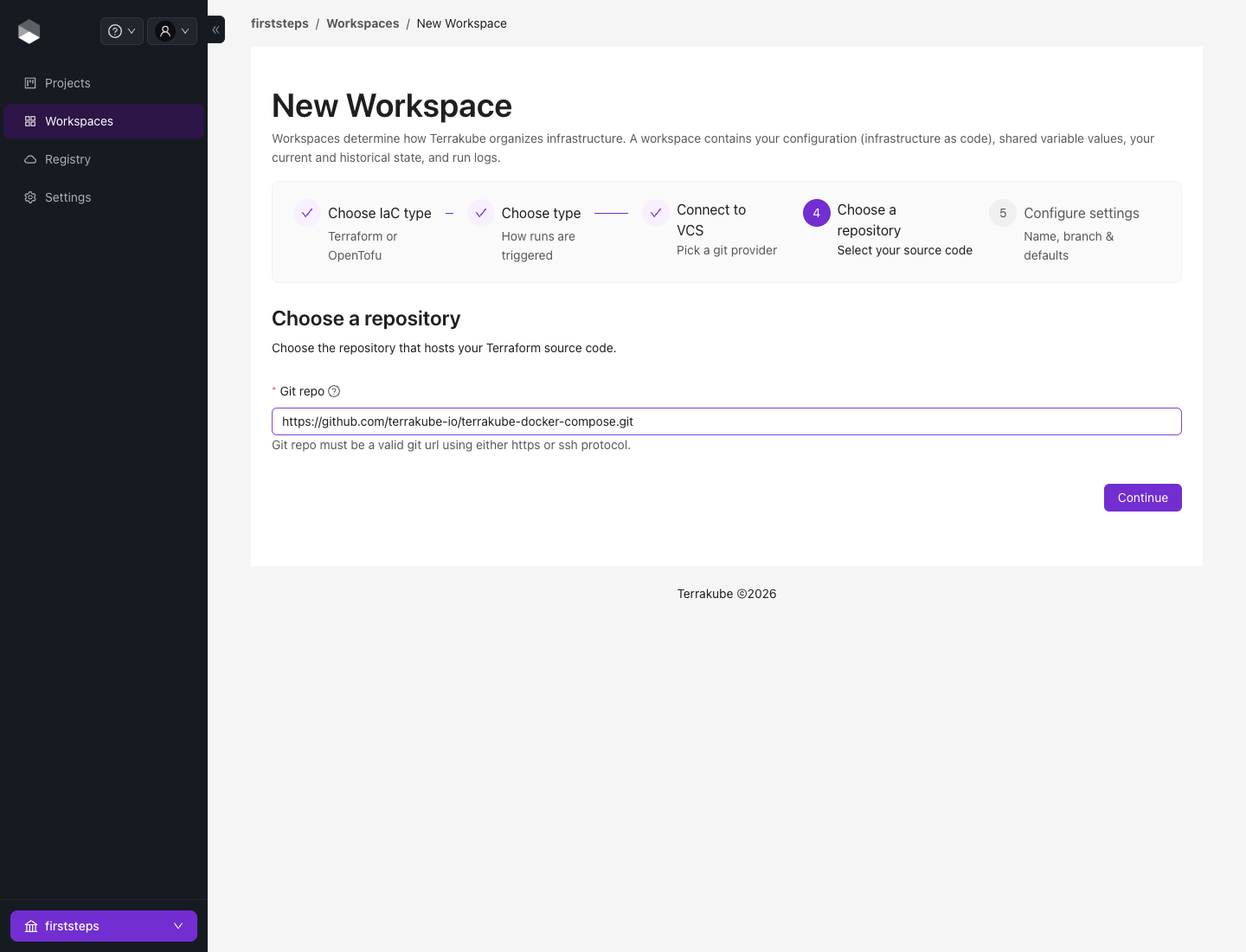
4. **Choose a repository:** paste `https://github.com/terrakube-io/terrakube-docker-compose.git`.
Entering the Git repository URL
5. **Configure settings:** keep the workspace name or choose your own, set the **VCS branch** to `main` (it is required), keep the working directory `/`, and set **Default Template** to *Plan and Apply*. Then create the workspace.
Workspace settings
The new workspace has no runs yet. See [Creating Workspaces](/2.34.0/run-terraform/workspaces/creating-workspaces.md) for the CLI-driven and API-driven workflows.
### 4. Start a run
Click **Run now**, keep the template **Plan and apply**, and click **Start run**.
The Start a run dialog
The run opens. Terrakube clones the repository, runs `terraform init` and `plan`, then applies. The **Structured** view shows each resource Terraform will change; **Console** shows the raw output.
A completed run
The first run downloads Terraform and the providers, so it takes a little longer than later runs. With the *Plan and apply* template the apply happens straight after the plan; use a template with an approval step when you want a person to review the plan first, as described in [Starting a Run](/2.34.0/run-terraform/workspaces/starting-a-run.md#approve-or-discard-a-run).
### 5. See the result
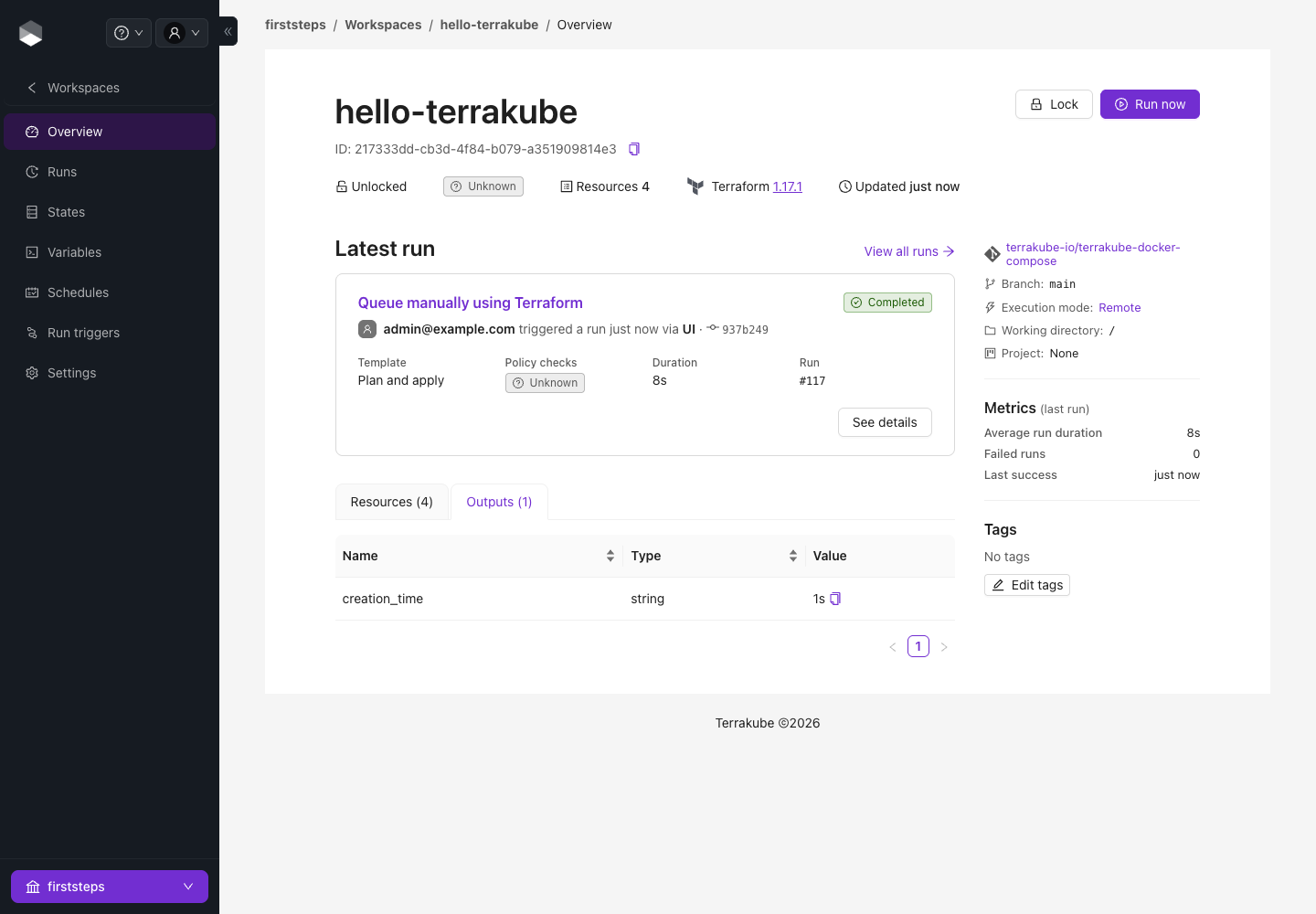
Back on the workspace **Overview** you can see the run, the resources Terraform created, and the outputs. **States** lists every version of the state, each linked to the run that produced it.
The workspace overview
### Where to go next
| I want to... | Go to |
| ----------------------------------------------- | ------------------------------------------------------------------------------------------------------------------------------------------- |
| Pass values to Terraform | [Variables](/2.34.0/run-terraform/workspaces/variables.md), [Global Variables](/2.34.0/set-up/organizations/global-variables.md) |
| Run automatically on every push or pull request | [VCS Providers](/2.34.0/set-up/vcs-providers.md), [Webhooks](/2.34.0/run-terraform/workspaces/webhooks.md) |
| Require approval, or enforce policy | [Starting a Run](/2.34.0/run-terraform/workspaces/starting-a-run.md), [Policy Governance](/2.34.0/govern/policy-enforcement-opa.md) |
| Use my own cloud account safely | [Dynamic Provider Credentials](/2.34.0/run-terraform/workspaces/dynamic-provider-credentials.md) |
| Run from the Terraform CLI or CI | [CLI-driven Workflow](/2.34.0/run-terraform/workspaces/cli-driven-workflow.md), [CI/CD Integration](/2.34.0/integrate/ci-cd-integration.md) |
| Chain workspaces | [Run Triggers](/2.34.0/run-terraform/workspaces/run-triggers.md) |
| Understand what just happened | [Run Lifecycle](/2.34.0/how-it-works/run-lifecycle.md) |
---
# Agent Instructions
This documentation is published with GitBook. GitBook is the documentation platform designed so that both humans and AI agents can read, navigate, and reason over technical content effectively. Learn more at gitbook.com.
## Querying This Documentation
If you need additional information that is not directly available in this page, you can query the documentation by asking a question.
Perform an HTTP GET request on the following URL with the `ask` and `goal` query parameters:
```
GET https://docs.terrakube.io/2.34.0/getting-started/first-run.md?ask=&goal=
```
`ask` is the immediate question: it should be specific, self-contained, and written in natural language.
`goal` is what the user is ultimately trying to achieve, the reason they need the answer. Sharing it helps GitBook give you a better, more relevant answer. A goal is most helpful when it describes the outcome the user wants rather than restating the question. For example, with `ask=how do I create an API token`, a goal like `automate deployments from our CI pipeline` lets GitBook tailor the answer to that use case.
The response will contain a direct answer to the question and relevant excerpts and sources from the documentation.
Use this mechanism when the answer is not explicitly present in the current page, you need clarification or additional context, or you want to retrieve related documentation sections.