For the complete documentation index, see llms.txt. This page is also available as Markdown.

Team Management

In Terrakube you can define user permissions inside your organization using teams.

Creating a Team

Once you are in the desired organization, click the Settings button and then in the left menu select the Teams option.

Click the Create team button

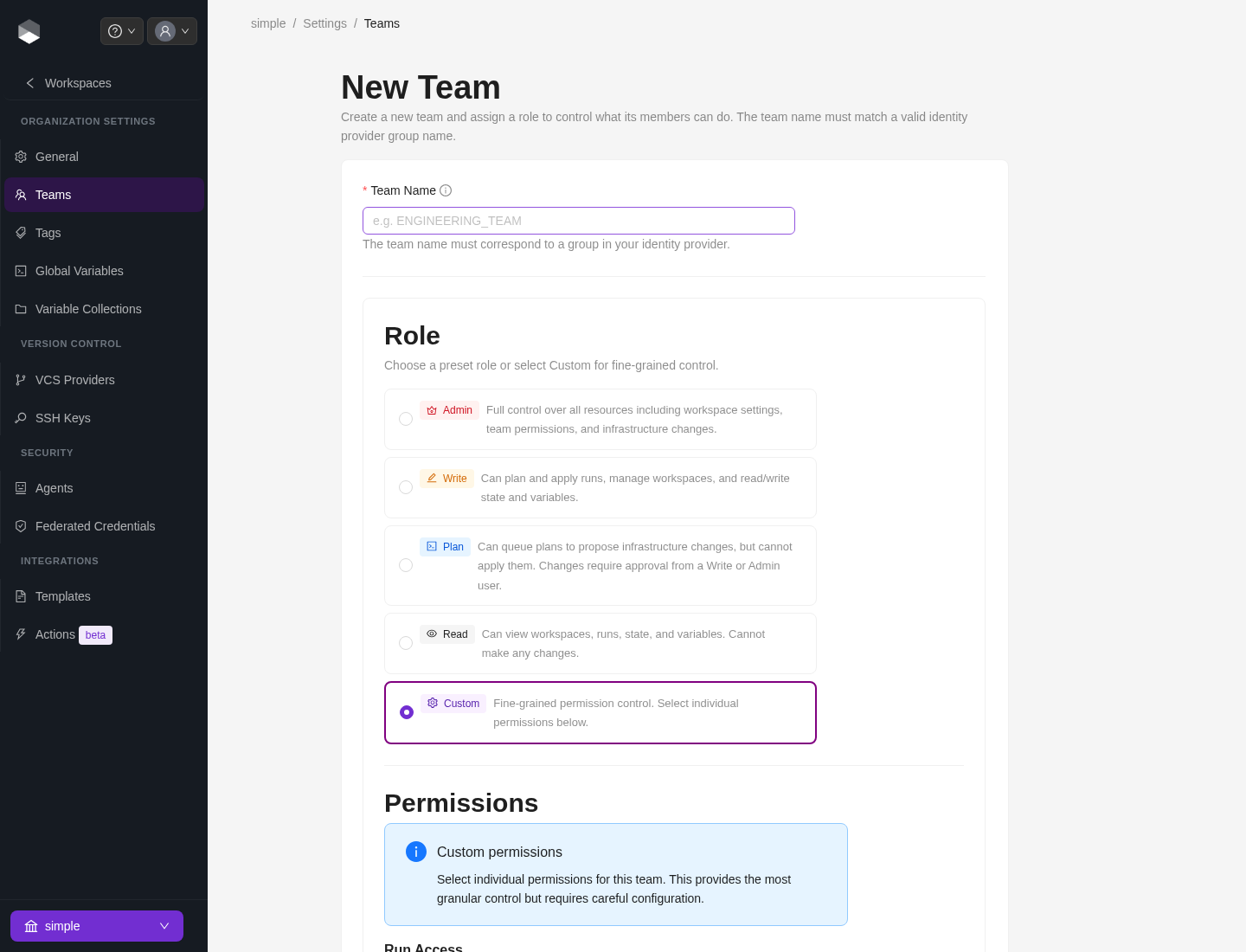
In the popup, provide the team name, then choose either a preset role or Custom permissions.

Field
Description

Name

Must be a valid group based on the Dex connector you are using to manage users and groups.

For example if you are using Azure Active Directory, you must use a valid Active Directory Group like TERRAKUBE_ADMIN, or if you are using Github the format should be MyGithubOrg:TERRAKUBE_ADMIN

Roles

Role
Description

Admin

Full control over all resources in the organization

Write

Can plan, apply runs, and manage workspaces/state

Plan

Can queue plans but cannot apply changes

Read

Read-only access to workspaces and runs

Custom

Fine-grained permissions, picked individually below

A team's role only sets its baseline at the organization level. Additional access can always be layered on top per project or per workspace — permissions are additive across organization, project, and workspace, never restrictive.

Custom permissions

When Custom is selected, pick individual permissions:

Permission
Description

Plan Runs

Allow members to queue plan runs

Apply Runs

Allow members to approve/apply runs

Manage Workspaces

Allow members to create and administrate all workspaces within the organization

Manage Modules

Allow members to create and administrate all modules within the organization

Manage Providers

Allow members to create and administrate all providers within the organization

Manage Templates

Allow members to create and administrate all templates within the organization

Allow members to create and administrate variable collections within the organization

Manage State

Allow members to see the terraform/tofu state from the UI

Manage VCS Settings & SSH

Allow members to create and administrate all VCS Providers and SSH keys within the organization

New Team form with the Admin/Write/Plan/Read/Custom role selector
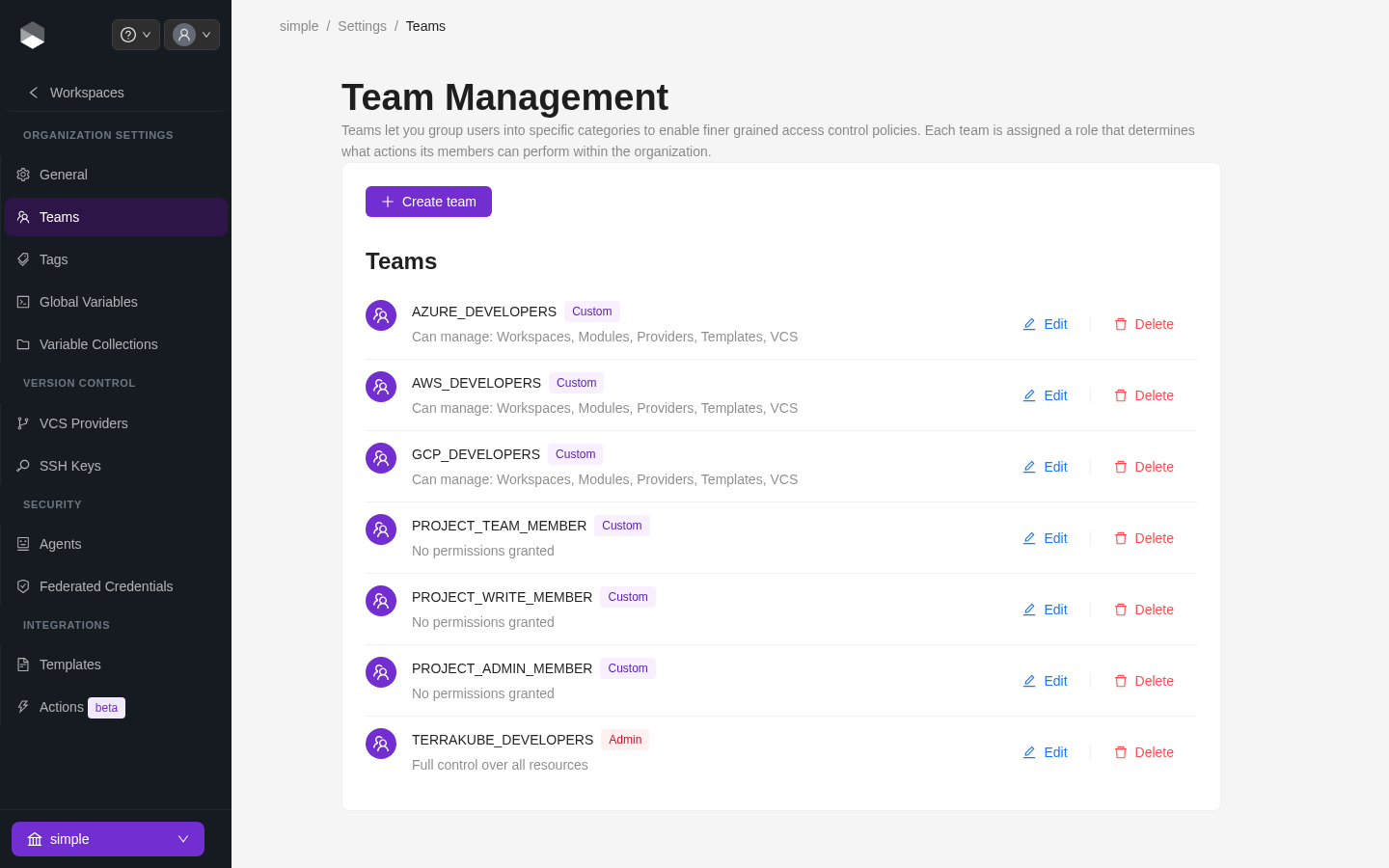
Finally click the Create team button and the team will be created

Teams list, showing preset (Admin) and Custom roles

Now all the users inside the team will be able to manage the specific resources within the organization based on the permissions you grantted.

Edit a Team

Click the Edit button next to the team you want to edit

Change the permissions you need and click the Save team button

Delete a Team

Click the Delete button next to the team you want to delete, and then click the Yes button to confirm the deletion. Please take in consideration the deletion is irreversible

Last updated

Was this helpful?