# Team Management

In Terrakube you can define user permissions inside your organization using teams.

### Creating a Team

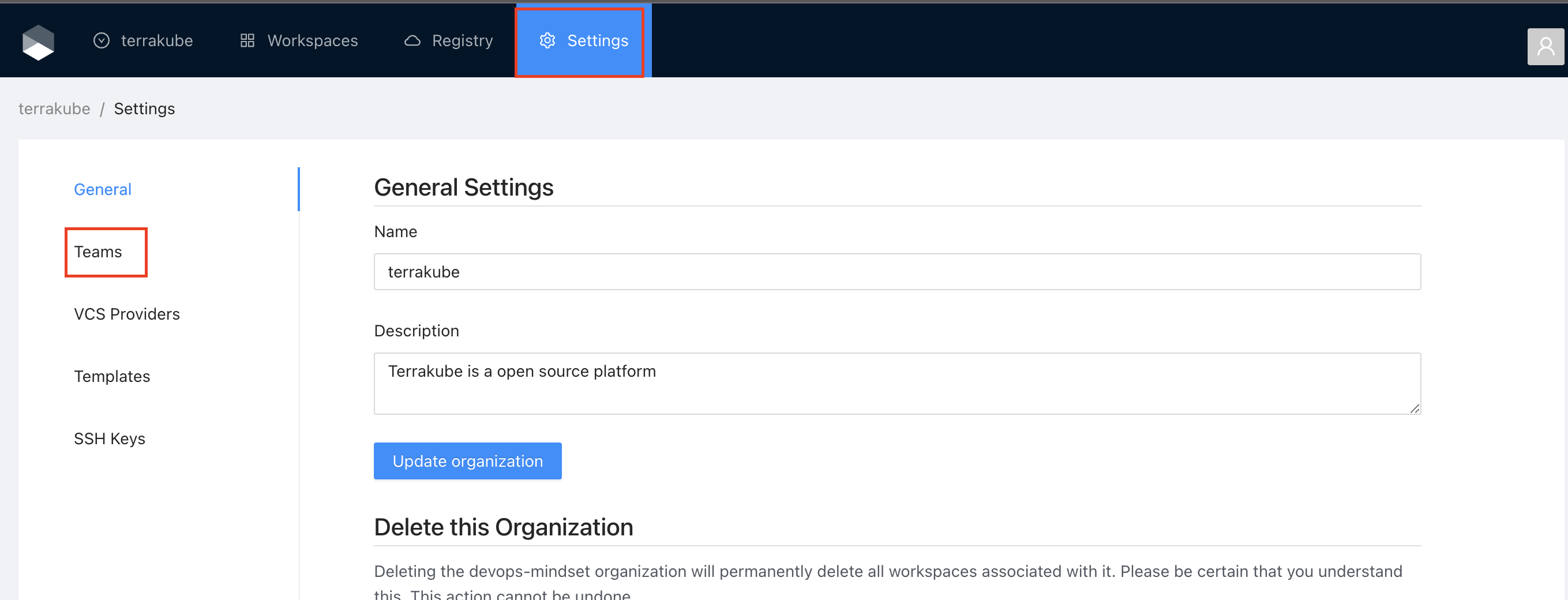
Once you are in the desired organization, click the **Settings** button and then in the left menu select the **Teams** option.

<figure><img src="https://content.gitbook.com/content/z07DOLykiAoqb1CSQVQz/blobs/S28YC7fxAOkv959zXT88/image.png" alt=""><figcaption></figcaption></figure>

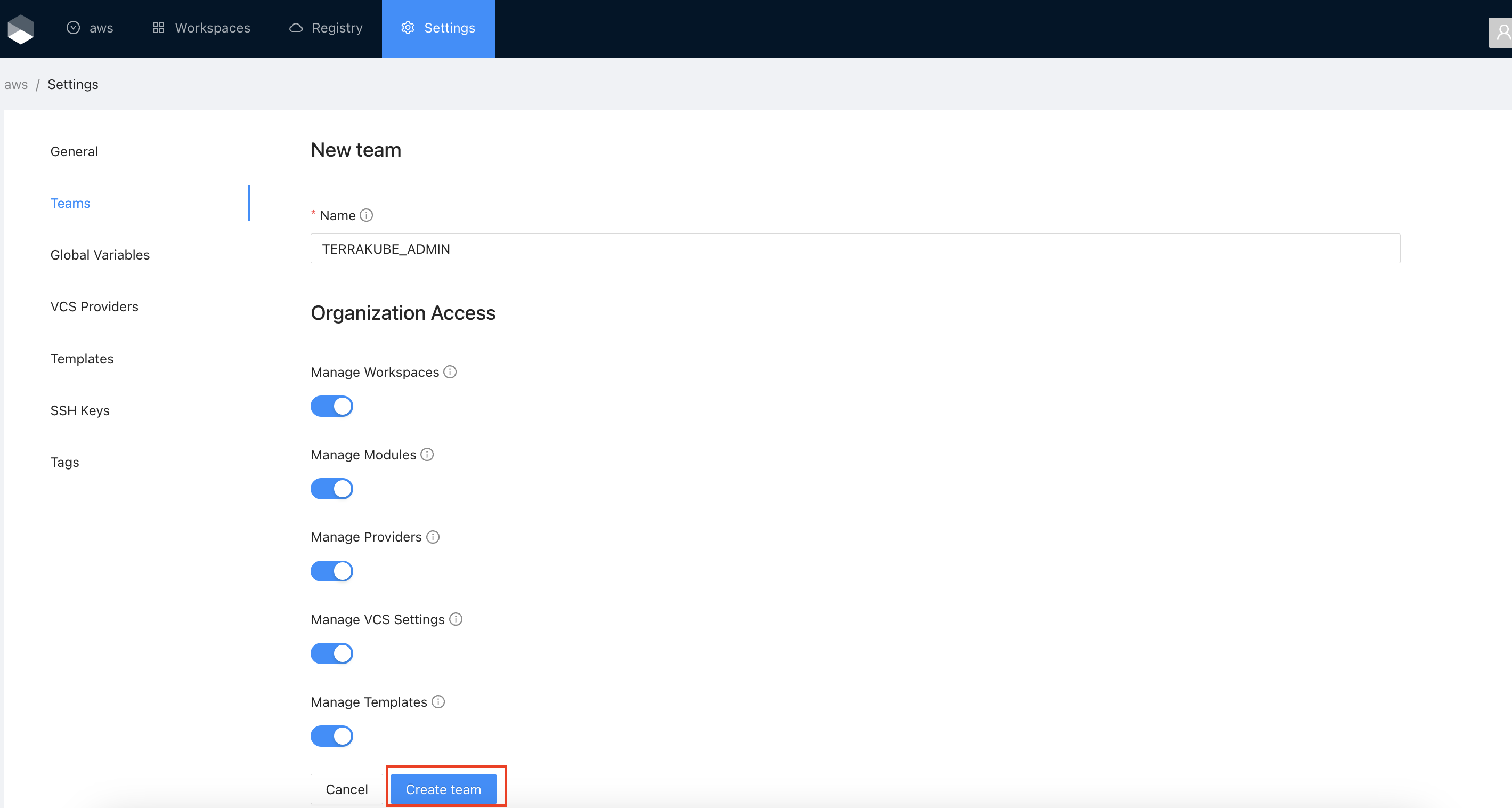
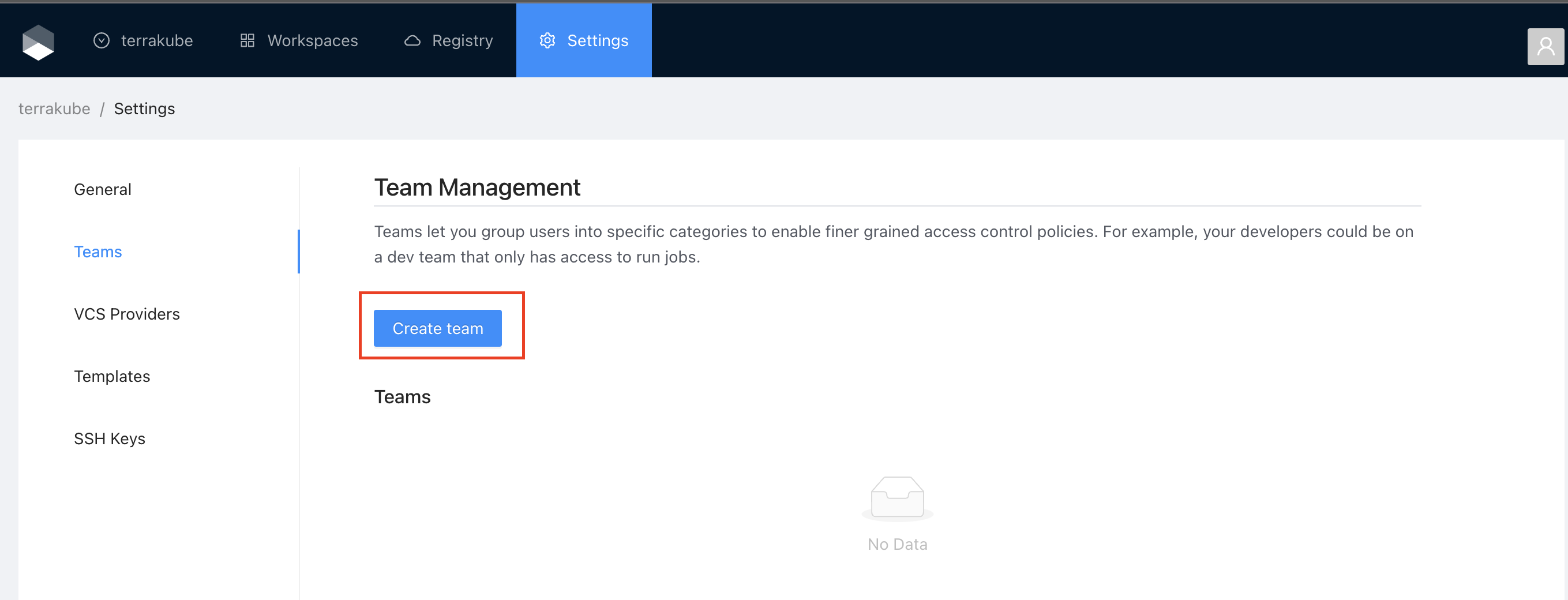
Click the **Create team** button

<figure><img src="https://content.gitbook.com/content/z07DOLykiAoqb1CSQVQz/blobs/U1vx0VVmbRufRAGEg8cX/image.png" alt=""><figcaption></figcaption></figure>

In the popup, provide the team name and the permissions assigned to the team. Use the below table as reference:

<table><thead><tr><th width="341">Field</th><th>Description</th></tr></thead><tbody><tr><td>Name</td><td><p>Must be a valid group based on the Dex connector you are using to manage users and groups.</p><p>For example if you are using Azure Active Directory, you must use a valid Active Directory Group like TERRAKUBE_ADMIN, or if you are using Github the format should be MyGithubOrg:TERRAKUBE_ADMIN</p></td></tr><tr><td>Manage Workspaces</td><td>Allow members to create and administrate all workspaces within the organization</td></tr><tr><td>Manage Modules</td><td>Allow members to create and administrate all modules within the organization</td></tr><tr><td>Manage Providers</td><td>Allow members to create and administrate all providers within the organization</td></tr><tr><td>Manage <a href="templates">Templates</a></td><td>Allow members to create and administrate all <a href="templates">templates</a> within the organization</td></tr><tr><td>Manage <a href="../vcs-providers">VCS Settings</a></td><td>Allow members to create and administrate all <a href="../vcs-providers">VCS Providers</a> within the organization</td></tr></tbody></table>

<figure><img src="https://content.gitbook.com/content/z07DOLykiAoqb1CSQVQz/blobs/KNNYSxyIAYYustgIcsSL/image.png" alt=""><figcaption></figcaption></figure>

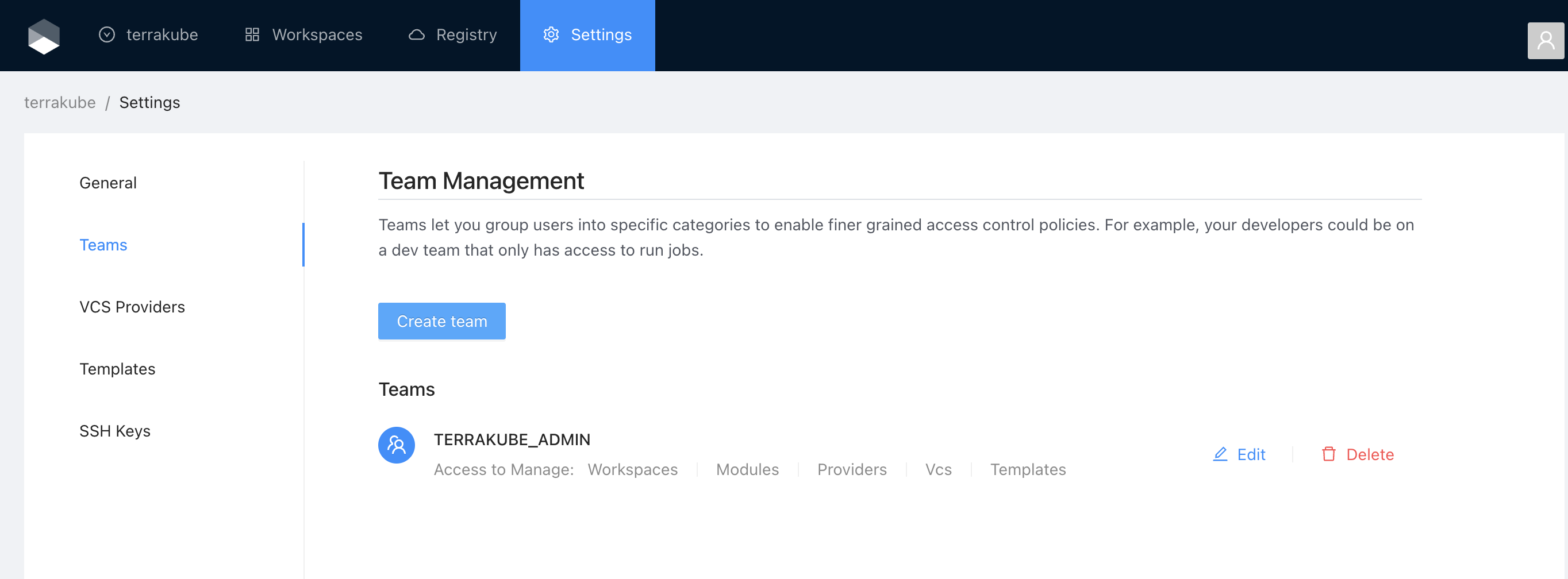
Finally click the **Create team** button and the team will be created

<figure><img src="https://content.gitbook.com/content/z07DOLykiAoqb1CSQVQz/blobs/5cXDRUqcLm7l4B4N9Toa/image.png" alt=""><figcaption></figcaption></figure>

Now all the users inside the team will be able to manage the specific resources within the organization based on the permissions you grantted.

### Edit a Team

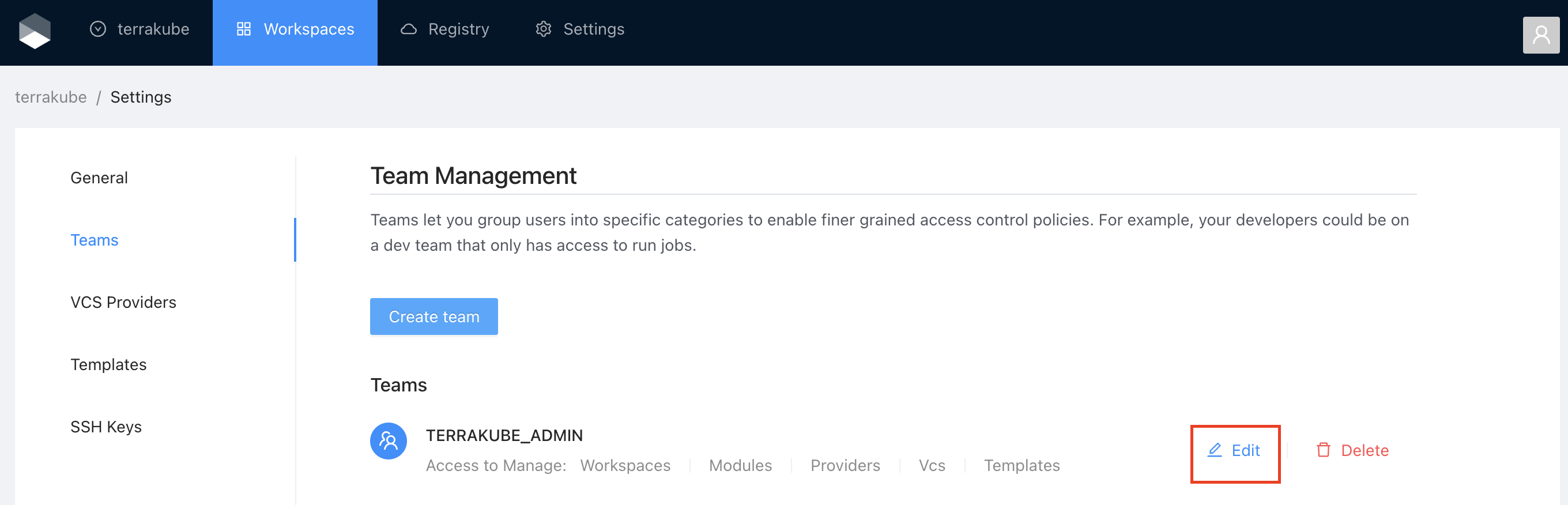
Click the **Edit** button next to the team you want to edit

<figure><img src="https://content.gitbook.com/content/z07DOLykiAoqb1CSQVQz/blobs/9OR3mFVsrKpaDV19uA7y/image.png" alt=""><figcaption></figcaption></figure>

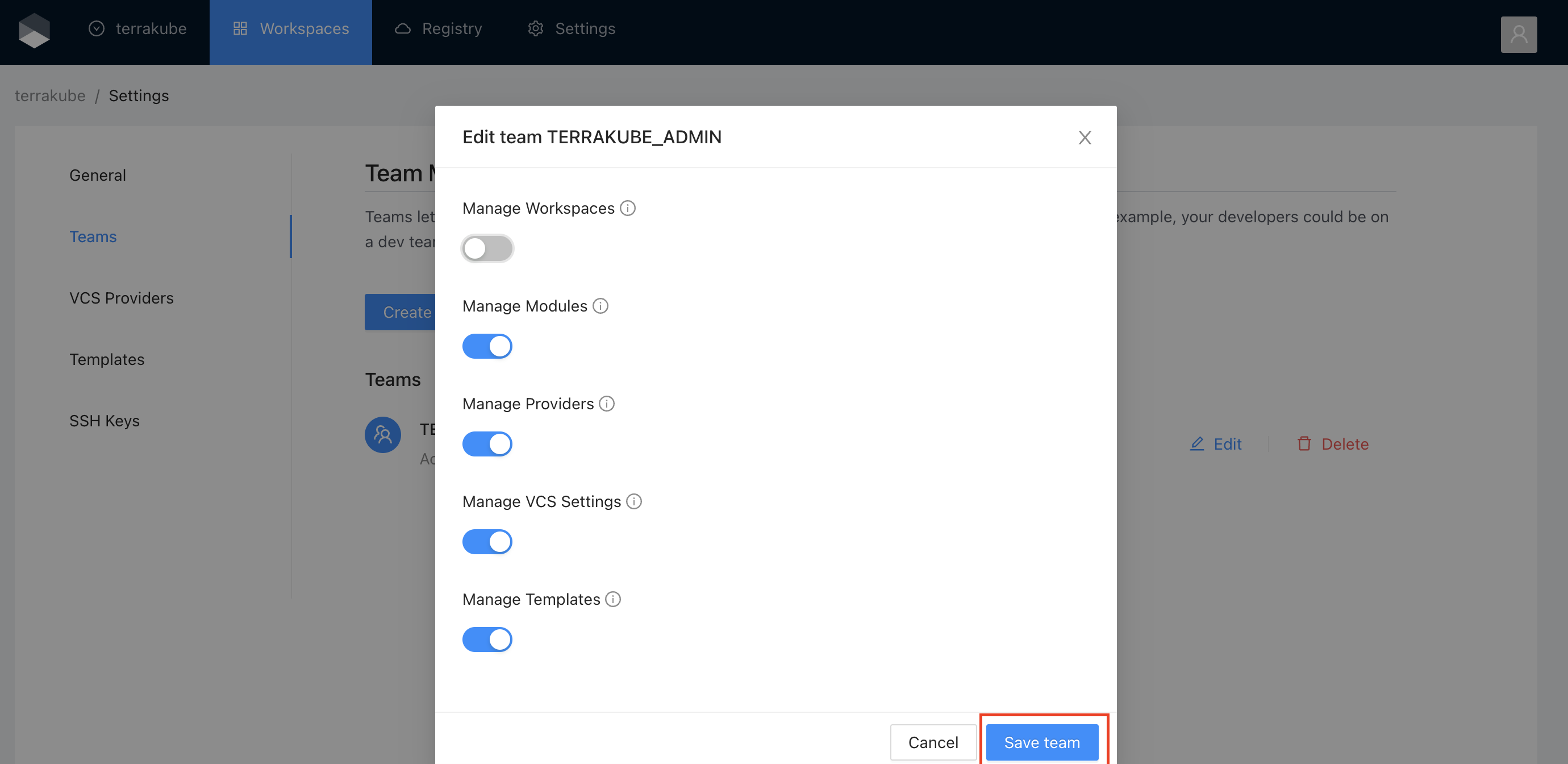
Change the permissions you need and click the **Save team** button

<figure><img src="https://content.gitbook.com/content/z07DOLykiAoqb1CSQVQz/blobs/STGul6cBk6SoQchruCNA/image.png" alt=""><figcaption></figcaption></figure>

### Delete a Team

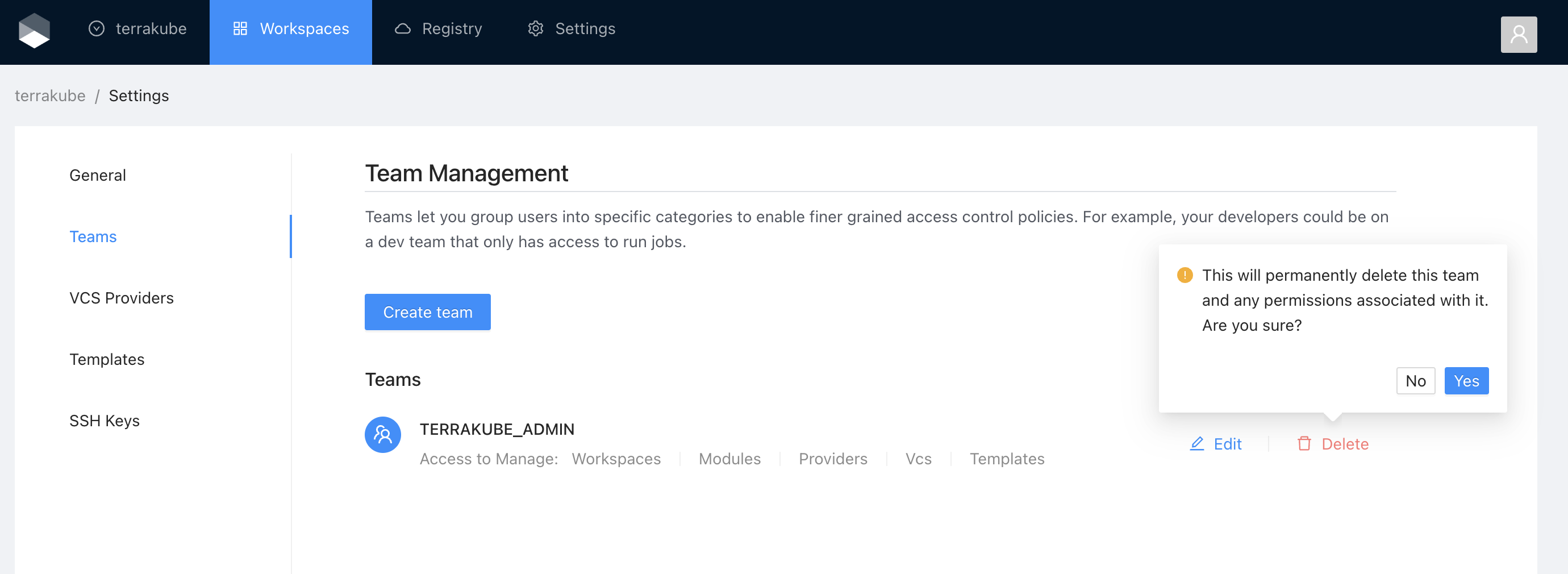
Click the **Delete** button next to the team you want to delete, and then click the Yes button to confirm the deletion. Please take in consideration the deletion is irreversible

<figure><img src="https://content.gitbook.com/content/z07DOLykiAoqb1CSQVQz/blobs/uaHO6s9kgNEtKOM9fahR/image.png" alt=""><figcaption></figcaption></figure>